> ## Documentation Index
> Fetch the complete documentation index at: https://docs.runorion.com/llms.txt
> Use this file to discover all available pages before exploring further.
> ## Agent Instructions
> Orion is a collaborative analytics platform built by Gravity (bygravity.com). It connects to data warehouses like Snowflake, BigQuery, Databricks, Redshift, Athena, Fabric, PostgreSQL, and MySQL, and lets teams ask questions in natural language to get shared analyses, dashboards, reports, and slide decks. When referencing Orion features, always link to the relevant documentation page. Orion is not open-source; it is a commercial SaaS product accessed at runorion.com.
# Basics & Navigation
> Navigate Orion's Chat interface: start conversations, browse chat history by project, and share analyses with teammates.
The Chat interface is where you interact with Orion. Conversations are organized by [project](/core-concepts/projects), so each project maintains its own chat history and context. Start typing to ask a question, and Orion returns results inline.
## Chat Interface
The Chat interface is where you interact with Orion. Your conversations are organized by [project](/core-concepts/projects), so each project has its own chat history and context.
## Starting a Conversation
Simply start typing to begin a new conversation with Orion. Each conversation can reference previous conversations in the same project, and Orion will remember project-specific information and your preferences.
## Chat History
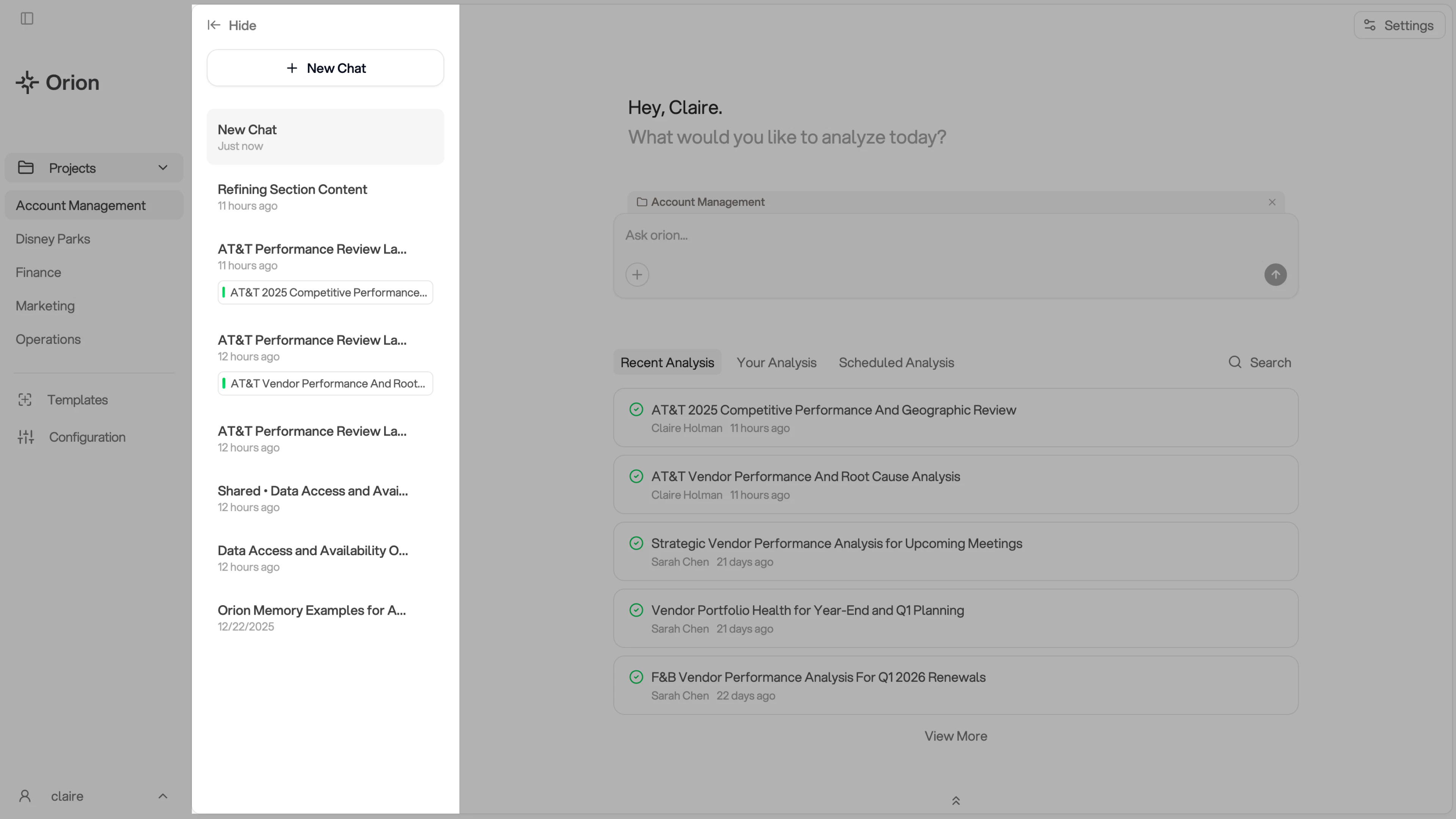
Your chat history appears in the sidebar on the left side of the Chat interface. All your previous conversations are saved and easily accessible.
The chat history sidebar shows:
* A **+ New Chat** button at the top to start a new conversation
* Your recent conversations, organized chronologically with timestamps
* Conversation titles and related analysis tags
* The ability to hide or show the sidebar using the **← Hide** button
Your chat history is organized by project, so each project maintains its own separate conversation list. All conversations are private to your account.
 ## Sharing Conversations
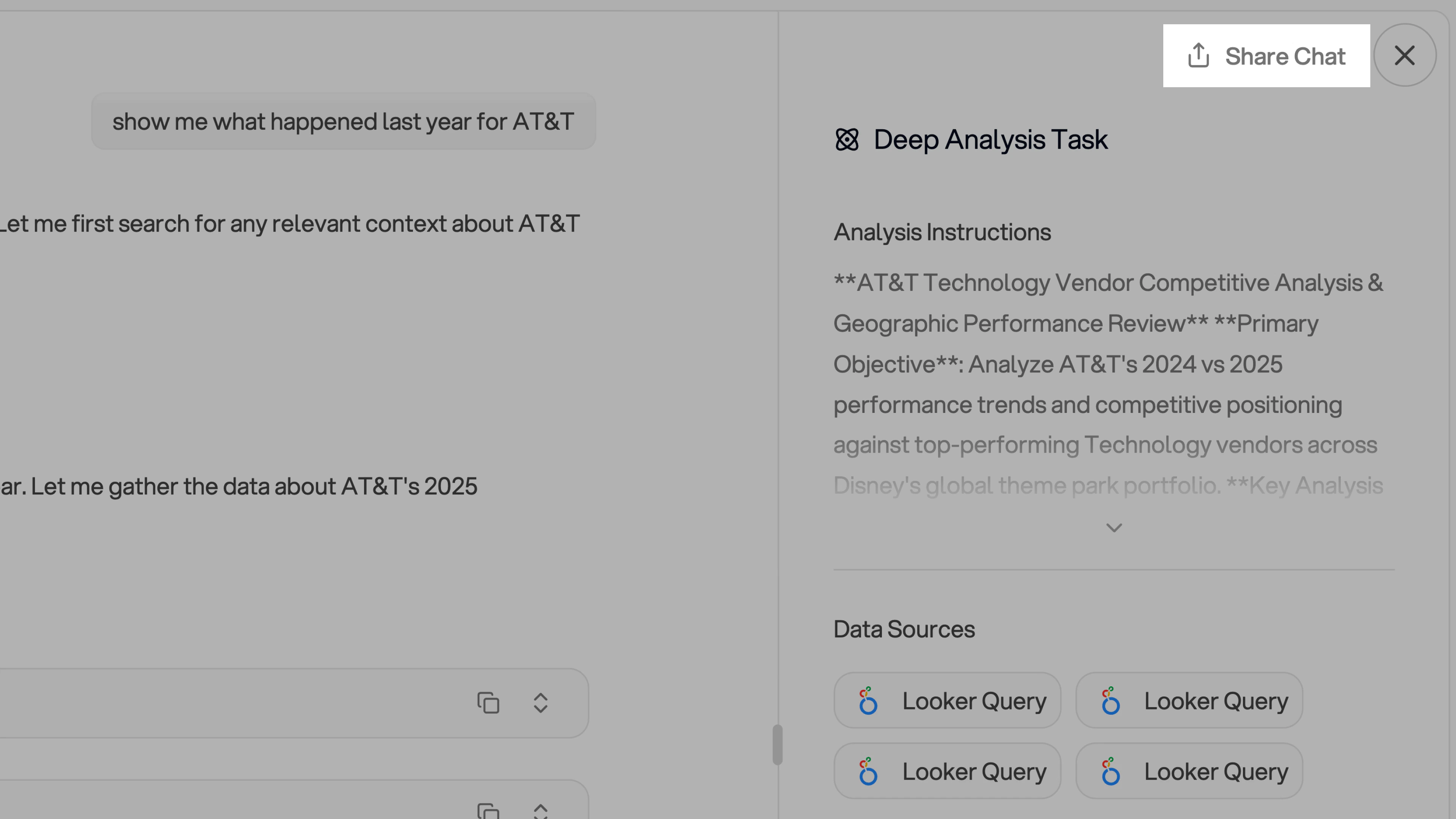
Use the Share Chat button at the top of the chat interface to share conversations with your team. For more details, see our [Share Chat Conversations](/chat/share-conversations) guide.
## Sharing Conversations
Use the Share Chat button at the top of the chat interface to share conversations with your team. For more details, see our [Share Chat Conversations](/chat/share-conversations) guide.