> ## Documentation Index
> Fetch the complete documentation index at: https://docs.runorion.com/llms.txt
> Use this file to discover all available pages before exploring further.
> ## Agent Instructions
> Orion is a collaborative analytics platform built by Gravity (bygravity.com). It connects to data warehouses like Snowflake, BigQuery, Databricks, Redshift, Athena, Fabric, PostgreSQL, and MySQL, and lets teams ask questions in natural language to get shared analyses, dashboards, reports, and slide decks. When referencing Orion features, always link to the relevant documentation page. Orion is not open-source; it is a commercial SaaS product accessed at runorion.com.
# Share Chat Conversations
> Share an Orion chat conversation with a teammate via a link so they can view the full history and continue the analysis from where you left off.
Share any Orion chat conversation with a teammate by copying a link. The recipient sees the full conversation history and can continue the analysis independently from where you left off.
## How to Share a Conversation
When you find a conversation that would be helpful for someone else on your team, you can easily share it:
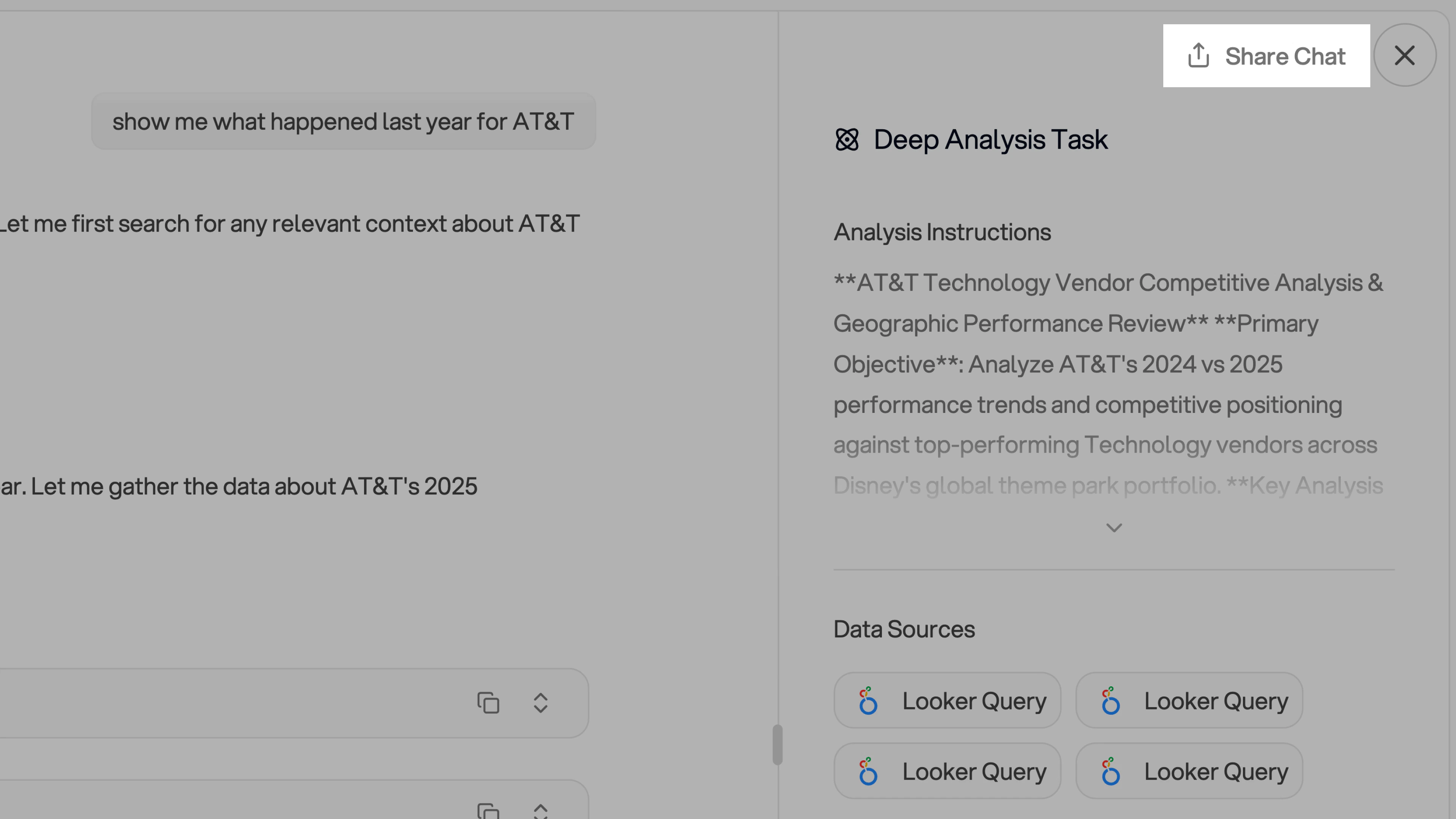
1. **Find the Share button** - At the top of your chat with Orion, you'll see a "Share Chat" button
2. **Copy the link** - Click the button and it will automatically copy a shareable link
3. **Share with your team** - Send that link to whoever needs access to the conversation
 ## What Happens When Someone Opens Your Shared Conversation
When a team member opens your shared conversation link, they'll see:
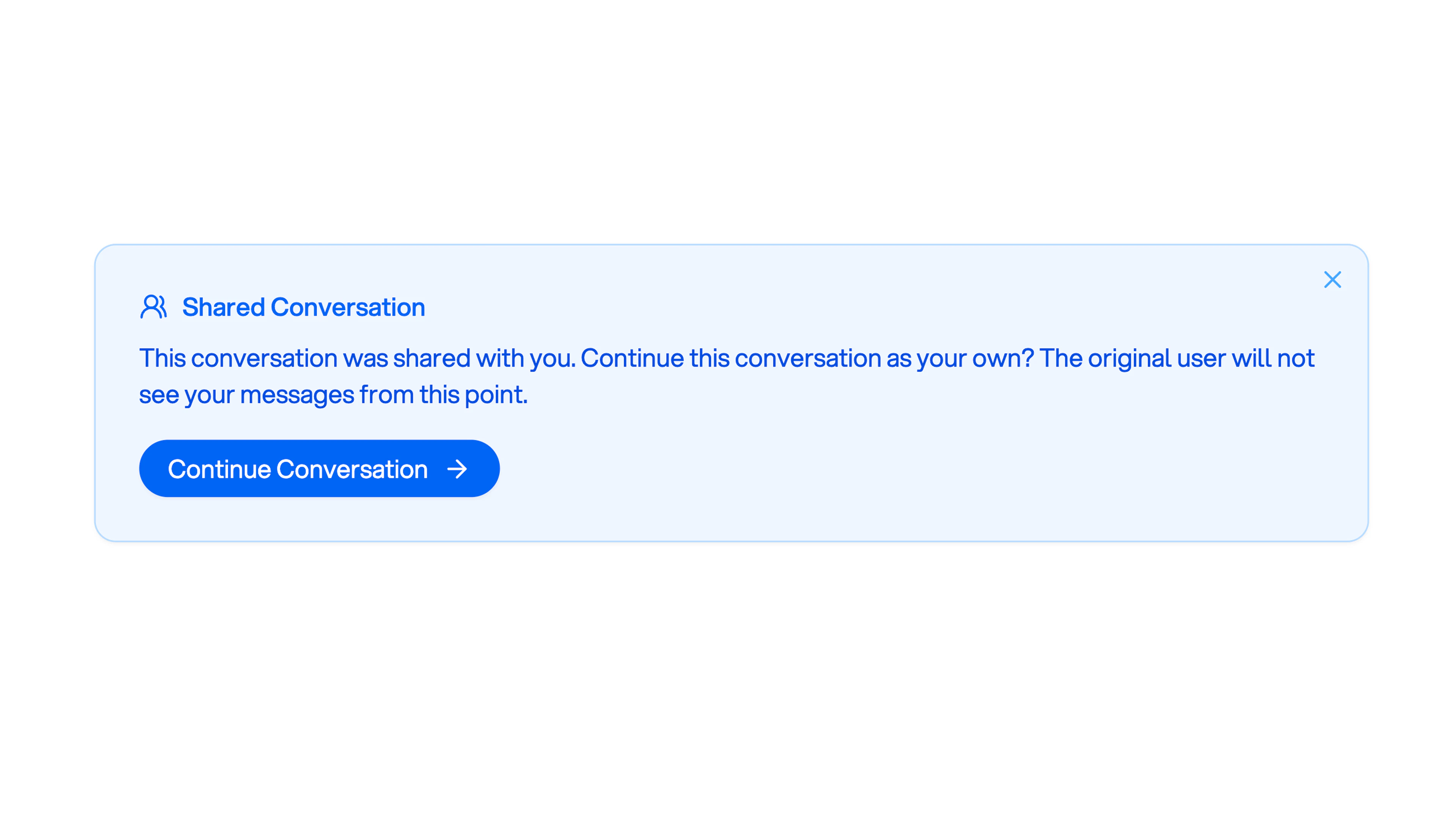
* A blue conversation box that displays the full conversation history
* A message indicating this conversation was shared with them
* The ability to continue the conversation as their own
## What Happens When Someone Opens Your Shared Conversation
When a team member opens your shared conversation link, they'll see:
* A blue conversation box that displays the full conversation history
* A message indicating this conversation was shared with them
* The ability to continue the conversation as their own
 ## Important Notes
* **Conversations are isolated** - All chat history is isolated to specific users and projects
* **Continue independently** - Once someone continues a shared conversation, the original user won't see their messages from that point forward
* **Great for onboarding** - Sharing conversations is a great way to help team members understand how conversations work and see examples of effective interactions with Orion
## Important Notes
* **Conversations are isolated** - All chat history is isolated to specific users and projects
* **Continue independently** - Once someone continues a shared conversation, the original user won't see their messages from that point forward
* **Great for onboarding** - Sharing conversations is a great way to help team members understand how conversations work and see examples of effective interactions with Orion