> ## Documentation Index
> Fetch the complete documentation index at: https://docs.runorion.com/llms.txt
> Use this file to discover all available pages before exploring further.
> ## Agent Instructions
> Orion is a collaborative analytics platform built by Gravity (bygravity.com). It connects to data warehouses like Snowflake, BigQuery, Databricks, Redshift, Athena, Fabric, PostgreSQL, and MySQL, and lets teams ask questions in natural language to get shared analyses, dashboards, reports, and slide decks. When referencing Orion features, always link to the relevant documentation page. Orion is not open-source; it is a commercial SaaS product accessed at runorion.com.
# Data Sources Management
> Connect data warehouses and platforms — BigQuery, Snowflake, Databricks, Redshift, Athena, Fabric, PostgreSQL, MySQL, Delta Lake, Looker, Shopify, and Google Analytics — and manage them across your Orion tenant.
Orion supports BigQuery, Snowflake, Databricks, Redshift, Amazon Athena, Microsoft Fabric, PostgreSQL, MySQL, Delta Lake, Looker, Shopify, Google Analytics, and dbt. Administrators connect data sources once at the tenant level, and they become available across all projects.
## Accessing Data Sources
1. Go to **Configuration** in the left-hand navigation menu
2. Select the **Data Sources** tab
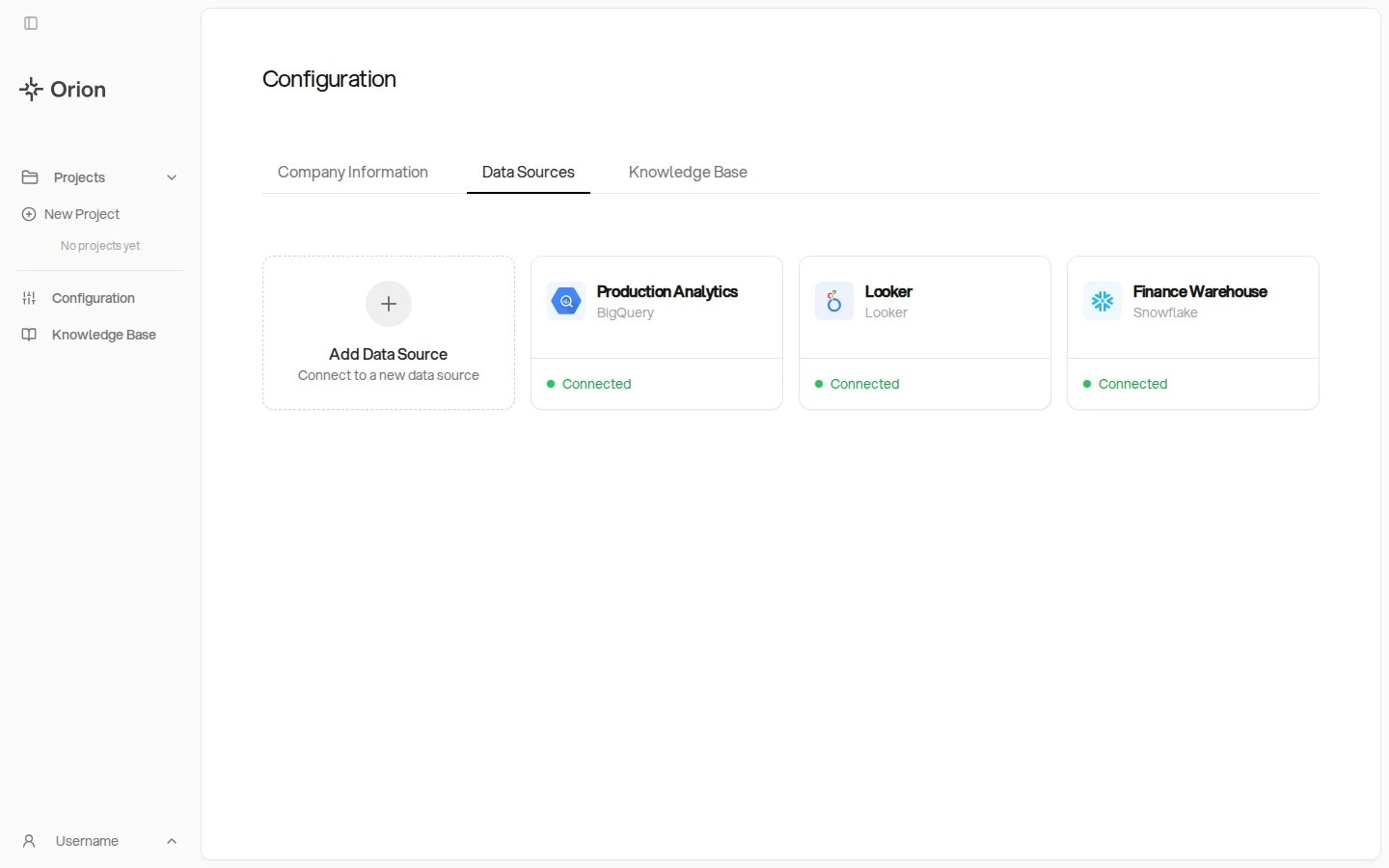 Once you've set up access on the source side (service accounts, API keys), this page is where you enter those connection details.
## How Data Sources Work
Data sources are configured at the tenant level and made globally available:
* **Tenant-level setup** - Administrators connect data sources once in Configuration
* **Tenant-wide by default** - Connected data sources are available across the tenant, subject to each user's role and group membership
* **Role limits** - What a user can do with a data source depends on their [role](/configuration/groups#roles-at-a-glance): Admins manage connections, Analysts query them, and Viewers query only where a project owner allows it
* **Group scoping** - [Groups](/configuration/groups) limit which data sources their members can use
* **Project-level selection** - Each [project](/core-concepts/projects) can choose which data sources to use
* **Multiple data sources** - A project can connect to multiple data sources simultaneously
## Supported Data Sources
Orion currently supports connections to:
* **BigQuery** - Google's data warehouse platform
* **Snowflake** - Cloud data platform
* **Databricks** - Lakehouse data platform
* **Redshift** - Amazon's cloud data warehouse
* **Amazon Athena** - Serverless SQL over data in S3, via the AWS Glue catalog
* **Microsoft Fabric** - Microsoft's analytics warehouse
* **PostgreSQL** - Open-source relational database
* **MySQL** - Open-source relational database
* **Delta Lake** - Delta tables on cloud storage (ADLS Gen2 or GCS)
* **Looker** - Dashboards, Looks, and LookML business logic
* **Shopify** - E-commerce platform
* **Google Analytics** - Web analytics platform
* **dbt** - Model metadata and lineage, used to enrich a warehouse connection
For the credentials, grants, and step-by-step setup each source needs, see [Connecting Data Sources](/connecting-data-sources).
Beyond these tenant-level connections, users can also upload Excel files in chat and query them as ad hoc data sources for a single analysis. See [File Uploads](/chat/file-uploads).
Setup guides for **Shopify** and **Google Analytics** are coming soon. In the
meantime, your Gravity contact can provide documentation for connecting these
sources.
## Adding a Data Source
As an administrator, you can:
1. Click the **Add Data Source** tile
2. Select the type of data source from the supported list
3. Provide the necessary connection credentials and configuration
4. Save the connection
Once you've set up access on the source side (service accounts, API keys), this page is where you enter those connection details.
## How Data Sources Work
Data sources are configured at the tenant level and made globally available:
* **Tenant-level setup** - Administrators connect data sources once in Configuration
* **Tenant-wide by default** - Connected data sources are available across the tenant, subject to each user's role and group membership
* **Role limits** - What a user can do with a data source depends on their [role](/configuration/groups#roles-at-a-glance): Admins manage connections, Analysts query them, and Viewers query only where a project owner allows it
* **Group scoping** - [Groups](/configuration/groups) limit which data sources their members can use
* **Project-level selection** - Each [project](/core-concepts/projects) can choose which data sources to use
* **Multiple data sources** - A project can connect to multiple data sources simultaneously
## Supported Data Sources
Orion currently supports connections to:
* **BigQuery** - Google's data warehouse platform
* **Snowflake** - Cloud data platform
* **Databricks** - Lakehouse data platform
* **Redshift** - Amazon's cloud data warehouse
* **Amazon Athena** - Serverless SQL over data in S3, via the AWS Glue catalog
* **Microsoft Fabric** - Microsoft's analytics warehouse
* **PostgreSQL** - Open-source relational database
* **MySQL** - Open-source relational database
* **Delta Lake** - Delta tables on cloud storage (ADLS Gen2 or GCS)
* **Looker** - Dashboards, Looks, and LookML business logic
* **Shopify** - E-commerce platform
* **Google Analytics** - Web analytics platform
* **dbt** - Model metadata and lineage, used to enrich a warehouse connection
For the credentials, grants, and step-by-step setup each source needs, see [Connecting Data Sources](/connecting-data-sources).
Beyond these tenant-level connections, users can also upload Excel files in chat and query them as ad hoc data sources for a single analysis. See [File Uploads](/chat/file-uploads).
Setup guides for **Shopify** and **Google Analytics** are coming soon. In the
meantime, your Gravity contact can provide documentation for connecting these
sources.
## Adding a Data Source
As an administrator, you can:
1. Click the **Add Data Source** tile
2. Select the type of data source from the supported list
3. Provide the necessary connection credentials and configuration
4. Save the connection
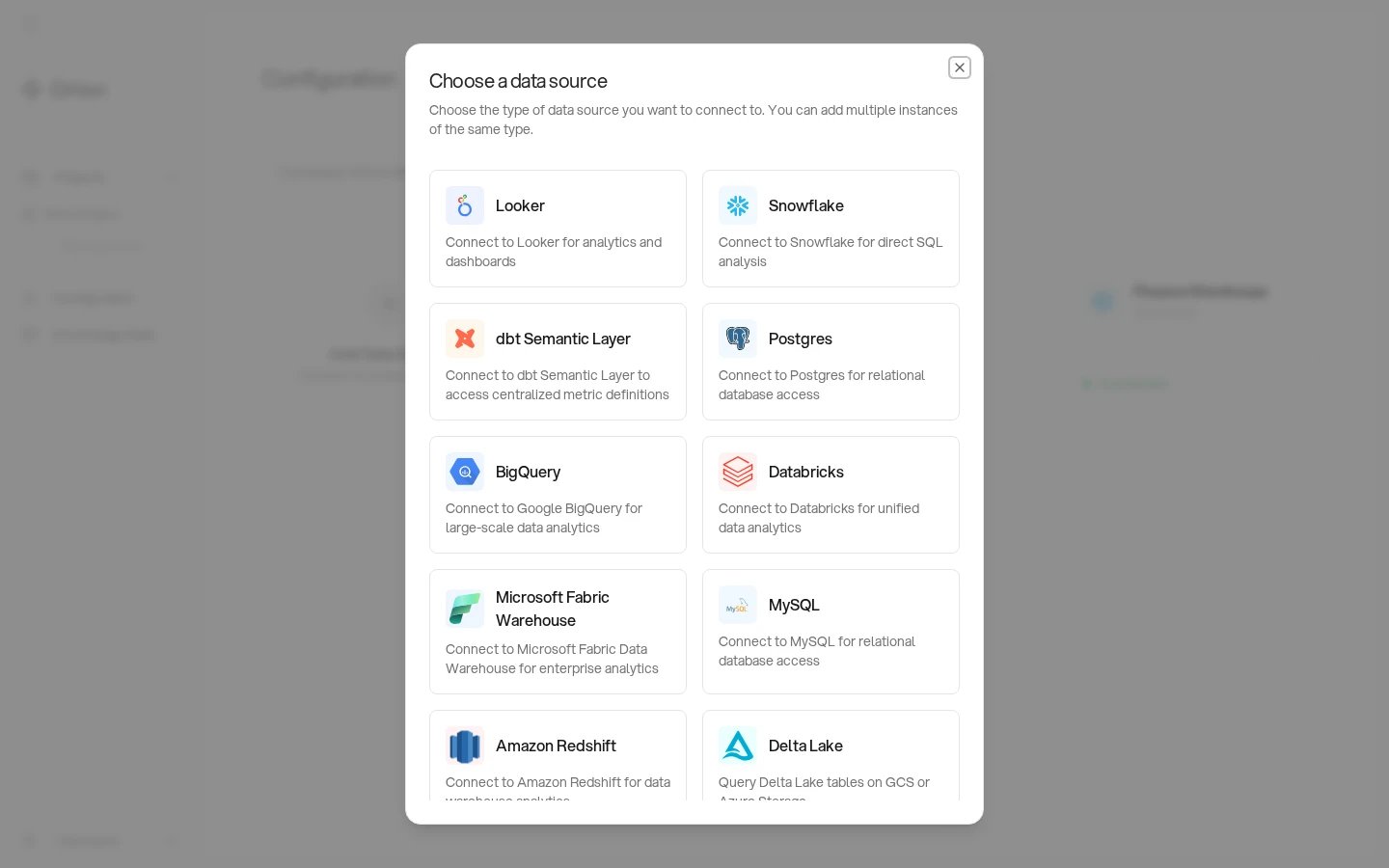 The data source is now available for all users to select when setting up projects.
Each data source has its own access requirements. See [Connecting Data
Sources](/connecting-data-sources) for the credentials, grants, and network
access each one needs.
## Managing Data Sources
Administrators can:
* **Update credentials** - Change connection details if needed
* **Monitor status** - Check the health of data source connections
* **Remove data sources** - Disconnect data sources from the tenant
* **View usage** - See which projects are using each data source
Start with one or two data sources and expand as your team's analytical needs
grow.
The data source is now available for all users to select when setting up projects.
Each data source has its own access requirements. See [Connecting Data
Sources](/connecting-data-sources) for the credentials, grants, and network
access each one needs.
## Managing Data Sources
Administrators can:
* **Update credentials** - Change connection details if needed
* **Monitor status** - Check the health of data source connections
* **Remove data sources** - Disconnect data sources from the tenant
* **View usage** - See which projects are using each data source
Start with one or two data sources and expand as your team's analytical needs
grow.