> ## Documentation Index
> Fetch the complete documentation index at: https://docs.runorion.com/llms.txt
> Use this file to discover all available pages before exploring further.
> ## Agent Instructions
> Orion is a collaborative analytics platform built by Gravity (bygravity.com). It connects to data warehouses like Snowflake, BigQuery, Databricks, Redshift, Athena, Fabric, PostgreSQL, and MySQL, and lets teams ask questions in natural language to get shared analyses, dashboards, reports, and slide decks. When referencing Orion features, always link to the relevant documentation page. Orion is not open-source; it is a commercial SaaS product accessed at runorion.com.
# Creating & Managing Pages
> Create, edit, upload, and organize Knowledge Base pages using the markdown editor, file uploads, drag-and-drop folders, revision history, and the page-locking change request workflow.
## Creating a New Page or Folder
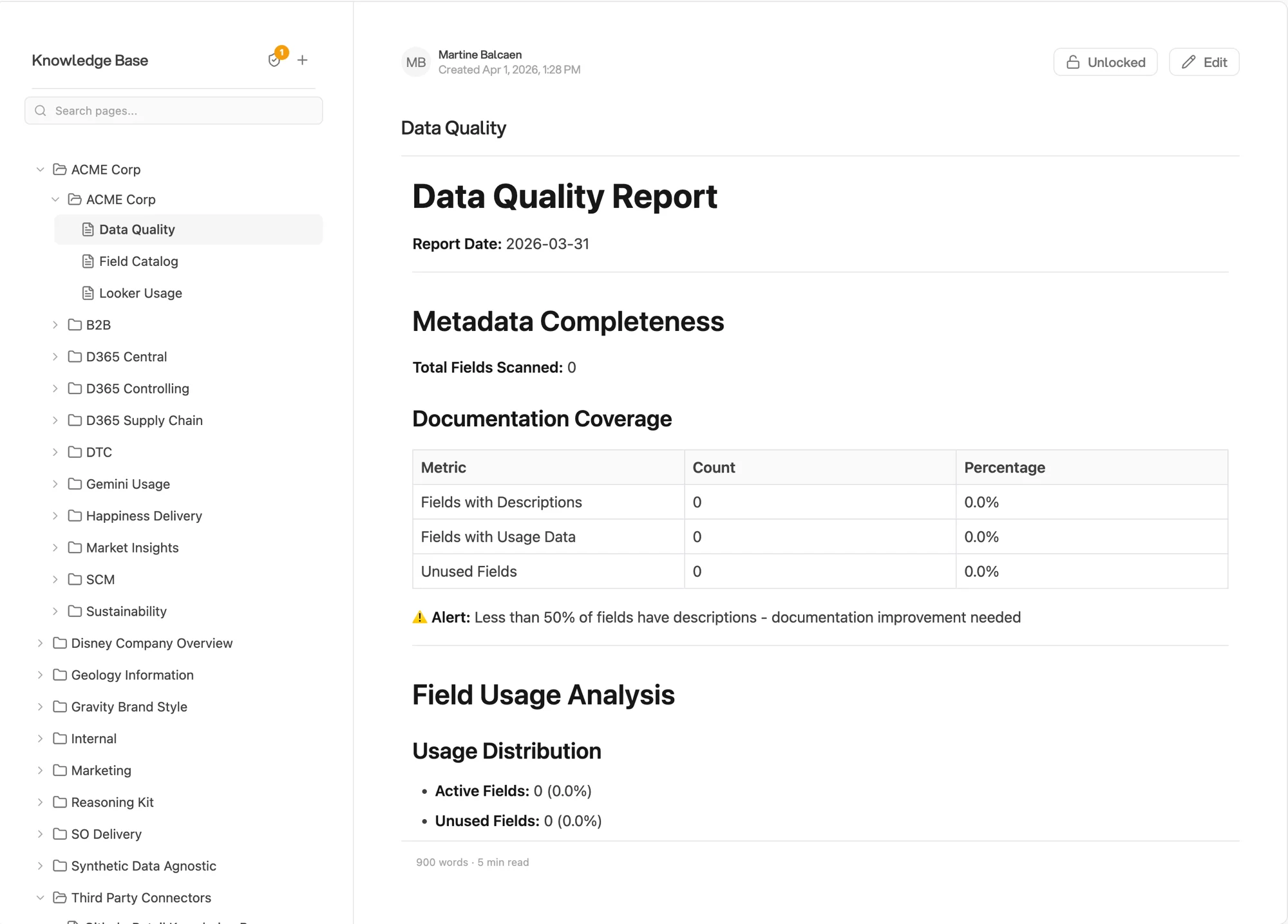
When you navigate to the Knowledge Base tab, you'll see a brand new Knowledge Base where you can start creating new folders and pages. On the left-hand side is your navigation panel.
**To create content:**
1. Right-click on the root or any folder to see options
2. Select **Create Page** or **Create Folder**
3. Enter a name for your content
4. Start editing (if creating a page)
## Folder Structure
You can create a hierarchical folder structure with a **maximum of 3 folder levels deep**. Within folders you can create as many pages as you want.
**Important naming rules:**
* ❌ You cannot have multiple folders with the same name in the root directory
* ❌ You cannot have multiple pages with the same name within a folder
This organizational approach keeps your Knowledge Base clean and prevents naming conflicts.
## Creating Pages
When you create a new page, you have two options:
1. **Write manually** - Use the markdown editor to type and format your content
2. **Upload a file** - Import existing documentation (see supported formats below)
### Supported File Formats for Upload
The Knowledge Base supports uploading:
* Text files (.txt)
* Markdown files (.md)
* Excel spreadsheets (.xlsx)
* CSV spreadsheets (.csv)
PDFs and images are not currently supported file types. For PDFs and complex
documents with images, use project file uploads instead.
When you upload a file, it will automatically be named with the name of the file you uploaded and converted to markdown format.
## Markdown Editor
The page editor provides a markdown editor with live preview. You can:
* Write your content in markdown
* See a live preview of your changes
* Format text, create lists, add headers, and more
* Save your changes when ready
## Key Information About Pages
The **first 250 characters** of your page are especially important. Orion uses this text to quickly understand what the page contains, so it's recommended to:
* Place a summary or description at the very top of the page
* Provide the most important context in those first 250 characters
* Think of it like an executive summary
## Editing & Managing Pages
### To edit a page:
* Click on the page in the left navigation to open it
* Click the **Edit** button in the top right corner
* Make your changes and save
### To rename or delete:
* Right-click on a page or folder
* Select **Rename** or **Delete**
If you try to delete a folder that contains pages, you'll get a warning. You
must first move the files out of that folder before it can be deleted. This is
a safety precaution to prevent accidentally deleting entire folders of
content.
## Organizing Your Knowledge Base
You can reorganize your Knowledge Base by **dragging and dropping** pages or folders into one another. This makes it easy to reorganize your wiki pages without having to recreate them.
## Revision History
We store the revision history of all your pages. In the top left corner above the editor, you can see who updated the page last and when. This helps track changes to your knowledge base over time.
## Locking Pages and the Change Request Flow
Pages can be **locked** to control who can make direct edits. Locking a page enables the change request workflow for that page.
 ### Who Can Lock a Page
Only the **page creator** or an **admin** can lock or unlock a page. Use the lock toggle in the top right of the page view (next to the Edit button).
### What Happens When a Page Is Locked
* **Admins** can always edit and delete directly
* **Non-admins** (analysts, viewers) who edit a locked page submit a **change request** instead of saving directly
* The page creator and admins are notified of pending change requests
* The page's content is unchanged until the change request is approved
### Reviewing Change Requests
Admins and page creators can review pending change requests:
1. Open the page — a banner appears when there are pending requests
2. Click **Review** to see the proposed changes
3. **Approve** to apply the changes, or **Reject** to decline them
4. Optionally add a review note explaining the decision
### Who Can Lock a Page
Only the **page creator** or an **admin** can lock or unlock a page. Use the lock toggle in the top right of the page view (next to the Edit button).
### What Happens When a Page Is Locked
* **Admins** can always edit and delete directly
* **Non-admins** (analysts, viewers) who edit a locked page submit a **change request** instead of saving directly
* The page creator and admins are notified of pending change requests
* The page's content is unchanged until the change request is approved
### Reviewing Change Requests
Admins and page creators can review pending change requests:
1. Open the page — a banner appears when there are pending requests
2. Click **Review** to see the proposed changes
3. **Approve** to apply the changes, or **Reject** to decline them
4. Optionally add a review note explaining the decision
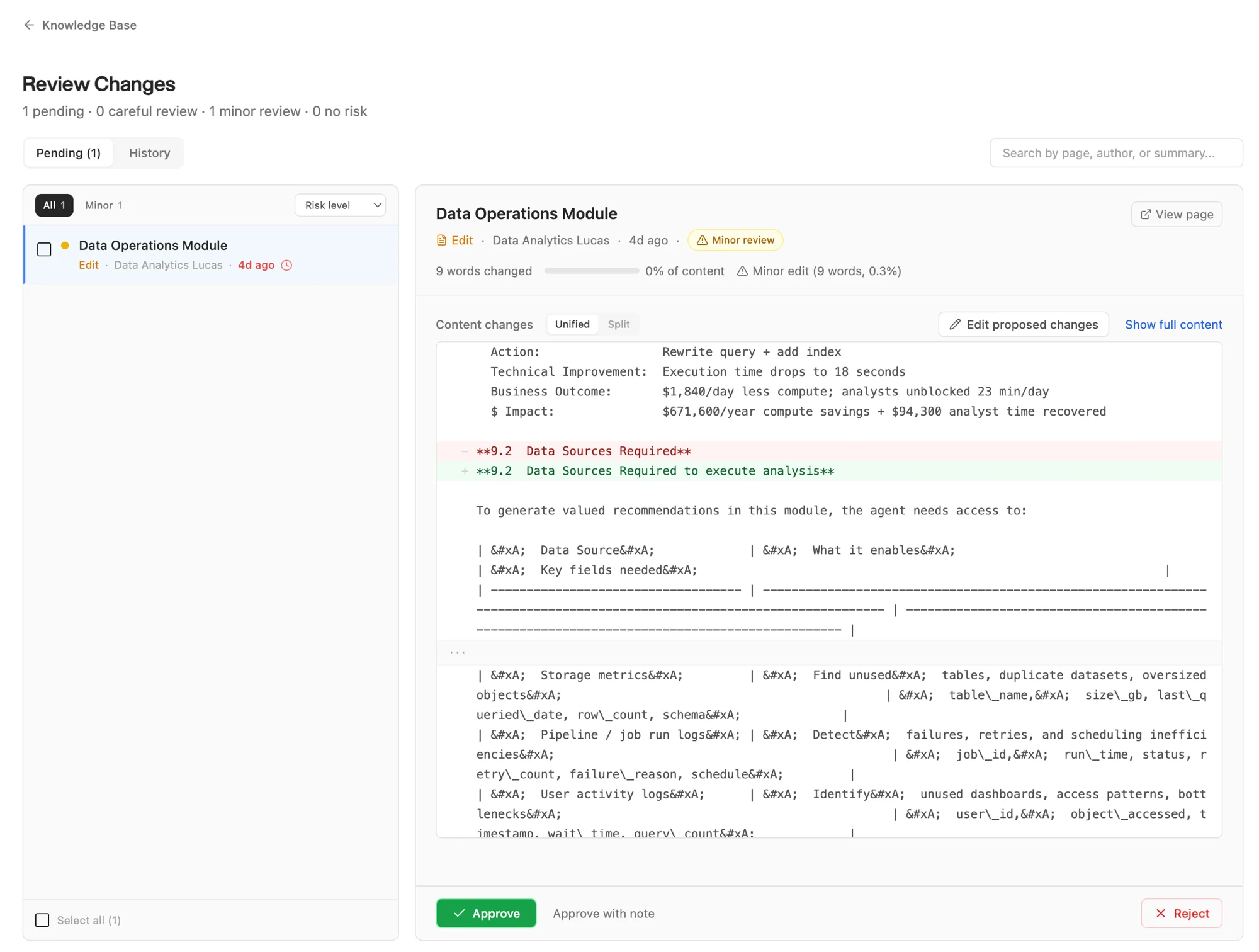 The review screen shows:
* **Pending / History** tabs — active requests and past decisions
* **Risk level** — Minor, Careful review, or No risk, based on how much content changed
* **Unified / Split diff** — toggle between views of what changed
* **Edit proposed changes** — modify the submission before approving
* **Show full content** — see the entire page in context
Change requests can also be **bulk approved** from the Change Requests panel in the admin settings.
### Change Request Statuses
| Status | Meaning |
| ------------- | ------------------------------------------------- |
| Pending | Awaiting review |
| Approved | Changes applied to the page |
| Rejected | Changes declined |
| Auto-approved | Applied automatically (low-risk or unlocked page) |
If you are the creator of a page, your own edits bypass the change request
flow even when the page is locked.
## Enabling Pages for Projects
To use Knowledge Base pages in a project:
1. Go to your project settings
2. Navigate to the **Knowledge Base** tab
3. Search for and select the pages you want to enable
4. Orion will have access to these pages when working on the project
By default, Orion has no access to knowledge base folders and files until you
explicitly provide access by enabling them within the project. This keeps
Orion focused on only the context needed for that specific project.
The review screen shows:
* **Pending / History** tabs — active requests and past decisions
* **Risk level** — Minor, Careful review, or No risk, based on how much content changed
* **Unified / Split diff** — toggle between views of what changed
* **Edit proposed changes** — modify the submission before approving
* **Show full content** — see the entire page in context
Change requests can also be **bulk approved** from the Change Requests panel in the admin settings.
### Change Request Statuses
| Status | Meaning |
| ------------- | ------------------------------------------------- |
| Pending | Awaiting review |
| Approved | Changes applied to the page |
| Rejected | Changes declined |
| Auto-approved | Applied automatically (low-risk or unlocked page) |
If you are the creator of a page, your own edits bypass the change request
flow even when the page is locked.
## Enabling Pages for Projects
To use Knowledge Base pages in a project:
1. Go to your project settings
2. Navigate to the **Knowledge Base** tab
3. Search for and select the pages you want to enable
4. Orion will have access to these pages when working on the project
By default, Orion has no access to knowledge base folders and files until you
explicitly provide access by enabling them within the project. This keeps
Orion focused on only the context needed for that specific project.