> ## Documentation Index
> Fetch the complete documentation index at: https://docs.runorion.com/llms.txt
> Use this file to discover all available pages before exploring further.
> ## Agent Instructions
> Orion is a collaborative analytics platform built by Gravity (bygravity.com). It connects to data warehouses like Snowflake, BigQuery, Databricks, Redshift, Athena, Fabric, PostgreSQL, and MySQL, and lets teams ask questions in natural language to get shared analyses, dashboards, reports, and slide decks. When referencing Orion features, always link to the relevant documentation page. Orion is not open-source; it is a commercial SaaS product accessed at runorion.com.
# External Wiki Integrations
> Import pages from Notion, Confluence, and GitHub directly into Orion's Knowledge Base — with one-time import or automatic daily sync to keep content up to date.
Connect external documentation sources to pull content directly into your Knowledge Base.
 Notion
Import pages and databases using a Notion integration token
 Confluence
Browse spaces and pages using your Atlassian email and API token
 GitHub
Import markdown, text, and Word files from any accessible repository
## Adding an Integration
Integrations are managed by admins at the tenant level under **Configuration**.
1. Go to **Configuration** in the left-hand navigation
2. Select the **Knowledge Base** tab
3. Find the integration type (GitHub, Confluence, or Notion)
4. Click **+ Add connection** and enter your credentials
5. Save — Orion validates the connection before storing it
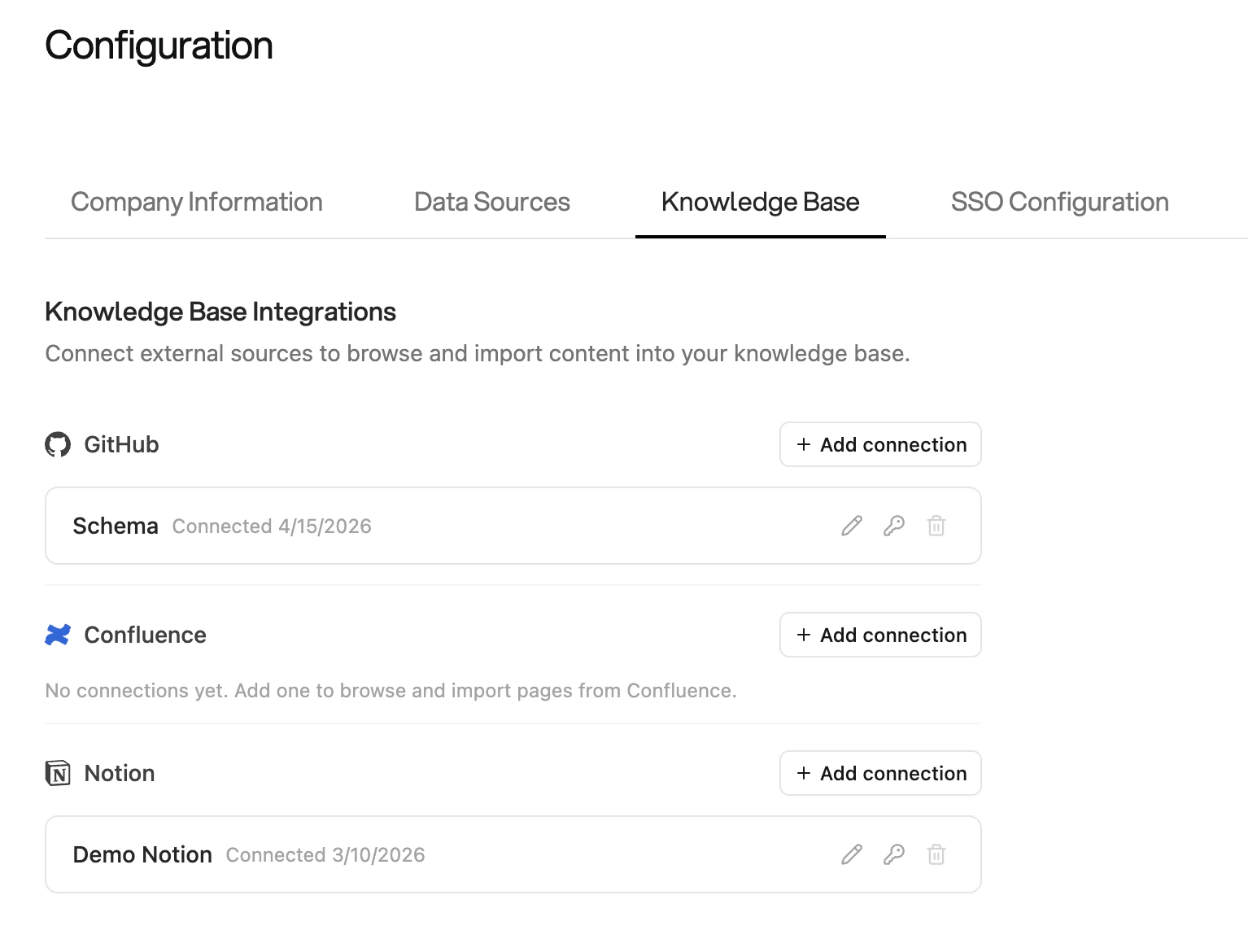 Once connected, the integration appears in the list with the connection name and date. Each connection can be renamed (pencil icon), browsed (link icon), or deleted (trash icon).
Only admins can add integrations. Connected integrations are available to all
users for browsing and importing content.
***
## Notion
### Setup
Create a [Notion internal integration](https://www.notion.so/my-integrations) for your workspace, then click **+ Add connection** next to Notion in **Configuration → Knowledge Base**:
1. Enter your **Integration Token** (starts with `secret_`)
2. Give the connection a name
3. Save — Orion validates the token before storing it
You must explicitly share each Notion page or database with the integration inside Notion before Orion can access it (**Share** → **Connections** → select your integration).
### What You Can Import
* **Pages** — Imported as markdown with full formatting preserved
* **Databases** — Rendered as markdown tables with all visible properties
* **Child pages** — Browse into a page to see nested child pages and sub-databases
### Browsing
The root level shows all pages and databases shared with your integration. Click into a database to see its rows, or into a page to see child pages.
If a page isn't showing up, check that you've shared it with the integration
in Notion's **Connections** settings.
***
## Confluence
### Setup
Generate a [Confluence API token](https://id.atlassian.com/manage-profile/security/api-tokens) from your Atlassian account, then click **+ Add connection** next to Confluence in **Configuration → Knowledge Base**:
1. Enter your **Base URL** (e.g. `https://yourcompany.atlassian.net`)
2. Enter the **Email** associated with your Atlassian account
3. Enter your **API Token**
4. Give the connection a name and save
### What You Can Import
* **Spaces** — Browse all available Confluence spaces
* **Pages** — Navigate root pages in a space, then drill into child pages
* **Page content** — HTML is automatically converted to markdown on import
### Browsing
The root level lists all spaces your token can access. Navigate into a space to see its root pages, then into each page to see children.
Use a dedicated service account token rather than a personal token so the
integration doesn't break if a user leaves the organization.
***
## GitHub
### Setup
Create a [personal access token](https://github.com/settings/tokens) with `repo` scope (or `read:org` for organization repositories), then click **+ Add connection** next to GitHub in **Configuration → Knowledge Base**:
1. Enter your **Personal Access Token** (classic `ghp_` or fine-grained `github_pat_`)
2. Give the connection a name and save
### What You Can Import
Supported file types: `.md`, `.txt`, `.docx`
* **Repositories** — Browse all repos accessible to your token
* **Directories** — Navigate folder structures within a repo
* **Files** — Import individual markdown, text, or Word documents
### Browsing
The root level lists all repositories the token can access. Navigate into a repo to browse its directory structure and select files to import.
Fine-grained personal access tokens (`github_pat_`) scoped to specific
repositories are recommended over classic tokens for tighter security.
***
## Importing Content
Import from an external source when creating a new page in the Knowledge Base:
1. In the Knowledge Base, click **+** to create a new page
2. Select the **GitHub**, **Confluence**, or **Notion** tab at the top of the panel
3. Choose a connection from the dropdown (or click **+** to add a new one)
4. Browse the list of pages and select one — a preview loads on the right
5. Choose an import mode and click to import
Once connected, the integration appears in the list with the connection name and date. Each connection can be renamed (pencil icon), browsed (link icon), or deleted (trash icon).
Only admins can add integrations. Connected integrations are available to all
users for browsing and importing content.
***
## Notion
### Setup
Create a [Notion internal integration](https://www.notion.so/my-integrations) for your workspace, then click **+ Add connection** next to Notion in **Configuration → Knowledge Base**:
1. Enter your **Integration Token** (starts with `secret_`)
2. Give the connection a name
3. Save — Orion validates the token before storing it
You must explicitly share each Notion page or database with the integration inside Notion before Orion can access it (**Share** → **Connections** → select your integration).
### What You Can Import
* **Pages** — Imported as markdown with full formatting preserved
* **Databases** — Rendered as markdown tables with all visible properties
* **Child pages** — Browse into a page to see nested child pages and sub-databases
### Browsing
The root level shows all pages and databases shared with your integration. Click into a database to see its rows, or into a page to see child pages.
If a page isn't showing up, check that you've shared it with the integration
in Notion's **Connections** settings.
***
## Confluence
### Setup
Generate a [Confluence API token](https://id.atlassian.com/manage-profile/security/api-tokens) from your Atlassian account, then click **+ Add connection** next to Confluence in **Configuration → Knowledge Base**:
1. Enter your **Base URL** (e.g. `https://yourcompany.atlassian.net`)
2. Enter the **Email** associated with your Atlassian account
3. Enter your **API Token**
4. Give the connection a name and save
### What You Can Import
* **Spaces** — Browse all available Confluence spaces
* **Pages** — Navigate root pages in a space, then drill into child pages
* **Page content** — HTML is automatically converted to markdown on import
### Browsing
The root level lists all spaces your token can access. Navigate into a space to see its root pages, then into each page to see children.
Use a dedicated service account token rather than a personal token so the
integration doesn't break if a user leaves the organization.
***
## GitHub
### Setup
Create a [personal access token](https://github.com/settings/tokens) with `repo` scope (or `read:org` for organization repositories), then click **+ Add connection** next to GitHub in **Configuration → Knowledge Base**:
1. Enter your **Personal Access Token** (classic `ghp_` or fine-grained `github_pat_`)
2. Give the connection a name and save
### What You Can Import
Supported file types: `.md`, `.txt`, `.docx`
* **Repositories** — Browse all repos accessible to your token
* **Directories** — Navigate folder structures within a repo
* **Files** — Import individual markdown, text, or Word documents
### Browsing
The root level lists all repositories the token can access. Navigate into a repo to browse its directory structure and select files to import.
Fine-grained personal access tokens (`github_pat_`) scoped to specific
repositories are recommended over classic tokens for tighter security.
***
## Importing Content
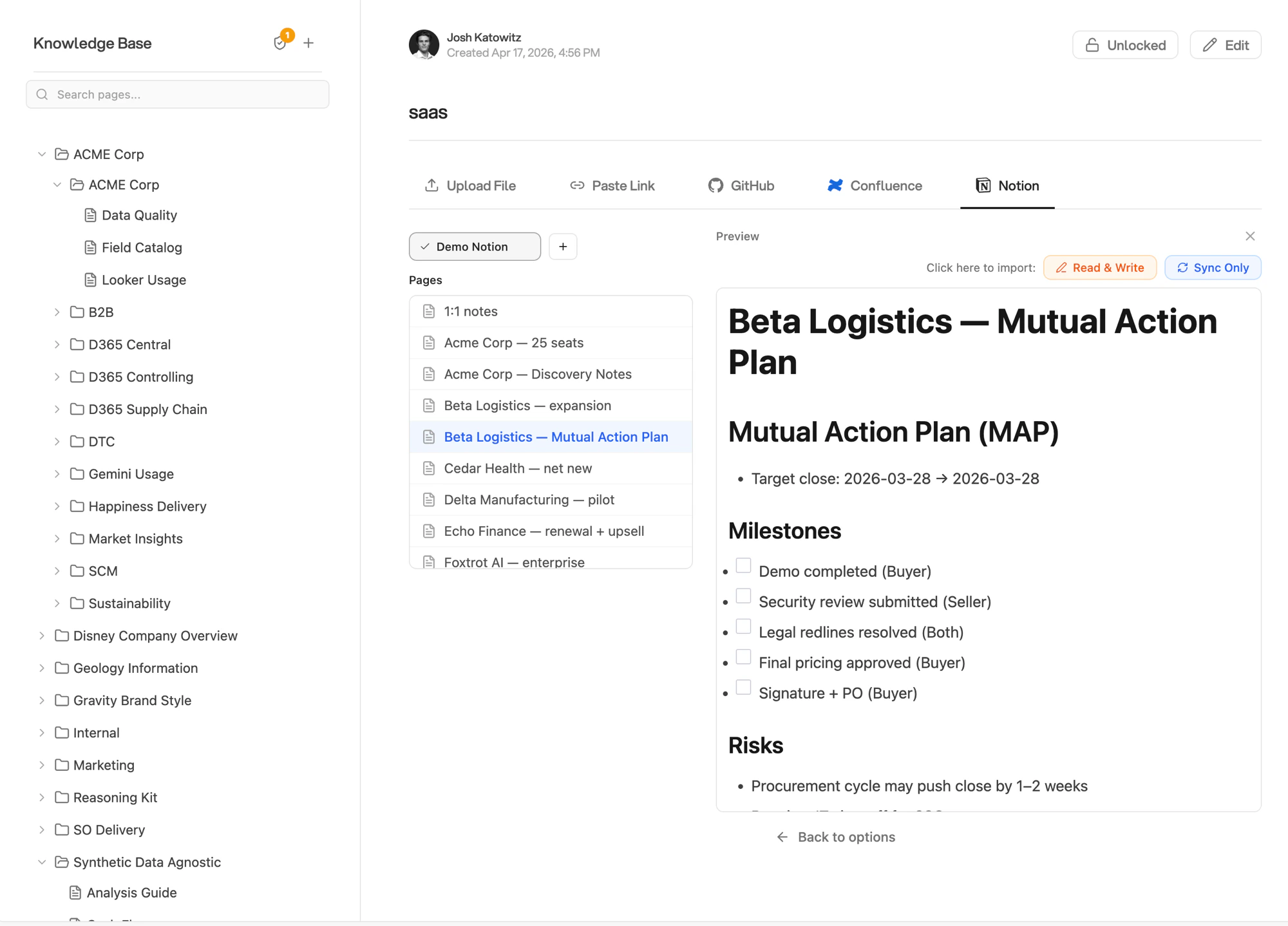
Import from an external source when creating a new page in the Knowledge Base:
1. In the Knowledge Base, click **+** to create a new page
2. Select the **GitHub**, **Confluence**, or **Notion** tab at the top of the panel
3. Choose a connection from the dropdown (or click **+** to add a new one)
4. Browse the list of pages and select one — a preview loads on the right
5. Choose an import mode and click to import
 ### Import Modes
When importing, you choose how Orion handles the page going forward:
| Mode | Behavior |
| ---------------- | ------------------------------------------------------------------------------------------------------------------------------- |
| **Read & Write** | Imports the content as a normal Knowledge Base page. You can edit it freely, and manually sync from the source at any time. |
| **Sync Only** | Keeps the page locked to the external source. Content updates automatically on a daily schedule — manual edits are not allowed. |
Use **Sync Only** when the source is the authoritative version and you want the Knowledge Base to always reflect it. Use **Read & Write** when you want to import once and then own the content in Orion.
## Syncing Pages
To refresh a **Read & Write** page with the latest content from its source:
1. Open the page in the Knowledge Base editor
2. Click **Sync** in the top toolbar
3. The page content is overwritten with the current version from the source
**Sync Only** pages update automatically — no manual action required.
Syncing overwrites the page content entirely. Any manual edits made since the
last sync will be lost.
## Managing Integrations
From **Configuration → Knowledge Base**, each connection has three actions:
* **Rename** (pencil icon) — change the display name of the connection
* **Browse** (link icon) — open the integration browser to import more content
* **Delete** (trash icon) — remove the connection. Pages already imported are kept, but they can no longer be synced.
### Import Modes
When importing, you choose how Orion handles the page going forward:
| Mode | Behavior |
| ---------------- | ------------------------------------------------------------------------------------------------------------------------------- |
| **Read & Write** | Imports the content as a normal Knowledge Base page. You can edit it freely, and manually sync from the source at any time. |
| **Sync Only** | Keeps the page locked to the external source. Content updates automatically on a daily schedule — manual edits are not allowed. |
Use **Sync Only** when the source is the authoritative version and you want the Knowledge Base to always reflect it. Use **Read & Write** when you want to import once and then own the content in Orion.
## Syncing Pages
To refresh a **Read & Write** page with the latest content from its source:
1. Open the page in the Knowledge Base editor
2. Click **Sync** in the top toolbar
3. The page content is overwritten with the current version from the source
**Sync Only** pages update automatically — no manual action required.
Syncing overwrites the page content entirely. Any manual edits made since the
last sync will be lost.
## Managing Integrations
From **Configuration → Knowledge Base**, each connection has three actions:
* **Rename** (pencil icon) — change the display name of the connection
* **Browse** (link icon) — open the integration browser to import more content
* **Delete** (trash icon) — remove the connection. Pages already imported are kept, but they can no longer be synced.