> ## Documentation Index
> Fetch the complete documentation index at: https://docs.runorion.com/llms.txt
> Use this file to discover all available pages before exploring further.
# Email Digest
> Receive a weekly AI-generated summary of your project activity and insights
The Email Digest sends a weekly AI-generated email summarizing the latest insights and activity across your selected projects. Orion tailors the content using your profile bio and any additional instructions you provide.
You can create multiple digests — for example, one per project or one for different audiences — each with its own schedule.
 ## Create a Digest
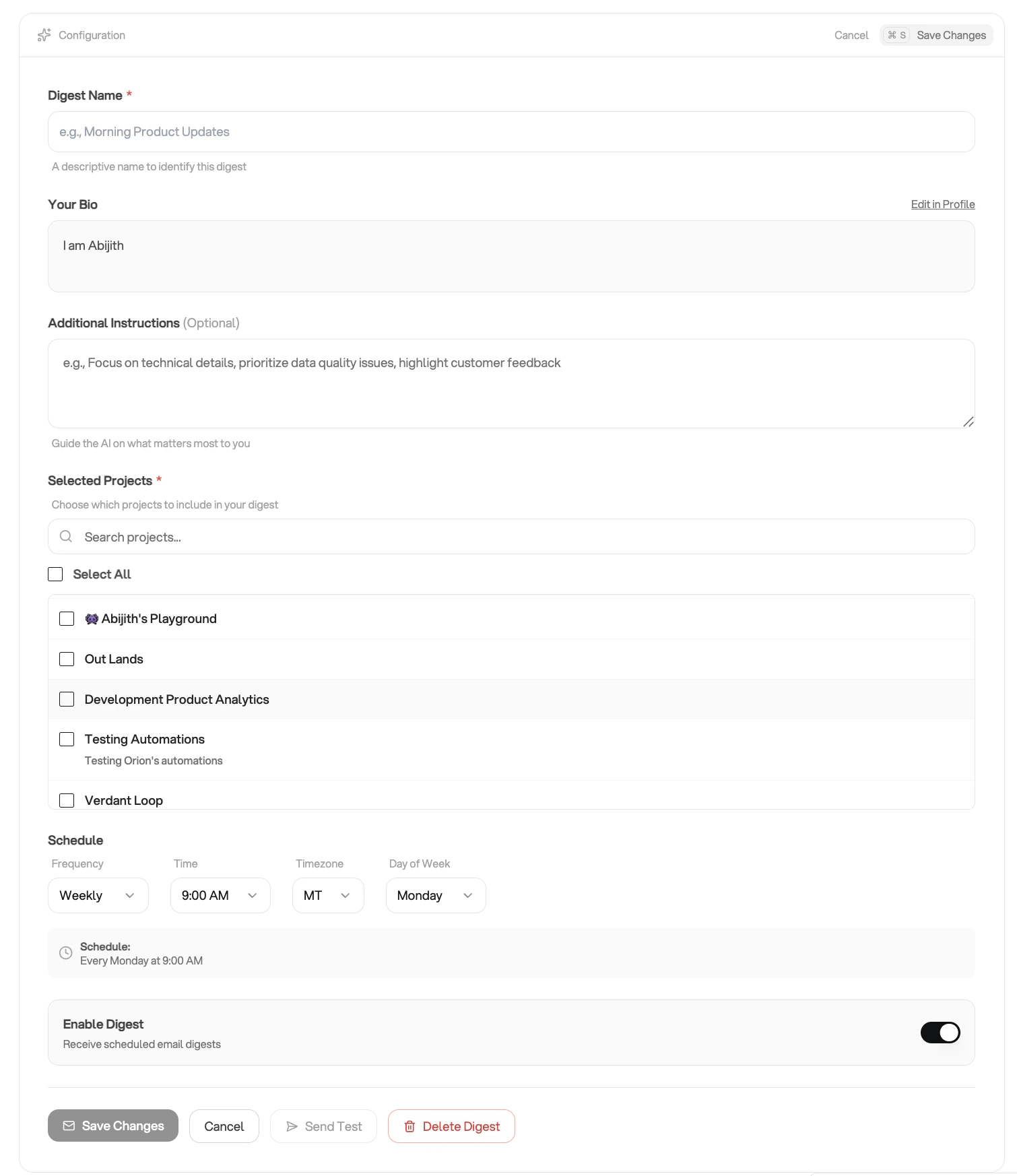 1. Go to **Settings → Email Digest**.
2. Click **Add New Digest**.
3. Fill in the form:
* **Digest Name** — a label for this digest (e.g. "Weekly Marketing Summary").
* **Your Bio** — Orion uses your profile bio to personalize the digest content to your role and preferences. You can edit it inline from this page, or update it in [Profile Management](/profile-settings/profile-management).
* **Additional Instructions** *(optional)* — free-text guidance Orion follows when writing the digest. Use this to focus on specific metrics, highlight anomalies, or set a preferred tone (e.g. "Prioritize conversion metrics and flag any week-over-week drops greater than 10%").
* **Selected Projects** — choose one or more projects. Orion draws insights from all selected projects when composing the digest.
* **Schedule** — pick a day of the week, delivery time, and timezone. Digests are sent weekly.
4. Click **Save Changes**.
At least one project must be selected and a name must be provided before you can save. The digest will not send until it is enabled.
## Enable or Disable a Digest
Each digest has an **Enabled** toggle visible in the list view. Disable a digest to pause delivery without deleting your configuration. Re-enable it at any time to resume on the existing schedule.
## Edit a Digest
1. Go to **Settings → Email Digest**.
2. Click the icon next to the digest.
3. Update any fields, including the enabled state, schedule, projects, or instructions.
4. Click **Save Changes**.
## Send a Test Digest
Send yourself a one-off digest email at any time to preview the content before the next scheduled delivery.
1. Go to **Settings → Email Digest**.
2. Click the icon next to the digest.
3. Check your inbox — the test email arrives within a few minutes.
You must save your preferences before sending a test digest.
## View Digest History
1. Go to **Settings → Email Digest**.
2. Click the icon next to a digest to open the history drawer.
3. The drawer lists all previously sent digests with their sent timestamps.
## Delete a Digest
1. Go to **Settings → Email Digest**.
2. Click the icon next to the digest.
3. Confirm the deletion in the dialog.
Deleting a digest permanently removes it and stops all future scheduled deliveries immediately.
## How the Digest Content is Generated
When a digest is due, Orion:
1. Fetches recent insights and activity from your selected projects.
2. Uses your profile bio to understand your role, focus areas, and communication preferences.
3. Applies any additional instructions you've set to shape the content.
4. Generates a curated email summary and delivers it to the email address on your account.
The more context you provide in your bio and instructions, the more relevant and personalized the digest will be.
1. Go to **Settings → Email Digest**.
2. Click **Add New Digest**.
3. Fill in the form:
* **Digest Name** — a label for this digest (e.g. "Weekly Marketing Summary").
* **Your Bio** — Orion uses your profile bio to personalize the digest content to your role and preferences. You can edit it inline from this page, or update it in [Profile Management](/profile-settings/profile-management).
* **Additional Instructions** *(optional)* — free-text guidance Orion follows when writing the digest. Use this to focus on specific metrics, highlight anomalies, or set a preferred tone (e.g. "Prioritize conversion metrics and flag any week-over-week drops greater than 10%").
* **Selected Projects** — choose one or more projects. Orion draws insights from all selected projects when composing the digest.
* **Schedule** — pick a day of the week, delivery time, and timezone. Digests are sent weekly.
4. Click **Save Changes**.
At least one project must be selected and a name must be provided before you can save. The digest will not send until it is enabled.
## Enable or Disable a Digest
Each digest has an **Enabled** toggle visible in the list view. Disable a digest to pause delivery without deleting your configuration. Re-enable it at any time to resume on the existing schedule.
## Edit a Digest
1. Go to **Settings → Email Digest**.
2. Click the icon next to the digest.
3. Update any fields, including the enabled state, schedule, projects, or instructions.
4. Click **Save Changes**.
## Send a Test Digest
Send yourself a one-off digest email at any time to preview the content before the next scheduled delivery.
1. Go to **Settings → Email Digest**.
2. Click the icon next to the digest.
3. Check your inbox — the test email arrives within a few minutes.
You must save your preferences before sending a test digest.
## View Digest History
1. Go to **Settings → Email Digest**.
2. Click the icon next to a digest to open the history drawer.
3. The drawer lists all previously sent digests with their sent timestamps.
## Delete a Digest
1. Go to **Settings → Email Digest**.
2. Click the icon next to the digest.
3. Confirm the deletion in the dialog.
Deleting a digest permanently removes it and stops all future scheduled deliveries immediately.
## How the Digest Content is Generated
When a digest is due, Orion:
1. Fetches recent insights and activity from your selected projects.
2. Uses your profile bio to understand your role, focus areas, and communication preferences.
3. Applies any additional instructions you've set to shape the content.
4. Generates a curated email summary and delivers it to the email address on your account.
The more context you provide in your bio and instructions, the more relevant and personalized the digest will be.