> ## Documentation Index
> Fetch the complete documentation index at: https://docs.runorion.com/llms.txt
> Use this file to discover all available pages before exploring further.
> ## Agent Instructions
> Orion is a collaborative analytics platform built by Gravity (bygravity.com). It connects to data warehouses like Snowflake, BigQuery, Databricks, Redshift, Athena, Fabric, PostgreSQL, and MySQL, and lets teams ask questions in natural language to get shared analyses, dashboards, reports, and slide decks. When referencing Orion features, always link to the relevant documentation page. Orion is not open-source; it is a commercial SaaS product accessed at runorion.com.
# Create a Workflow
> Turn a finished analysis into a scheduled automation
Every Workflow starts from an analysis that already works. Run it in [Chat](/chat/running-analyses), check the numbers, then automate it. Automating a wrong analysis just produces the wrong answer on a schedule.
## Two Ways In
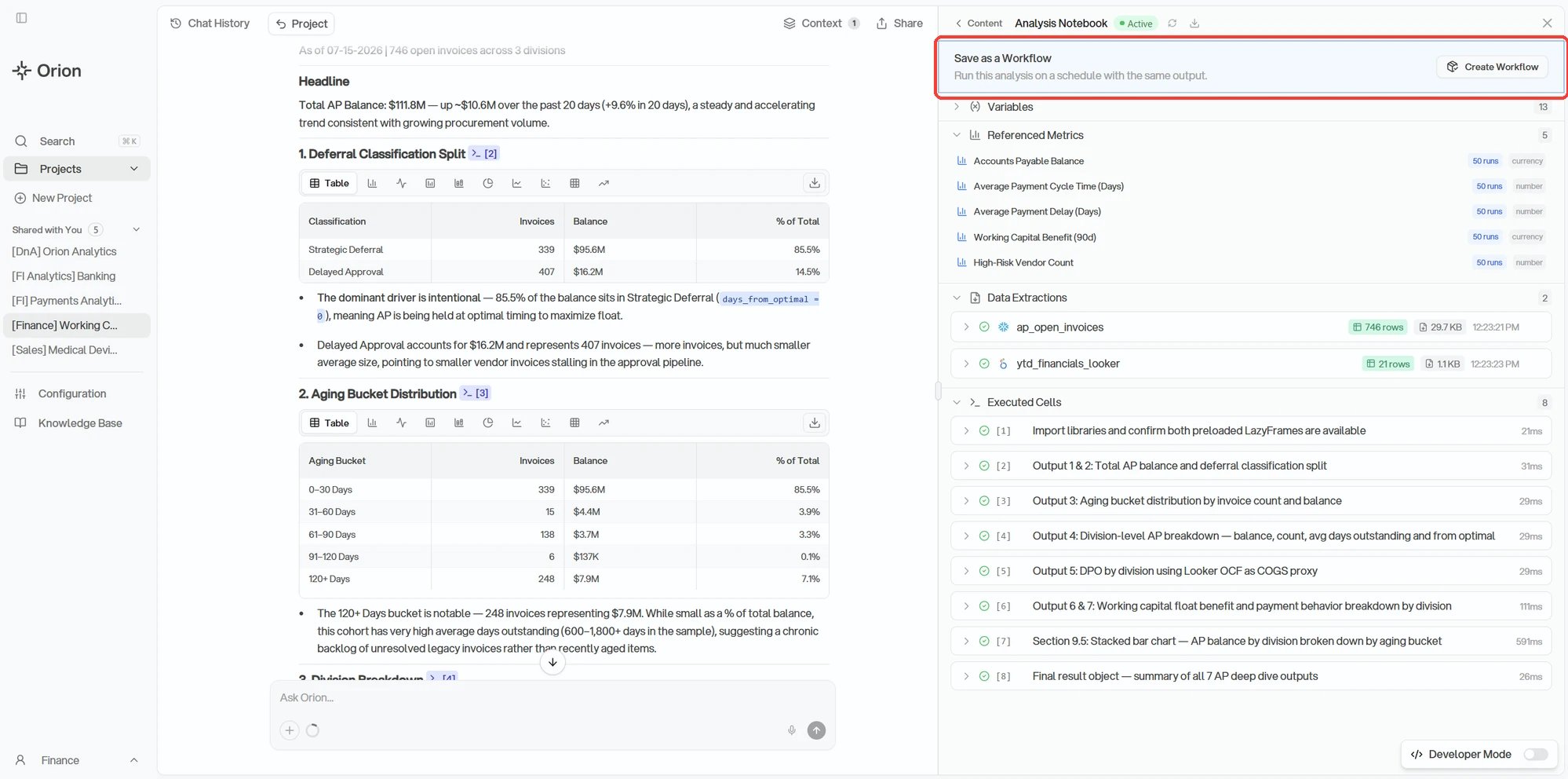
Click **Create Workflow** in the notebook panel, or ask Orion in chat. Both call the same thing underneath, so pick whichever is faster in the moment.
**Asking** is quickest when you already know what you want. In the chat where the analysis ran: "save this as a workflow that runs every Monday at 8am and outputs a dashboard." It also handles schedules the dialog cannot express, like running at several specific times a day.
**The dialog** is the guided version. Open the notebook panel in Chat. At the top you will find **Save as a Workflow**. Click **Create Workflow**.
 ## The Dialog
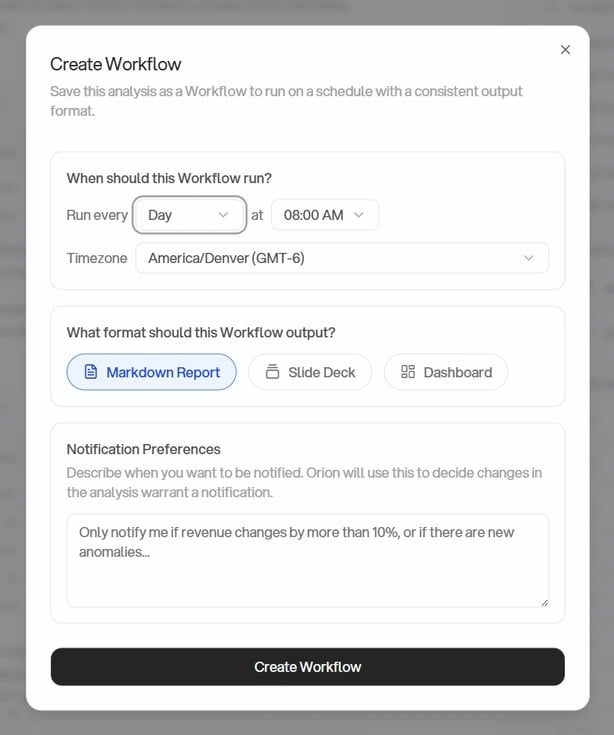
It asks for three things.
Pick Hour, Day, Week, or Month. Week adds a day picker, Month adds a day of
the month, and Hour asks only for the minute it should fire on. Your local
timezone is preselected.
Choose **Markdown Report**, **Slide Deck**, or **Dashboard**. This is the
format the Workflow starts with, not a permanent choice. See [Outputs and
Delivery](/workflows/outputs).
Describe in plain language what makes a run worth an email, for example
"only notify me if revenue changes by more than 10%". Leave it blank to
decide later.
## The Dialog
It asks for three things.
Pick Hour, Day, Week, or Month. Week adds a day picker, Month adds a day of
the month, and Hour asks only for the minute it should fire on. Your local
timezone is preselected.
Choose **Markdown Report**, **Slide Deck**, or **Dashboard**. This is the
format the Workflow starts with, not a permanent choice. See [Outputs and
Delivery](/workflows/outputs).
Describe in plain language what makes a run worth an email, for example
"only notify me if revenue changes by more than 10%". Leave it blank to
decide later.
 ## What Orion Builds
Submitting the dialog writes exactly the kind of request you would have typed and sends it to Orion, which is why the two routes behave the same.
From there Orion assembles the recipe. Only cells that ran cleanly make it in, so anything that errored is left behind. It then does a full dry run end to end before saving. If that dry run fails nothing is saved and Orion tells you what broke, which is the point: a Workflow that cannot complete once will not complete on a schedule either.
Workflows normally take a notebook as their source, which is what the dialog
produces. If what you actually want is recurring reporting on a set of
tracked metrics, a Workflow can read those directly instead. See [Using
Metrics as the Source](/workflows/advanced#using-metrics-as-the-source).
## The Evergreen Check
A Workflow that hardcodes last quarter's dates would keep reporting last quarter forever, so Orion reviews the analysis for that before saving. You do not have to ask.
The check looks for hardcoded dates and date ranges, filter values and IDs that came from your specific session, and hardcoded file paths, and rewrites them to relative equivalents: a fixed `2026-01-01` cutoff becomes a rolling window.
Writing the analysis that way from the start is still cheaper than having it corrected. See [Use Relative Dates](/chat/best-practices#use-relative-dates).
## Next Steps
Choose formats, set a publish URL, and decide who gets emailed
Schedules, run history, and editing what you built
## What Orion Builds
Submitting the dialog writes exactly the kind of request you would have typed and sends it to Orion, which is why the two routes behave the same.
From there Orion assembles the recipe. Only cells that ran cleanly make it in, so anything that errored is left behind. It then does a full dry run end to end before saving. If that dry run fails nothing is saved and Orion tells you what broke, which is the point: a Workflow that cannot complete once will not complete on a schedule either.
Workflows normally take a notebook as their source, which is what the dialog
produces. If what you actually want is recurring reporting on a set of
tracked metrics, a Workflow can read those directly instead. See [Using
Metrics as the Source](/workflows/advanced#using-metrics-as-the-source).
## The Evergreen Check
A Workflow that hardcodes last quarter's dates would keep reporting last quarter forever, so Orion reviews the analysis for that before saving. You do not have to ask.
The check looks for hardcoded dates and date ranges, filter values and IDs that came from your specific session, and hardcoded file paths, and rewrites them to relative equivalents: a fixed `2026-01-01` cutoff becomes a rolling window.
Writing the analysis that way from the start is still cheaper than having it corrected. See [Use Relative Dates](/chat/best-practices#use-relative-dates).
## Next Steps
Choose formats, set a publish URL, and decide who gets emailed
Schedules, run history, and editing what you built