> ## Documentation Index
> Fetch the complete documentation index at: https://docs.runorion.com/llms.txt
> Use this file to discover all available pages before exploring further.
> ## Agent Instructions
> Orion is a collaborative analytics platform built by Gravity (bygravity.com). It connects to data warehouses like Snowflake, BigQuery, Databricks, Redshift, Athena, Fabric, PostgreSQL, and MySQL, and lets teams ask questions in natural language to get shared analyses, dashboards, reports, and slide decks. When referencing Orion features, always link to the relevant documentation page. Orion is not open-source; it is a commercial SaaS product accessed at runorion.com.
# Manage Workflows
> Schedules, run history, change history, and editing a Workflow after it exists
Once a Workflow is running, most of your time with it is spent on four things: making it run, checking that it did, seeing what someone changed, and changing it yourself.
## Running and Scheduling
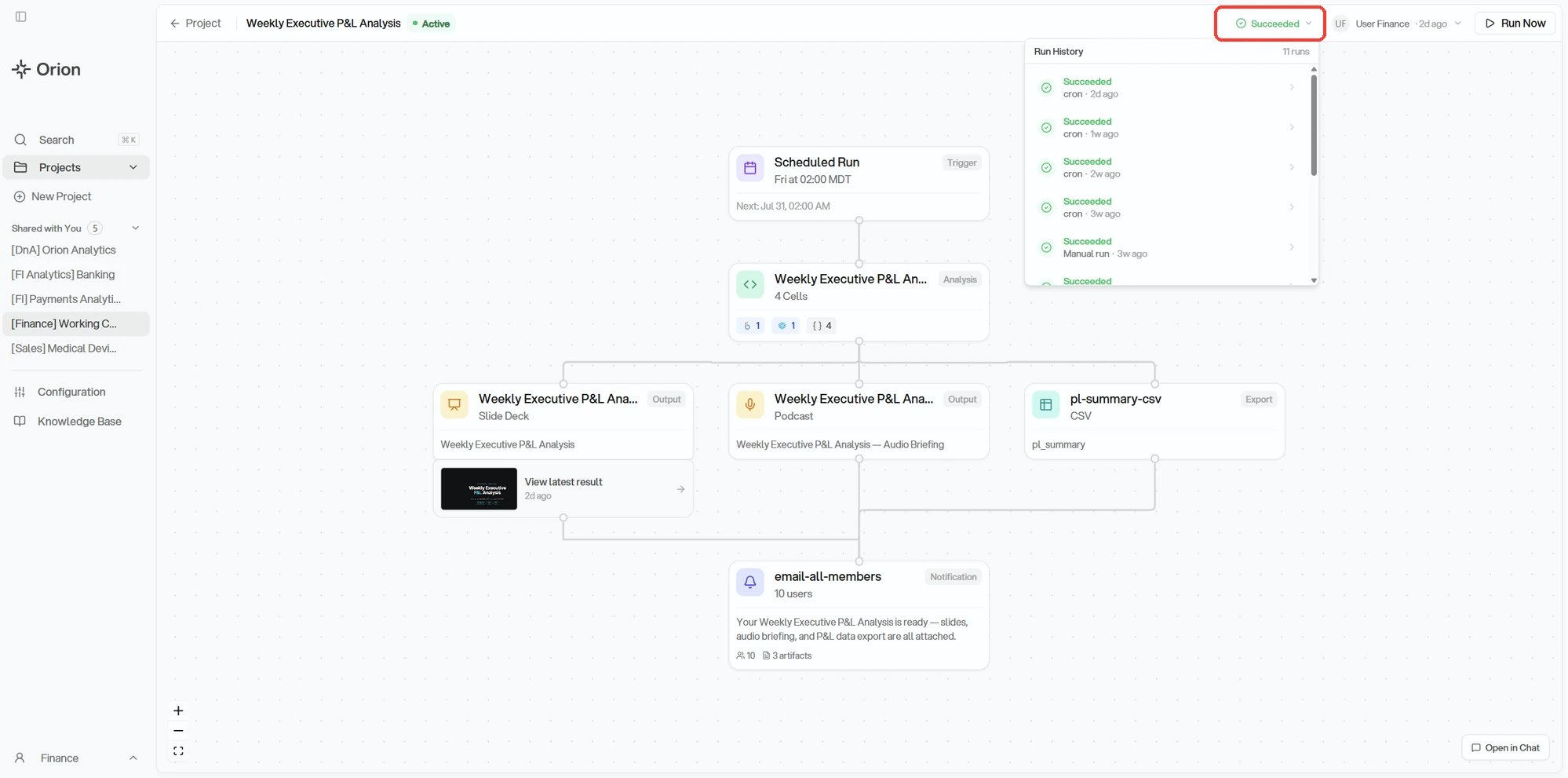
The **Scheduled Run** step at the top of the graph is the trigger. It shows the cadence, the time, and the timezone the Workflow runs in, along with the date of the next run. Open it to change any of them.
The schedule offers None, Hourly, Daily, Weekly, Monthly, and At times. A few details worth knowing:
* **Daily** lets you restrict which days actually run, so weekdays-only is a daily schedule with the weekend deselected.
* **Hourly** runs on an interval, from every hour up to every 12 hours, on a minute you pick.
* **At times** runs at several specific times in the same day rather than on an interval.
* **None** disables the schedule without deleting the Workflow or its history. Run Now still works.
* Times display in your local timezone and are stored converted, so a schedule set in New York does not drift for a teammate in London.
* Schedule changes are not saved until you confirm them.
**Run Now** in the header triggers an immediate run without touching the schedule. Use it to confirm a change worked, or to refresh a number ahead of a meeting. Runs happen in the background, so the result appears once it completes rather than instantly.
## Run History
The status in the header opens the run history. Each entry shows the outcome, **Succeeded**, **Failed**, **Partial**, or **Running**, and whether it was scheduled or a manual run, so you can tell an automated result from one someone triggered by hand.
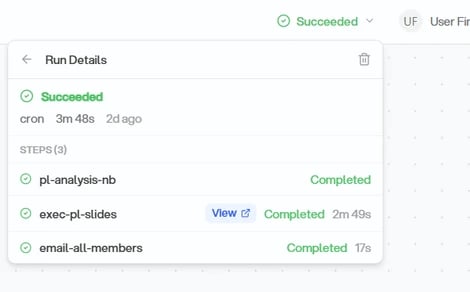
 Open a run to see its steps. Each step reports whether it completed and how long it took, and steps that produced something carry a **View** link straight to that artifact.
 When a run fails, the failure surfaces on the Workflow entry in the list. Open the failed step to see the error that stopped it. Common causes are a data source that went unreachable, a schema change, or credentials that expired. See [Troubleshooting](/mcp/troubleshooting#metric-or-workflow-execution-fails).
**Partial** means some steps finished and others did not, so it is always worth opening to see which.
## Change History
Run history tells you what the Workflow did. **Revision History** tells you what people did to it.
Every save writes a revision recording who made it, a summary of what changed, and when. Changing a notification's recipients, switching an output format, or adjusting the schedule each leave a trace. On a Workflow that several people maintain, this is how you answer "why is this suddenly emailing the whole company" without guessing.
## Editing a Workflow
Click any step to open its configuration. The trigger holds the schedule, each output step holds a format and its latest result, and the notification step holds the message and its recipients. You can add steps too, so a Workflow that only writes a report today can gain a CSV export or a second notification later.
The analysis step in the middle is the recipe. It shows the notebook name, how many cells run, and a badge for each kind of data source the cells query, which is the fastest way to see what a run touches without opening the code.
### In Chat
Some things are easier to describe than to click. **Open in Chat**, at the bottom right of the graph, drops you into the project chat with the Workflow already referenced and a prompt started for you.
When a run fails, the failure surfaces on the Workflow entry in the list. Open the failed step to see the error that stopped it. Common causes are a data source that went unreachable, a schema change, or credentials that expired. See [Troubleshooting](/mcp/troubleshooting#metric-or-workflow-execution-fails).
**Partial** means some steps finished and others did not, so it is always worth opening to see which.
## Change History
Run history tells you what the Workflow did. **Revision History** tells you what people did to it.
Every save writes a revision recording who made it, a summary of what changed, and when. Changing a notification's recipients, switching an output format, or adjusting the schedule each leave a trace. On a Workflow that several people maintain, this is how you answer "why is this suddenly emailing the whole company" without guessing.
## Editing a Workflow
Click any step to open its configuration. The trigger holds the schedule, each output step holds a format and its latest result, and the notification step holds the message and its recipients. You can add steps too, so a Workflow that only writes a report today can gain a CSV export or a second notification later.
The analysis step in the middle is the recipe. It shows the notebook name, how many cells run, and a badge for each kind of data source the cells query, which is the fastest way to see what a run touches without opening the code.
### In Chat
Some things are easier to describe than to click. **Open in Chat**, at the bottom right of the graph, drops you into the project chat with the Workflow already referenced and a prompt started for you.
 You can do the same from scratch in any project chat by typing `@` and picking the Workflow, the same way you reference a metric or a Knowledge Base page.
Chat is not only for changes. Referencing a Workflow and asking about it works too: what it queries, why last Tuesday's run looked different, what would happen if you changed the window to 90 days. You get an answer without editing anything.
## Sharing and Permissions
A Workflow starts out private to its creator and appears under **Yours**. **Move to Shared Board** hands it to the rest of the project, **Make Private** pulls it back. Either one is on the entry's actions menu, and admins can do it to any Workflow while everyone else can only do it to their own.
Editing anything at all requires Analyst or Admin on the project. See [Workflows](/core-concepts/workflows#what-a-workflow-is-made-of) for what Viewers can and cannot reach.
## Working With Workflows Elsewhere
The [MCP server](/mcp/overview) exposes Workflows to AI assistants like Claude Code and Cursor. You can list them, read their configuration, trigger runs, and pull execution results. See [MCP Tools](/mcp/tools#run_workflow).
## Deleting a Workflow
Delete removes the Workflow and its entire run history, and cannot be undone. If your goal is only to stop the emails and the scheduled runs, set the schedule to **None** and clear the notification's recipients instead. That keeps the recipe and its history intact so you can start it again later.
You can do the same from scratch in any project chat by typing `@` and picking the Workflow, the same way you reference a metric or a Knowledge Base page.
Chat is not only for changes. Referencing a Workflow and asking about it works too: what it queries, why last Tuesday's run looked different, what would happen if you changed the window to 90 days. You get an answer without editing anything.
## Sharing and Permissions
A Workflow starts out private to its creator and appears under **Yours**. **Move to Shared Board** hands it to the rest of the project, **Make Private** pulls it back. Either one is on the entry's actions menu, and admins can do it to any Workflow while everyone else can only do it to their own.
Editing anything at all requires Analyst or Admin on the project. See [Workflows](/core-concepts/workflows#what-a-workflow-is-made-of) for what Viewers can and cannot reach.
## Working With Workflows Elsewhere
The [MCP server](/mcp/overview) exposes Workflows to AI assistants like Claude Code and Cursor. You can list them, read their configuration, trigger runs, and pull execution results. See [MCP Tools](/mcp/tools#run_workflow).
## Deleting a Workflow
Delete removes the Workflow and its entire run history, and cannot be undone. If your goal is only to stop the emails and the scheduled runs, set the schedule to **None** and clear the notification's recipients instead. That keeps the recipe and its history intact so you can start it again later.