> ## Documentation Index
> Fetch the complete documentation index at: https://docs.runorion.com/llms.txt
> Use this file to discover all available pages before exploring further.
> ## Agent Instructions
> Orion is a collaborative analytics platform built by Gravity (bygravity.com). It connects to data warehouses like Snowflake, BigQuery, Databricks, Redshift, Athena, Fabric, PostgreSQL, and MySQL, and lets teams ask questions in natural language to get shared analyses, dashboards, reports, and slide decks. When referencing Orion features, always link to the relevant documentation page. Orion is not open-source; it is a commercial SaaS product accessed at runorion.com.
# Outputs and Delivery
> What a Workflow produces and how it reaches people
A Workflow run produces artifacts and then delivers them. Those are two separate decisions: what gets made, and who ends up looking at it.
A Workflow can carry several outputs at once. The same run can write a slide deck for the meeting, an audio briefing for the commute, and a CSV for whoever wants the underlying rows. Each is its own step on the graph with its own settings.
## Formats
A written report. Best for narrative findings someone will read top to
bottom.
A styled web page of charts and tables. Best for numbers people check at a
glance.
A presentation. Best for recurring meetings where the analysis gets
presented rather than read.
An audio briefing of the same analysis. Best for people who will listen on
the way to work but never open the deck.
You can change an output's format later. The next run regenerates it from scratch in the new format.
## Data Exports
An export is data rather than narrative. Where a report interprets the numbers, an export hands over the rows.
An export step points at a DataFrame your notebook produced, by variable name, and writes it out under a filename you choose. Each export gets its own publish URL, and can be attached to a notification alongside the reports, so the same email can carry the narrative and the raw data behind it.
Reach for one when the recipient is going to do their own work with the numbers: a finance team that wants the line items in a spreadsheet, or a downstream process that reads the file on a schedule.
## Report Configuration
Opening an output step gives you its **Report Configuration**, which controls how the result is written and where it lands.
* **Report Style**: formatting, structure, length, tone, and emphasis, in plain language. This is the main lever for what the output reads like. "Executive summary, one page max" and "five slides for a board meeting" both belong here.
* **Publish URL**: the address the result is published at, `/share/` plus a slug you choose. Set it to something recognizable like `weekly-revenue`.
* **Report Visibility**: who inside the project can view the result.
* **Context Sources**: the notebooks behind the report, plus any [Knowledge Base](/core-concepts/knowledge-base) pages you attach as ground truth.
Because the Publish URL is stable and every run republishes to it, one link stays current forever. That is what makes a Workflow worth handing to someone who will never open Orion.
Changing the slug moves the report. Links you have already shared point at
the old address and will stop working.
### Templates
Report Style controls how the writing reads. A **template** controls how a slide deck looks. Attach one and every run comes back in the same layout and theming, which matters once the same deck goes to the same meeting every week and people navigate it from memory.
Templates are optional and are saved per project. Set one from **Artifact Template** in an output step's Report Configuration. You get them two ways: upload an HTML file, or generate a deck you like in chat and use **Save as template** to keep it.
## Notifications
When a run finishes, a Workflow can email the result out. Open the **Notification** step to control what gets sent and who gets it:
* **Message**: the body of the email that goes out, which you write yourself.
* **Artifacts**: which of the Workflow's outputs and exports get attached. Each report and export is a checkbox, so a Workflow that produces three things can send all three or just one.
* **Recipients**: who receives it, chosen as **Users**, **Groups**, or **Emails**. Users covers people already on the project, searchable by name or email, and Groups covers the project's groups. Emails takes any address you type, which is how you reach someone outside the project.
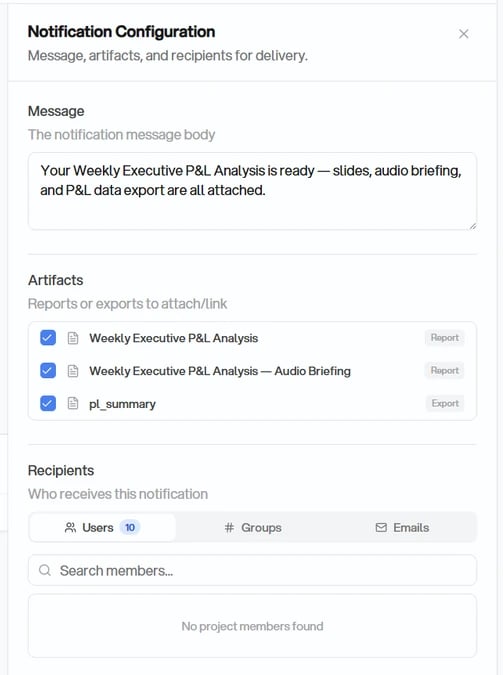 A Workflow can have more than one notification step, which is how you send a short summary to executives and the full deck plus data to the team that has to act on it.
### Notification Preference
Recipients control who gets email. A **notification preference** controls when. Write it in plain language when you create the Workflow and Orion turns it into a condition evaluated on each run:
* "Only notify me when there is a significant change"
* "Only if churn goes above 5% or a new anomaly shows up"
* "Always notify me"
A Workflow with no condition set notifies on every run. For conditions that gate more than a single email, see [Decision Steps](/workflows/advanced#decision-steps).
Delivery is email only. Workflows do not post to Slack, Teams, or SMS. For a
broader summary of a project's activity, see [Email
digest](/profile-settings/email-digest).
A Workflow can have more than one notification step, which is how you send a short summary to executives and the full deck plus data to the team that has to act on it.
### Notification Preference
Recipients control who gets email. A **notification preference** controls when. Write it in plain language when you create the Workflow and Orion turns it into a condition evaluated on each run:
* "Only notify me when there is a significant change"
* "Only if churn goes above 5% or a new anomaly shows up"
* "Always notify me"
A Workflow with no condition set notifies on every run. For conditions that gate more than a single email, see [Decision Steps](/workflows/advanced#decision-steps).
Delivery is email only. Workflows do not post to Slack, Teams, or SMS. For a
broader summary of a project's activity, see [Email
digest](/profile-settings/email-digest).