

Overview
This guide covers:- Project setup and organization
- Crafting effective prompts
- Providing context for better results
- Iterating on analyses
- Managing memory and conversations
- Troubleshooting and debugging
- Performance optimization
Project Setup
One Project Per Use Case
Create a separate project for each distinct use case or workflow. This keeps each project’s context focused and prevents conflicting information. Think of each project as a dedicated analyst for that specific team or use case.Keep Context Consistent
Keep the context you give Orion clear and consistent. Conflicting information confuses Orion, and it can live in multiple places:- User profile settings
- Project settings
- Knowledge Base pages
- Company information page
- Memory
- Exploratory conversations
Memory Configuration
- Private Project - each project should have its own memory context
Use Relative Dates
When creating a re-runnable or scheduled analysis, use relative date instructions instead of absolute dates. Include the word “evergreen” to ensure all instructions, queries, and generated code use relative dates that will work when rerun.Crafting Effective Prompts
Be Explicit and Clear
Be explicit in your requests. Ambiguous prompts lead to assumptions, which can be incorrect, especially when working with a new project. Spell out exactly what you want rather than assuming Orion will infer your intent.Answer Clarifying Questions Consistently
When Orion asks clarifying questions, answer them in a consistent format (e.g., numbered points). If you want this format used every time, tell Orion to “remember this for next time.”Provide Context for Document Uploads
When uploading documents or spreadsheets, provide supplemental context:- What columns the document contains
- Where the data came from
- What the data represents
- Any relevant background information
Explore Data First
Get Orion familiar with your data before diving in. Start by asking “tell me a little bit about the data that’s available.” This quick step helps Orion understand your data structure and confirms it has the access it needs, setting you up for more effective analysis down the road.Figure Out Your Assumptions
Identify the assumptions you make as a human analyst and explicitly state them to Orion. Don’t assume Orion has background knowledge - provide that extra context upfront, even if it takes a few extra minutes. Here are some questions to help surface assumptions in data analysis work: About the data itself- What do you believe is true about how this data was collected?
- What are you taking for granted about the completeness of this dataset?
- What do you assume the values in each field actually represent?
- What do you believe caused the patterns you expect to find?
- What are you assuming about how this data relates to the real-world phenomenon you’re studying?
- What do you take as given about the time period this data covers?
- What must be true about the data for your chosen method to be valid?
- What are you assuming about the relationships between variables?
- What do you believe about how representative this sample is of the broader population you care about?
- What are you assuming about what the audience already knows or believes?
- What do you take for granted about how the results will be used?
- What do you assume the decision-maker actually needs from this analysis?
- What prior beliefs might be shaping which patterns you notice or ignore?
- What are you assuming you understand correctly about the domain?
- Where might your expertise (or lack of it) create blind spots?
Iterating on Analyses
Expect Multiple Iterations
Don’t expect the first analysis to be perfect. Plan for 2-3 iterations before you get a result you’re happy with:- First iteration: Usually gets you to 80-90% - review and provide feedback
- Second iteration: Refine based on feedback, adjust focus and formatting
- Third iteration: This is typically the one you can share or re-use in the future
Two Modes of Work
There are two distinct phases when working with Orion:- Setup phase: Creating projects and getting initial analyses running
- Refinement phase: Editing insights, adjusting formatting, and fine-tuning outputs
Formatting and Editing
After an analysis runs, use chat to:- Simplify content
- Change formatting
- Adjust specific sections
- Remove or add emojis (you can say “no emojis” if you don’t want them)
- Specify chart preferences
Managing Memory
Explicitly Request Memory
You must explicitly tell Orion to remember things. Say “remember this” when you want something saved to memory. Orion won’t automatically form memories from conversations to avoid saving hallucinations. Orion may occasionally ask if something should be remembered, but it’s more reliable to explicitly request it.When to Remember
Remember important information that:- Applies to the project long-term
- Should influence future analyses
- Represents preferences or requirements
- Helps avoid repeating mistakes
Organizing Conversations
When to Start a New Chat
- Start a new chat when you want to explore something completely different
- Use the same chat for slight variations (e.g., “do this for November instead of October”)
Don’t Delete Chats
Keep your chat history. Don’t delete chats - let them accumulate. They serve as a record of your work and can be useful for reference.Sharing Chats
Use the share feature to share your chats and notebooks with others. Anyone you share a chat with can pick up where you left off in the conversation.Troubleshooting and Debugging
Handling Skepticism
If Orion doesn’t get something right the first time, don’t lose confidence. It may need:- More context
- Missing data
- Better instructions
Performance Optimization
Manage Data Volumes Carefully
Start small, then expand. If you eventually want to analyze years of data, don’t start there:- Begin with a limited date range (e.g., “today and this day last year”)
- Get it working correctly with the smaller dataset
- Once it’s working, expand the date ranges
Check Data Availability
Before running full analyses, use chat to check data availability. Ask Orion to explore what data is available and identify any gaps or issues upfront rather than waiting for the entire analysis to run.Use Tools in the Right Order
Orion has access to exceptional tools, but they need to be used in the right order. Power users can guide Orion to be more efficient by:- Coaxing out data details upfront
- Identifying missing information early
- Ensuring proper tool sequencing
Project Settings Tips
Visualization Preferences
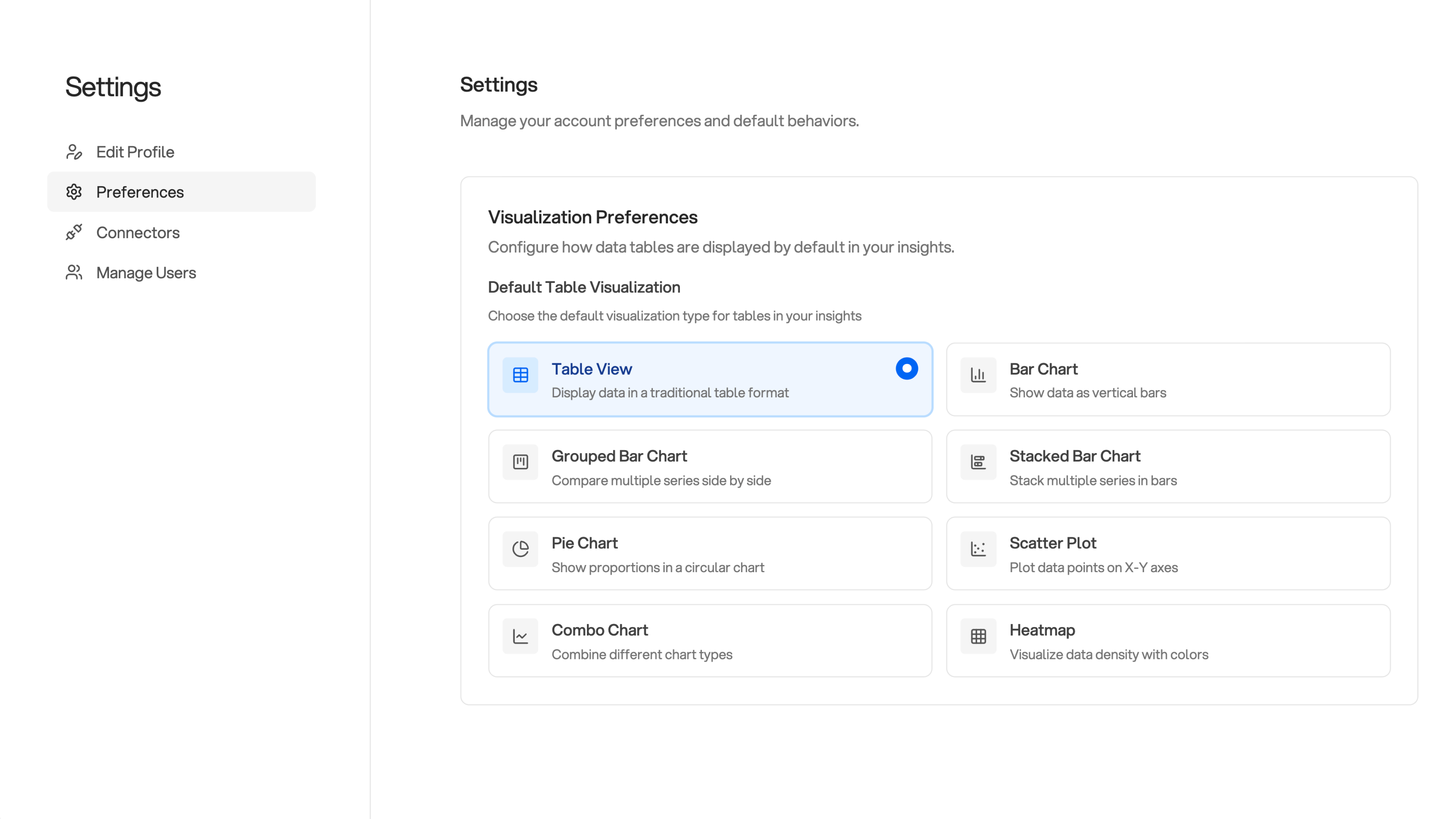
- Chart types and formats (e.g., “three to five columns of numeric and categorical optimized for waterfall”)
- Emoji preferences (you can request no emojis)
- Output formatting preferences
Automation Features
When available, leverage automation features:- Calendar integration: Reference Orion in calendar event descriptions (e.g., “Orion: I will need this data for this meeting”)
- Slack integration: Orion can remember the last 10-20 messages in channels it’s been invited to
- Scheduled analyses: Save re-runnable analyses to refresh on a recurring schedule
Key Takeaways
- One project per use case - keep things focused
- Expect 2-3 iterations - the first analysis won’t be perfect
- Be explicit - spell out assumptions and requirements
- Use “remember this” - explicitly request memory formation
- Start small with data - expand date ranges after it’s working
- Use relative dates - include “evergreen” for re-runnable or scheduled analyses
- Explore data first - understand structure before diving in
- Provide context for uploads - don’t assume Orion will figure it out