

How to Share a Conversation
When you find a conversation that would be helpful for someone else on your team, you can easily share it:- Select Share - The control sits at the top right of the conversation
- Copy the link - In Share this chat, copy the link to your clipboard
- Share with your team - Send that link to whoever needs access to the conversation

What Happens When Someone Opens Your Shared Conversation
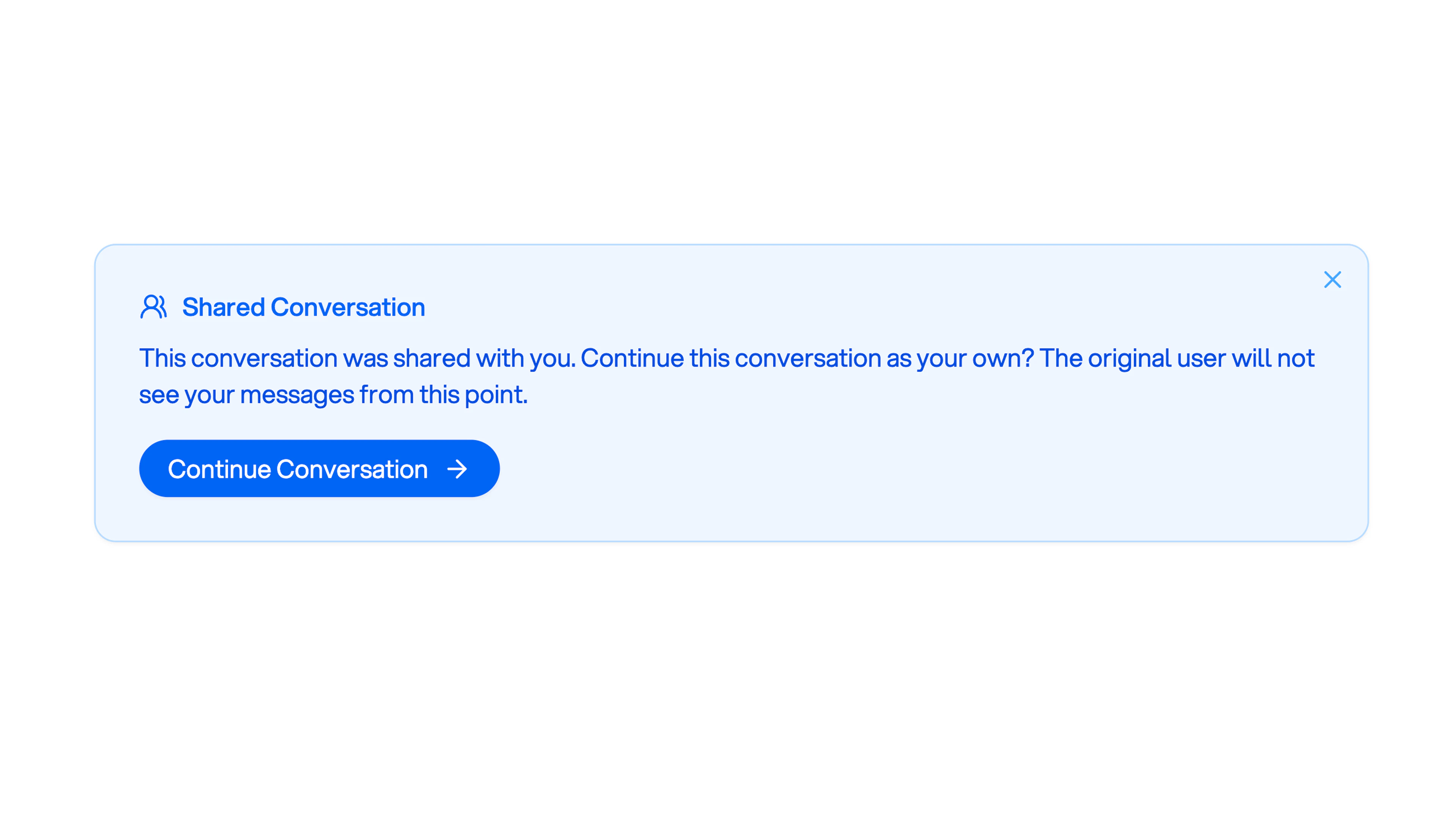
When a team member opens your shared conversation link, they’ll see:- A blue conversation box that displays the full conversation history
- A message indicating this conversation was shared with them
- The ability to continue the conversation as their own
Important Notes
- Conversations are isolated - All chat history is isolated to specific users and projects
- Continue independently - Once someone continues a shared conversation, the original user won’t see their messages from that point forward
- Great for onboarding - Sharing conversations is a great way to help team members understand how conversations work and see examples of effective interactions with Orion