

Personal vs Shared Projects
When you create a new project in Orion, it is automatically private by default until you share it with other team members.- Personal (Private) Projects: Any analyses, insights, or conversations within the project are only accessible by you (aside from admins).
- Shared Projects: Projects shared with 1 or more team members. Only those with access to the project can view the contents.
Creating a Project
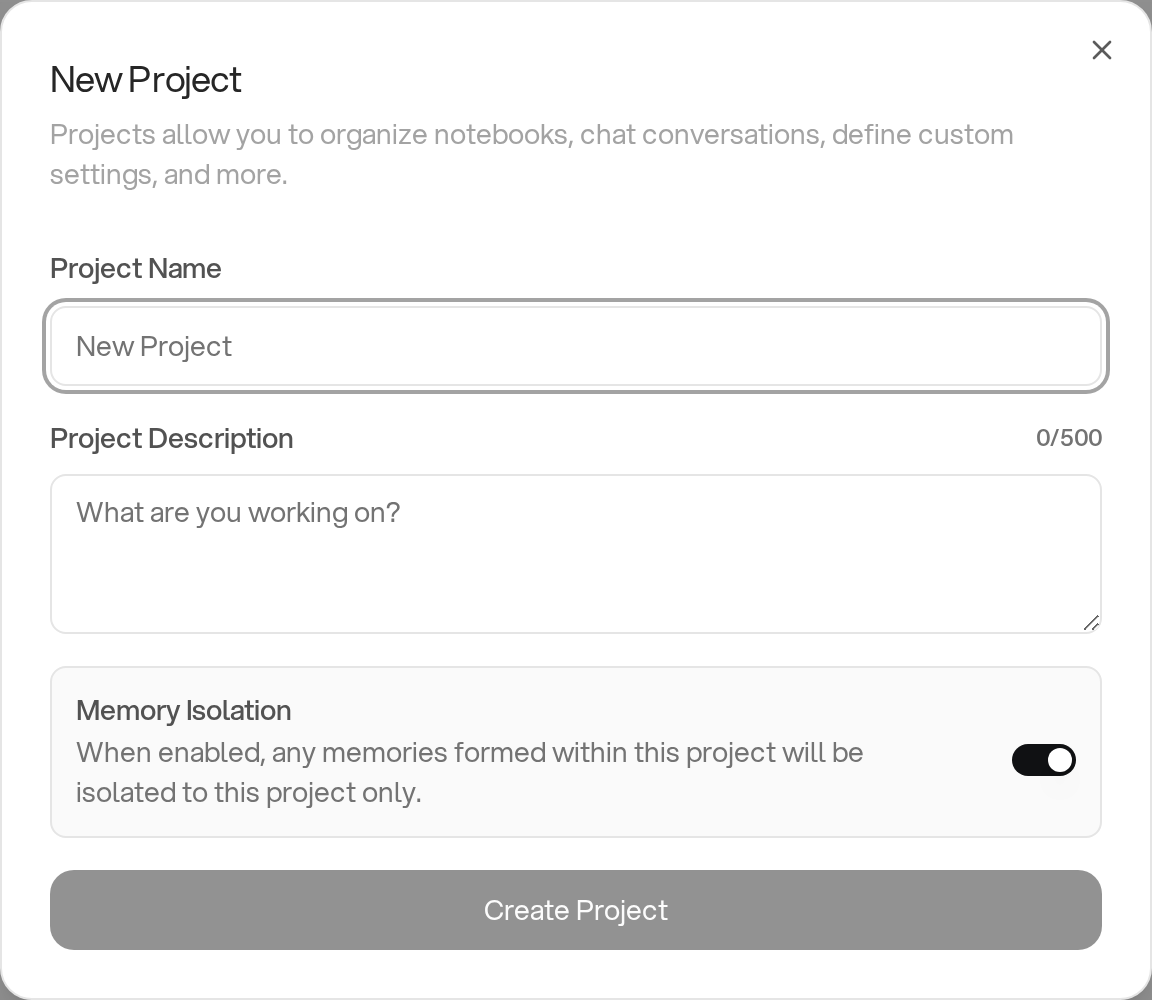
Project Name
Give your project a descriptive name that reflects its purpose (e.g., “Marketing Strategy”, “Q4 Sales Analysis”, “Customer Churn Research”).Project Description
The project description helps you and your team quickly understand what the project is about. This short description (up to 500 characters) appears in the project list and is intended for human readers. To give Orion richer context for its analysis, use Knowledge Base pages.Next Steps After Creating a Project
Once you have created a new project, it will appear in the left-hand navigation menu and on the main projects page. Click into your new project to complete the setup. A dialog will appear prompting you to select a data source for the project. A project must always be connected to at least one data source to work.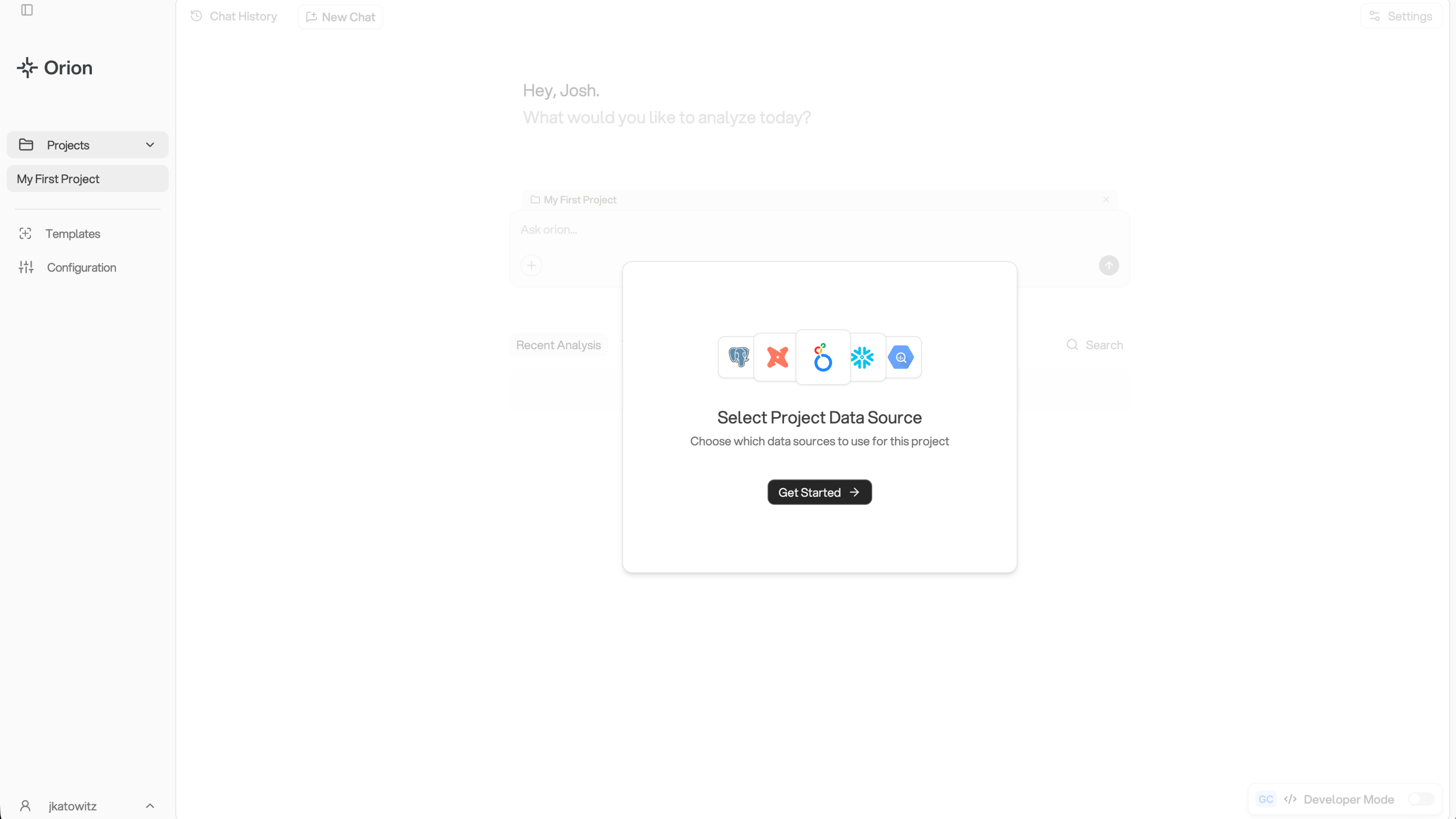
Selecting a Data Source
The next modal displays a list of available data sources that have been connected by your Admin. Select one by enabling the toggle switch.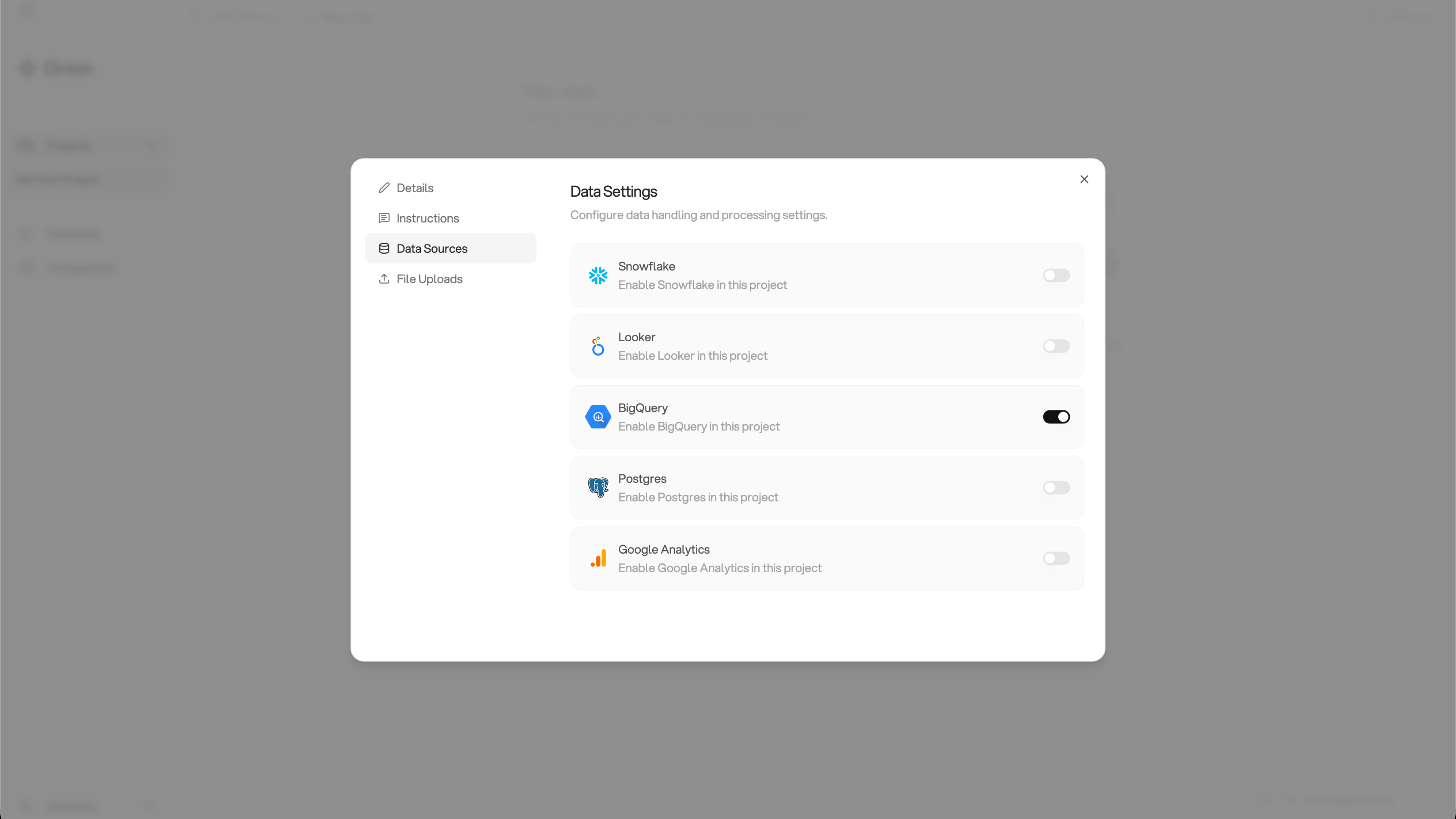
Accessing Project Settings
The Project Settings modal is always accessible by:- Clicking the Settings button in the top right corner of your screen, or
- Clicking the three dots on the project item in the left-hand navigation menu and selecting Project Settings
- Update the project name and description
- Change the selected data source at any time
Starter Deliverables (Project Kickstart)
Tenants with Project Kickstart enabled get a running start on new projects. Once a project has a data source plus some context to aim at, Orion offers to explore the data on its own and generate four starter deliverables:- A slide deck
- An interactive dashboard
- Key metrics, three to five tracked values chosen from your data
- A narrative report
How it triggers
On a fresh project, a banner counts down ten seconds before starting, with a Cancel button if you would rather begin your own conversation. Kickstart runs at most once per project. Orion needs something to focus on before it will offer: a Knowledge Base page, a project description, or project instructions. Without any of those, the banner instead prompts you to add context first.Turning it off
To opt a project out, open the project’s settings, go to the Advanced Settings tab, and enable Disable automatic starter deliverables.Project Kickstart is switched on per tenant. A missing countdown banner has
other causes: the project has already run Kickstart once, or it has no data
source yet. Disable automatic starter deliverables also hides it.
Memory Isolation
Memory isolation is enabled by default for all new projects.
Enabling Knowledge Base Pages
The Knowledge Base is the recommended way to provide your project with structured, organized context. By enabling Knowledge Base pages for your project, Orion gains access to your organization’s centralized documentation. From the Project Settings modal, click on the Knowledge Base tab to enable pages for this project.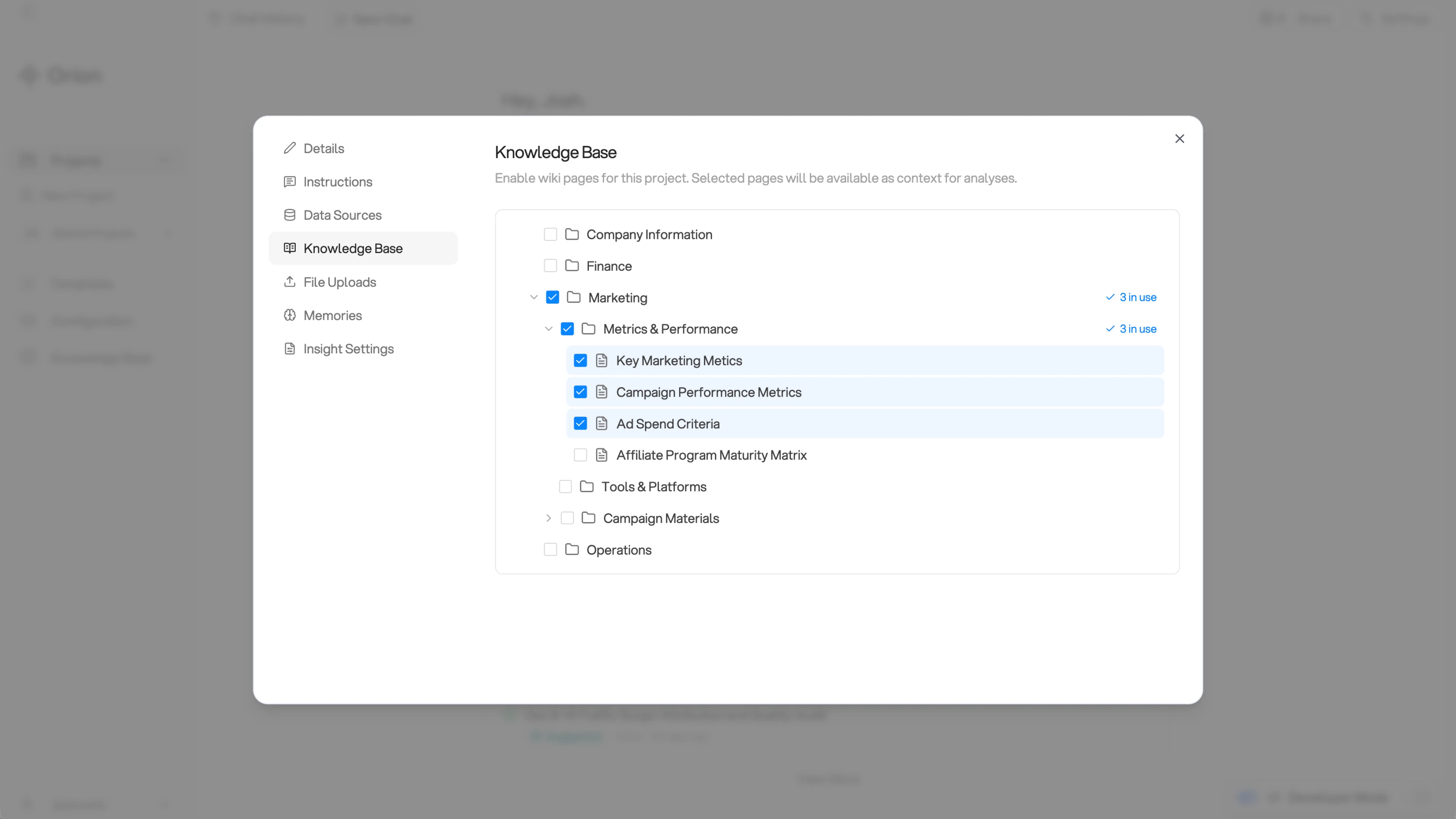
How to Enable Pages
- Browse or search for Knowledge Base pages in the catalog
- Enable the pages you want Orion to have access to for this project
- Save your changes
Best Practices for Knowledge Base in Projects
- Keep it focused - Enable 8-10 pages maximum per project to keep Orion focused on relevant context
- Enable strategically - Only enable pages that are directly relevant to this project’s analysis
- Stay organized - Use your Knowledge Base folder structure to find related pages
- Include them throughout its analysis workflow
- Cite them with inline references in your reports, dashboards, and other deliverables
- Reference them throughout your chat conversations
- Use them to inform analytical decisions and methodology
Uploading Files to a Project
In addition to Knowledge Base pages, you can upload files to provide Orion with detailed reference materials and long-form documentation. From the Project Settings modal, click on the File Uploads tab.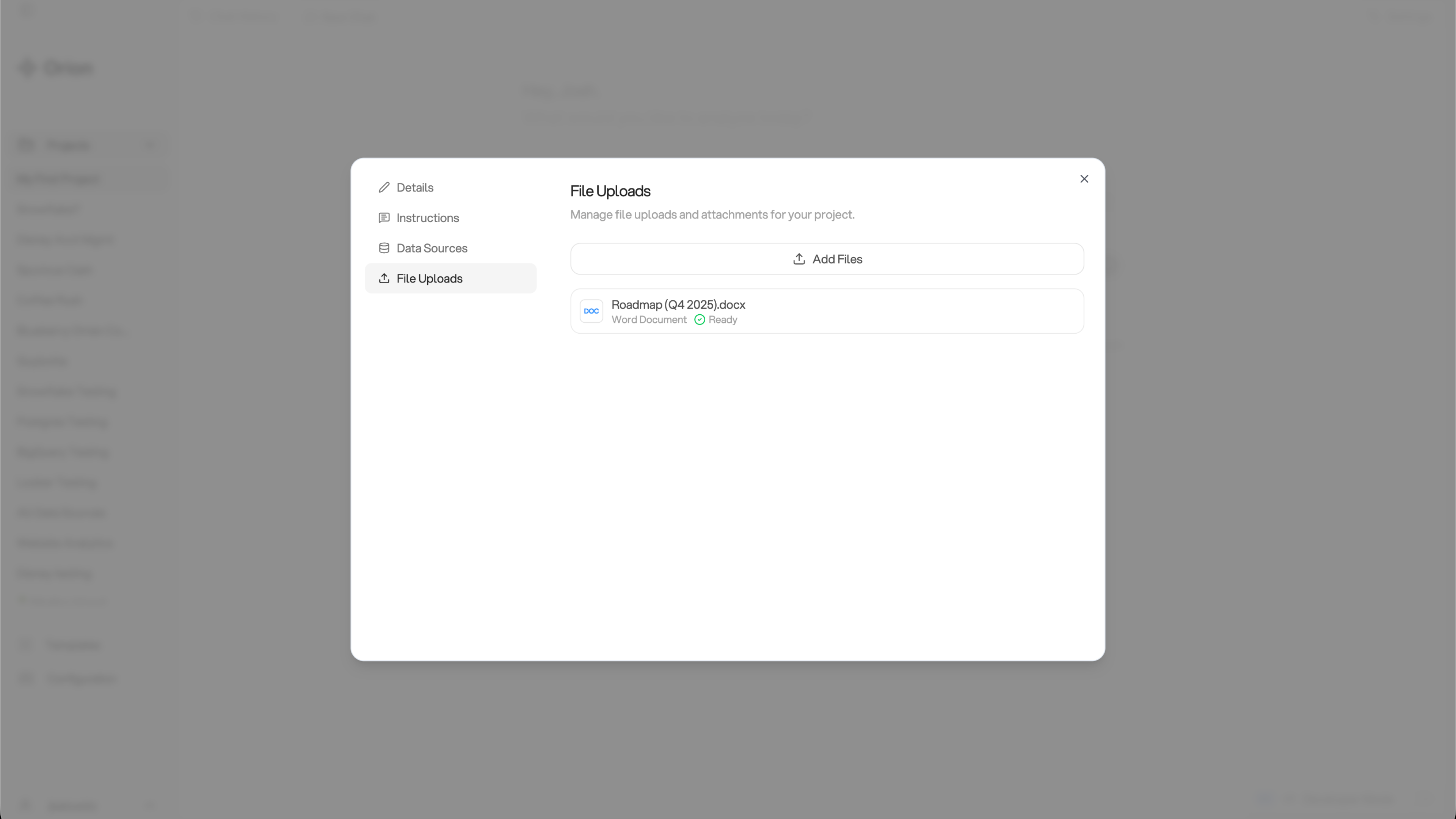
When to Use File Uploads
Project file uploads are ideal for long-form, unstructured documents, especially:- Dense PDFs - Research reports, whitepapers, or detailed analyses
- Documents with images and charts - Anything with visual content or complex formatting
- Transcripts and notes - Meeting recordings, interview transcripts, or detailed notes
- Complex layouts - Documents that are difficult to structure into Knowledge Base pages
Supported File Types
Orion currently supports the following file formats for project document uploads:- Markdown (.md, .markdown)
- PDF (.pdf)
- Word Documents (.docx)
- Plain Text (.txt)
Excel spreadsheets are not currently supported for file uploads, but we’re
actively working on adding Excel support in an upcoming release. For
spreadsheet data, consider uploading to the Knowledge Base as structured pages
instead.
Common Examples of Project Files:
- Research reports and whitepapers
- PDF analyses and detailed documentation
- Meeting transcripts and interview recordings
- Competitor analysis documents with images
- Industry reports and market research
Comparing Knowledge Base Pages and File Uploads
Both provide context to Orion, but serve different purposes:Knowledge Base Pages
Structured context (metrics, definitions, procedures) used throughout chat
and analysis workflow
File Uploads
Long-form documents (PDFs, transcripts, historical reports) used for
specific reference in chat
Cloning Projects
Within shared projects, you have the ability to clone projects. This is useful when you want to reuse the same project settings, data sources, and file uploads from an existing project. For example, if you’re using a project for customer-facing analytics reporting and want to use the same project configuration for a new use case, you can simply clone everything from the original project.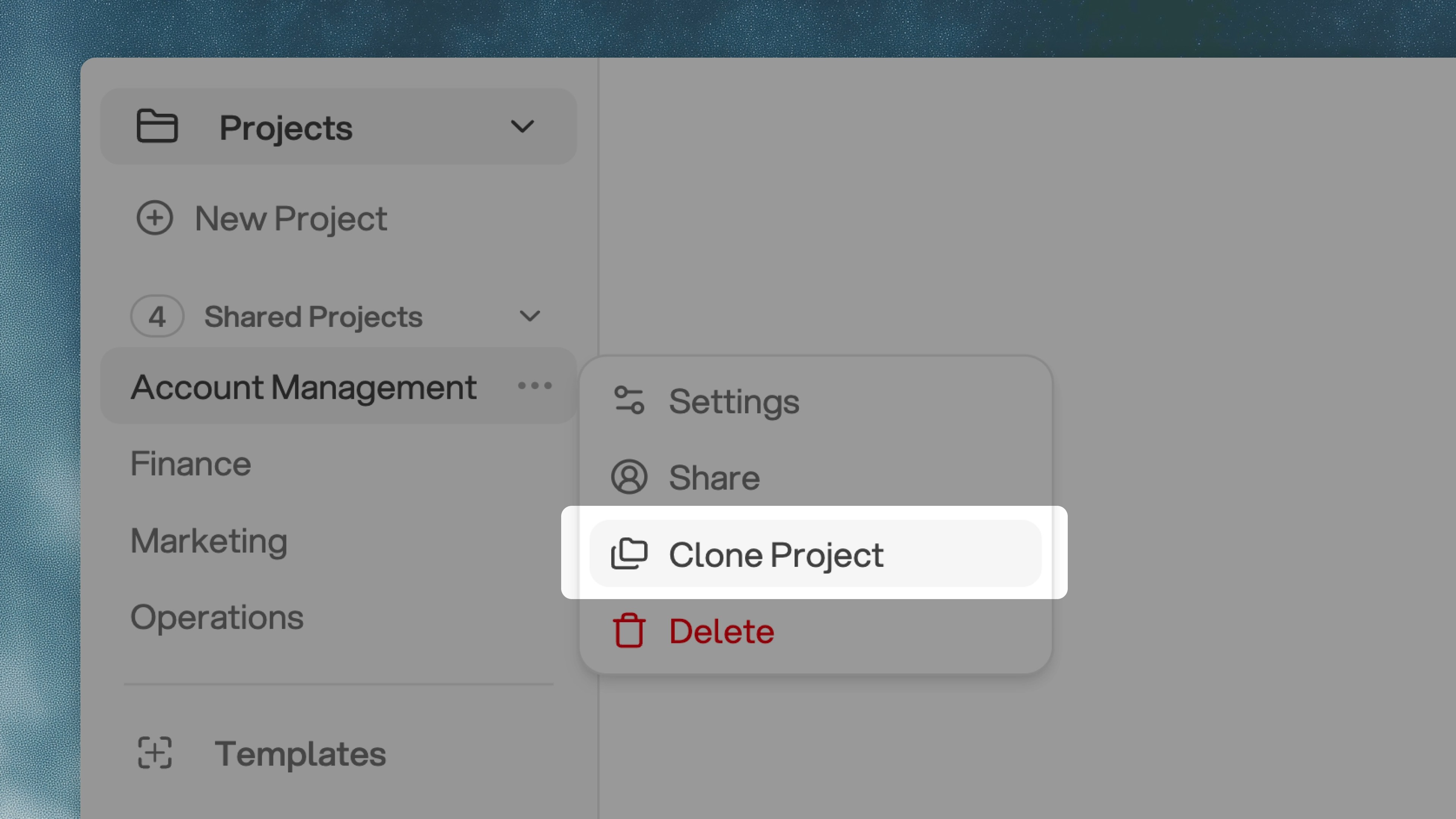
Memories from an isolated project will not automatically copy into a cloned
project. Each cloned project starts with its own isolated memory.
Sharing Projects
You can share projects two ways: directly with individual users, or by sharing them with a Group.Sharing with individuals
To share a project with one or more users, click the share button in the upper right-hand corner of the project interface.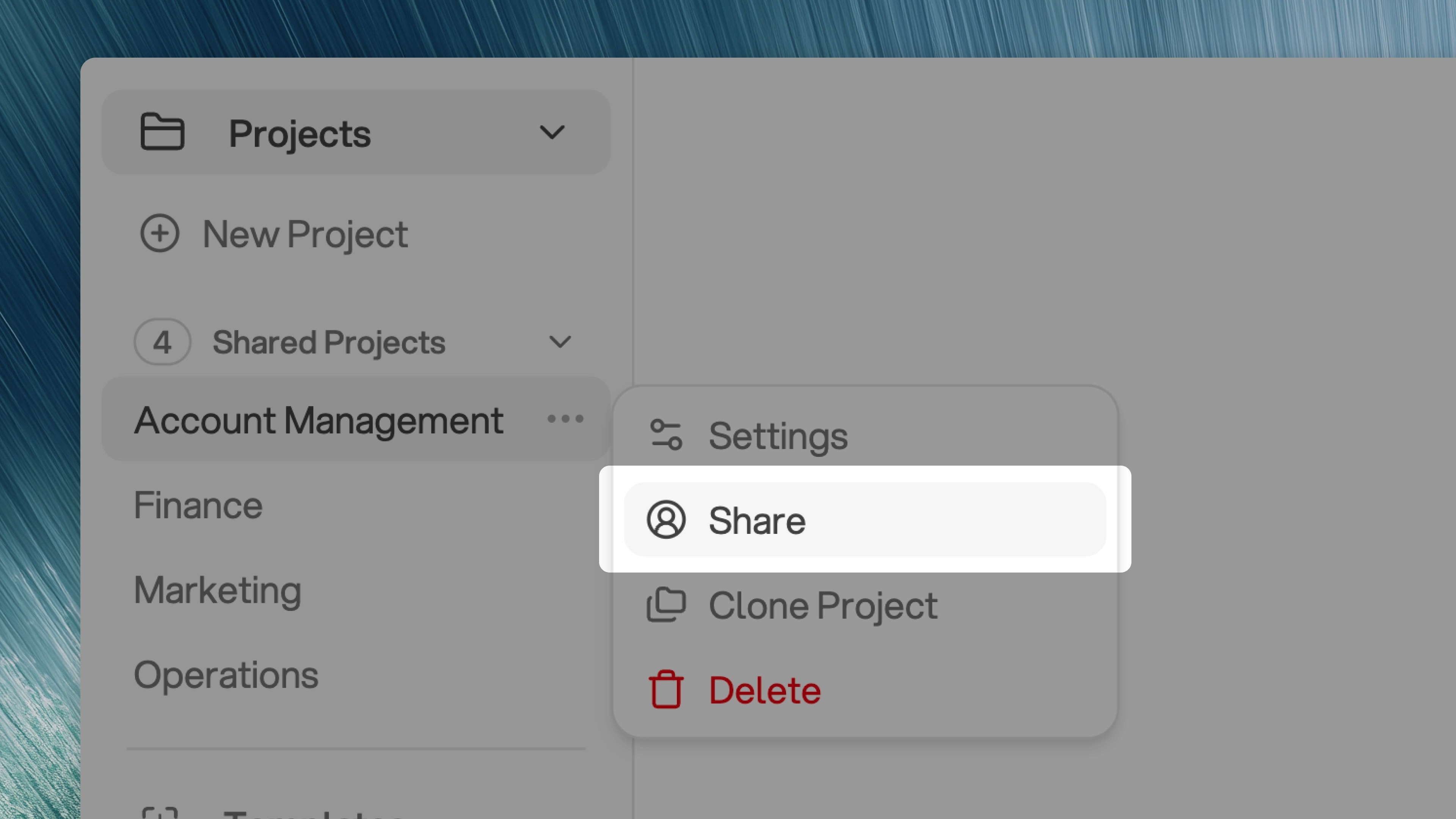
Sharing with a Group
If your tenant uses Groups, you can give access to a project by sharing it with a group. Everyone in the group can access the project, with permissions matching their role in the group, so there is no need to invite members individually. If a group has been given access to the project, Project Settings lists it on the Details tab. Administrators see every group with access; everyone else sees only the groups they belong to.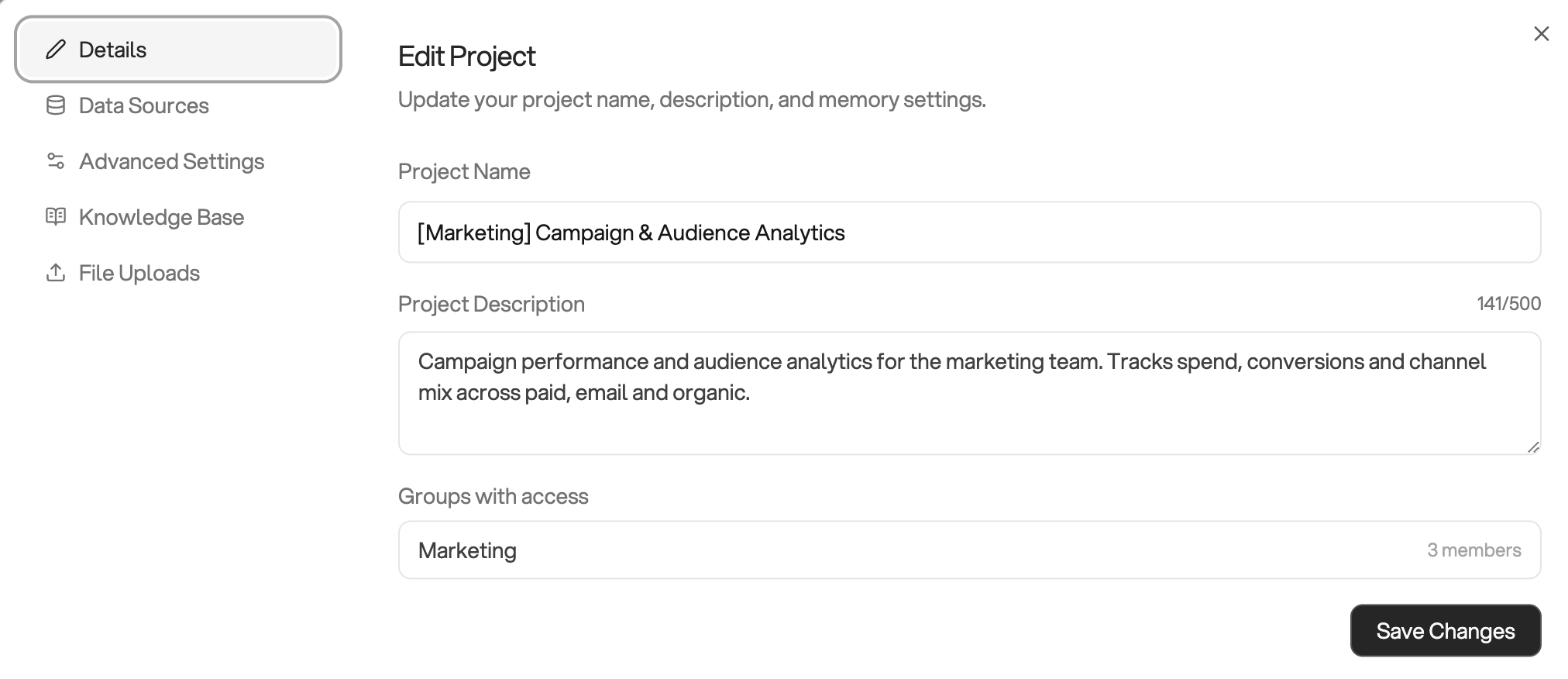
Project Permissions
Orion supports three tenant roles with varying levels of access. If your tenant uses Groups, users also have a group role that may further shape what they can do within a specific project. See Groups → Roles at a Glance for a full breakdown.Admin
Can control who has access to projects. Admins can assign users to projects
from the Manage Users tab and have full control over project access.
Analyst
Can do just about anything within a project, including chatting with the
project and sharing projects. The only limitation is that analysts cannot
add existing users to other projects.
Viewer
Can view projects that have been approved and view insights that have been
approved. Viewers have read-only access to approved content.