

When to use Groups
Departments
Sales, Marketing, Finance, and Operations each get their own group with the
projects, data sources, and Knowledge Base pages relevant to their work.
Multiple customers
Agencies and consultancies can give each end customer their own group,
keeping their projects and data isolated from other customers in the same
tenant.
Cross-functional teams
A user can belong to several groups at once, for example an executive who
needs visibility into Sales, Marketing, and Operations.
If you don’t create any groups, Orion behaves exactly as before. Groups are an
additive feature: your existing users, projects, and permissions are
unaffected until you opt in by creating a group.
Accessing Groups
Group management lives alongside user management in Settings → Manage Users. The page has two tabs: Users and Groups.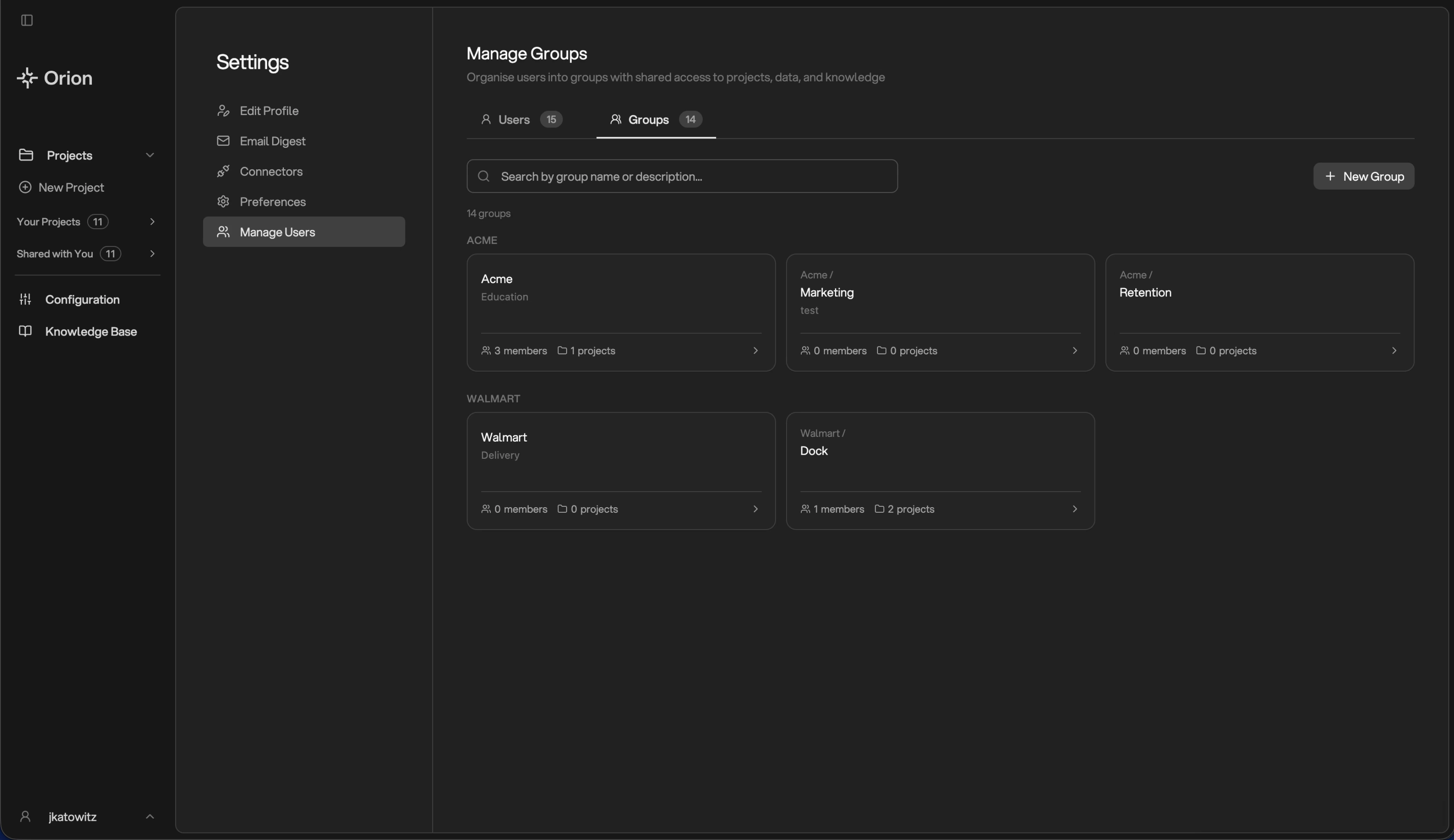
Groups in Manage Users
Creating a Group
From the Groups tab, click + New Group. Give the group a clear name and an optional description.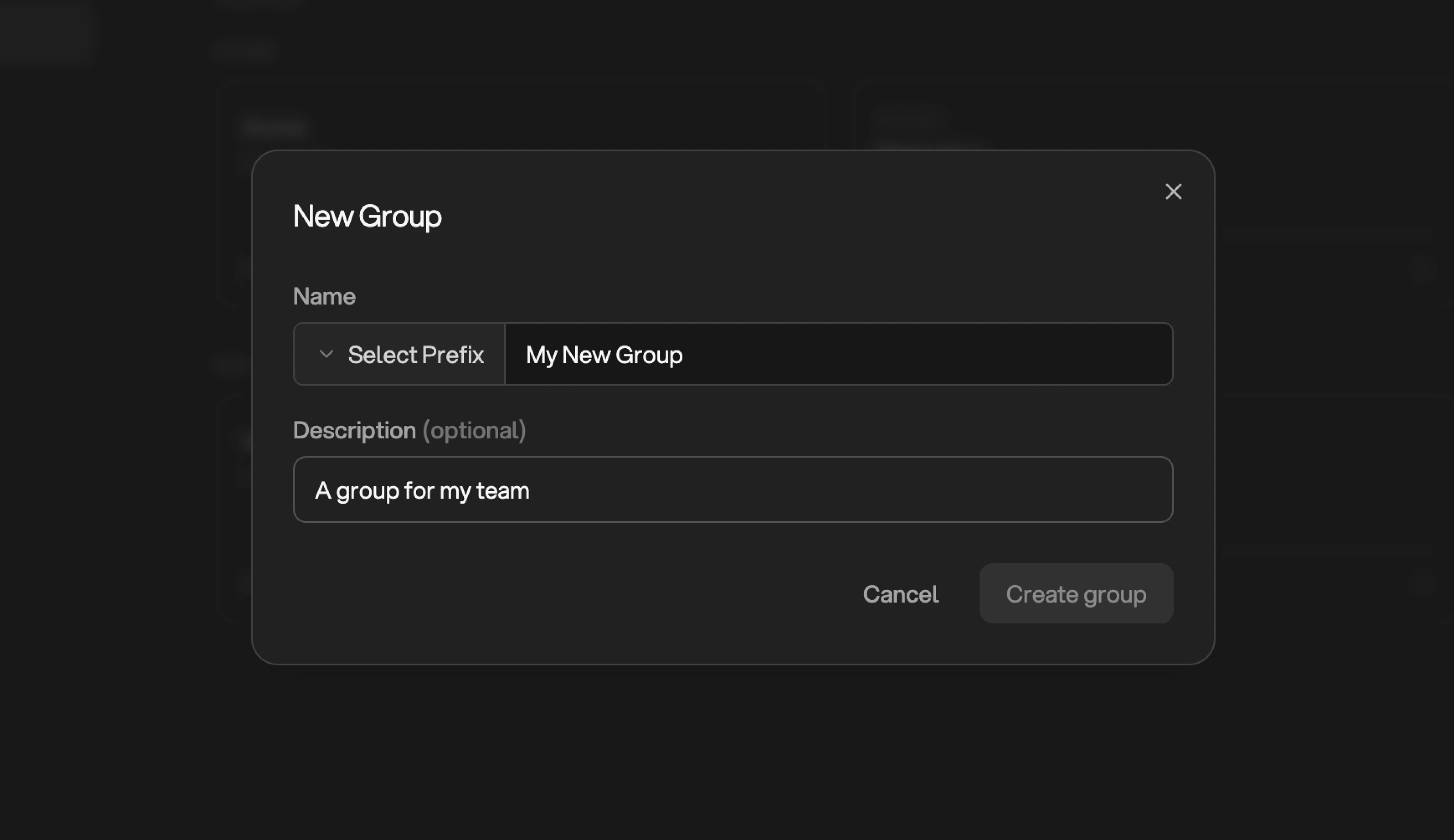
Create a group
Naming Groups with Prefixes
When creating a group, the modal offers the option to select a prefix or choose no prefix. Prefixes are a purely organizational label: they make related groups sort and display together, but confer no shared access or functional relationship between groups. A group namedVerizon / Sales and one named Verizon / Marketing are completely independent; the prefix just keeps them visually adjacent.
The first group you create under a prefix acts as the catch-all group for that prefix, a landing zone you can add users to before their specific sub-group is ready. For example, you might create Verizon first, add new users there while you’re still setting up sub-groups, then move them into Verizon / Sales or Verizon / Marketing once those are configured.
Group Roles
Each user has a role within each group they belong to. A group role only controls what someone can do inside that group: it is separate from and independent of their tenant role.Group Admin
Manage everything in the group: add and remove members, add projects, data
sources, Knowledge Base pages, and integrations, and delete the group.
Group Analyst
Full working access to everything in the group. Can create new projects and
share them with others. Can also create new groups and automatically becomes
the Admin of any group they create.
Group Viewer
Read-only access to the group’s projects, data, Knowledge Base pages, and
integrations. Cannot manage group settings or data source configuration, and
can query data only where a project owner allows it.
Roles at a Glance
The table below covers the six roles you assign, across both levels, tenant and group. Tenant roles apply across the entire Orion instance; group roles apply only within the specific group.- A Group Analyst automatically becomes Group Admin of any group they create.
- Project owners can extend Viewer access to allow data queries on a per-project basis in Project Settings.
- Group Admins can invite new users to the tenant through the group’s Invite by email flow, but not through Settings directly.
- A Group Admin can still open Configuration → Data Sources, Integrations, and Users: an admin seat in any group admits them to those tabs. What they manage there is their own groups’ resources, not the tenant’s settings.
Tenant roles and group roles are independent. A tenant Viewer can be a
Group Admin. A tenant Analyst can be a Group Viewer in one group and a Group
Admin in another. Orion always evaluates the role that applies to the specific
resource someone is trying to access, so what a user can do in chat, sharing,
and editing may differ from one project to the next.
Users with roles across multiple groups
Tenant Admins always have full visibility across every group. For everyone else (tenant Analysts and Viewers), group roles can vary between groups. A user can simultaneously be:- A Group Admin in a group they created or were promoted in
- A Group Analyst in a colleague’s group they were invited to contribute to
- A Group Viewer in a third group where they only need read access
Onboarding new users
Whether you’re adding an internal teammate or one of your customers, the safest default is the same: invite them as a tenant Viewer, then layer their real access on top through groups. A tenant Viewer is a blank canvas: they cannot see any projects, data sources, or Knowledge Base pages by default. From there, add them to the right group(s) with a group role that matches what they need to do:- Group Viewer: read-only access to the group’s projects, data, Knowledge Base, and integrations
- Group Analyst: full working access; can create and share projects within the group
- Group Admin: full administrative control of the group, including adding members
1
Open the group and start an Invite by email
From the group’s detail page, click Add member, then Invite by email
at the bottom of the picker.
2
Pick the tenant role
Choose Viewer. This is the user’s baseline across the entire tenant and
keeps everything outside their group off-limits.
3
Pick the group role
Choose Group Admin, Group Analyst, or Group Viewer based on what
they need to do inside this group.
4
Send the invite
The invitee receives an email and, on first login, lands in Orion with both
roles applied automatically.
Managing a Group
Click any group from the Groups tab to open its detail view. From here you can manage everything the group has access to using the tabs along the top.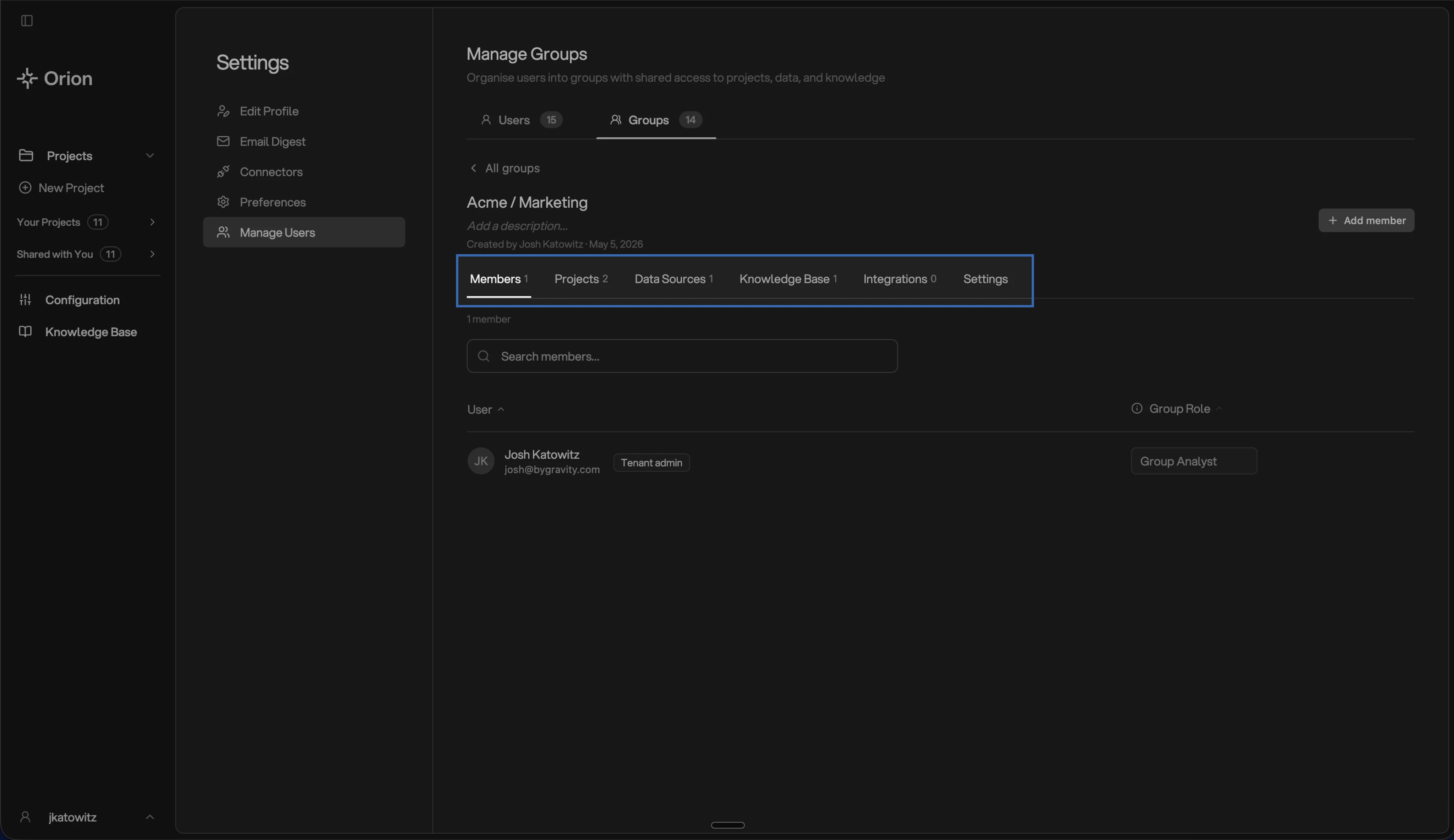
Manage a group
Members
The Members tab lists everyone in the group along with their group role.Adding existing users to a group
Click Add member to open the member picker. The list shows users from your tenant who aren’t already in the group. Pick the role they should have within the group, then add them.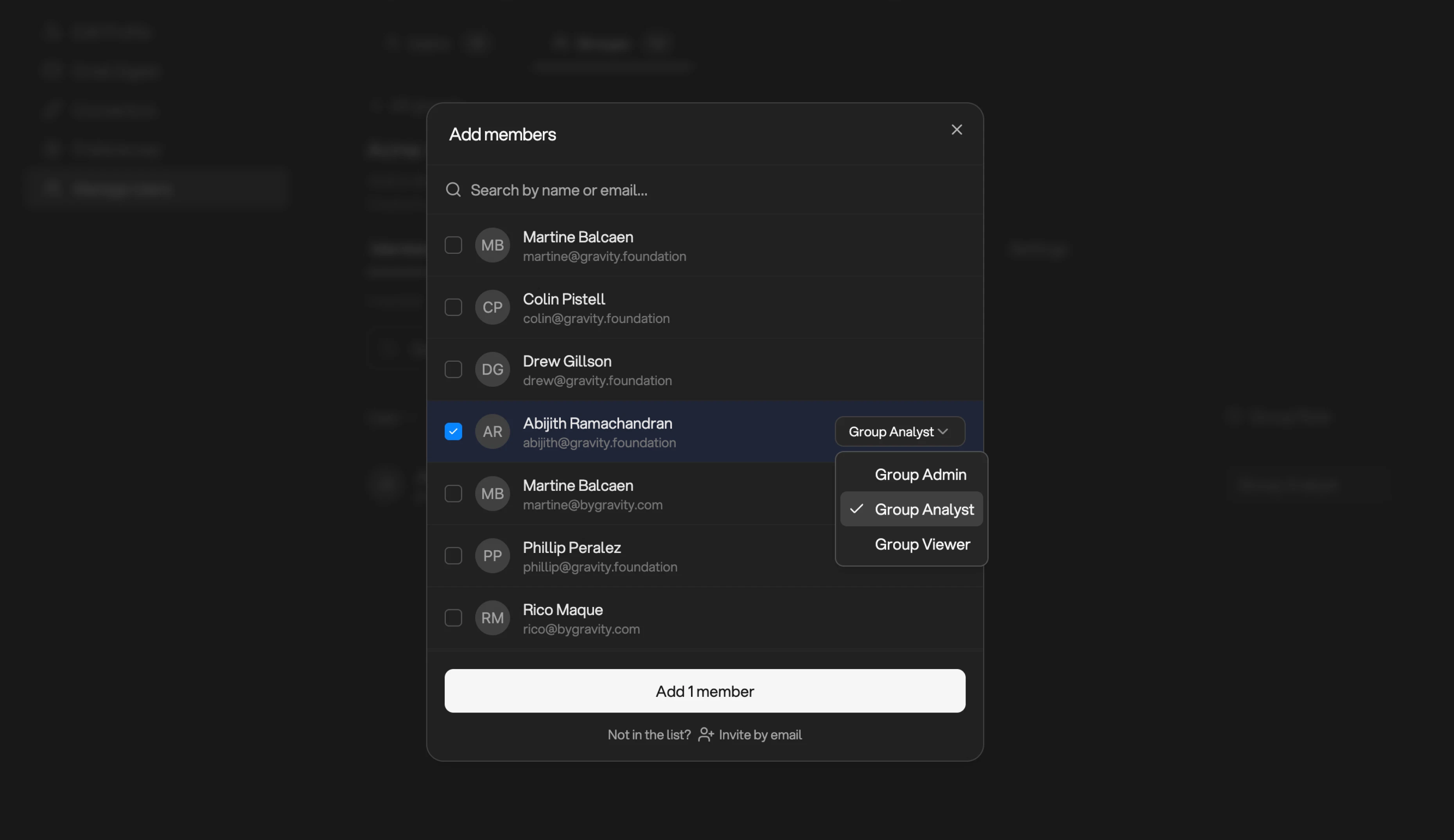
Add users to a group
Inviting new users directly into a group
If the person you want to add isn’t in your tenant yet, click Invite by email at the bottom of the picker. You’ll select their tenant role first (Admin, Analyst, or Viewer), then their group role. The invitee will receive an invitation email and, on first login, lands in Orion with both roles applied.Projects
The Projects tab lists the group’s projects. Everyone in the group can access them with permissions matching their group role.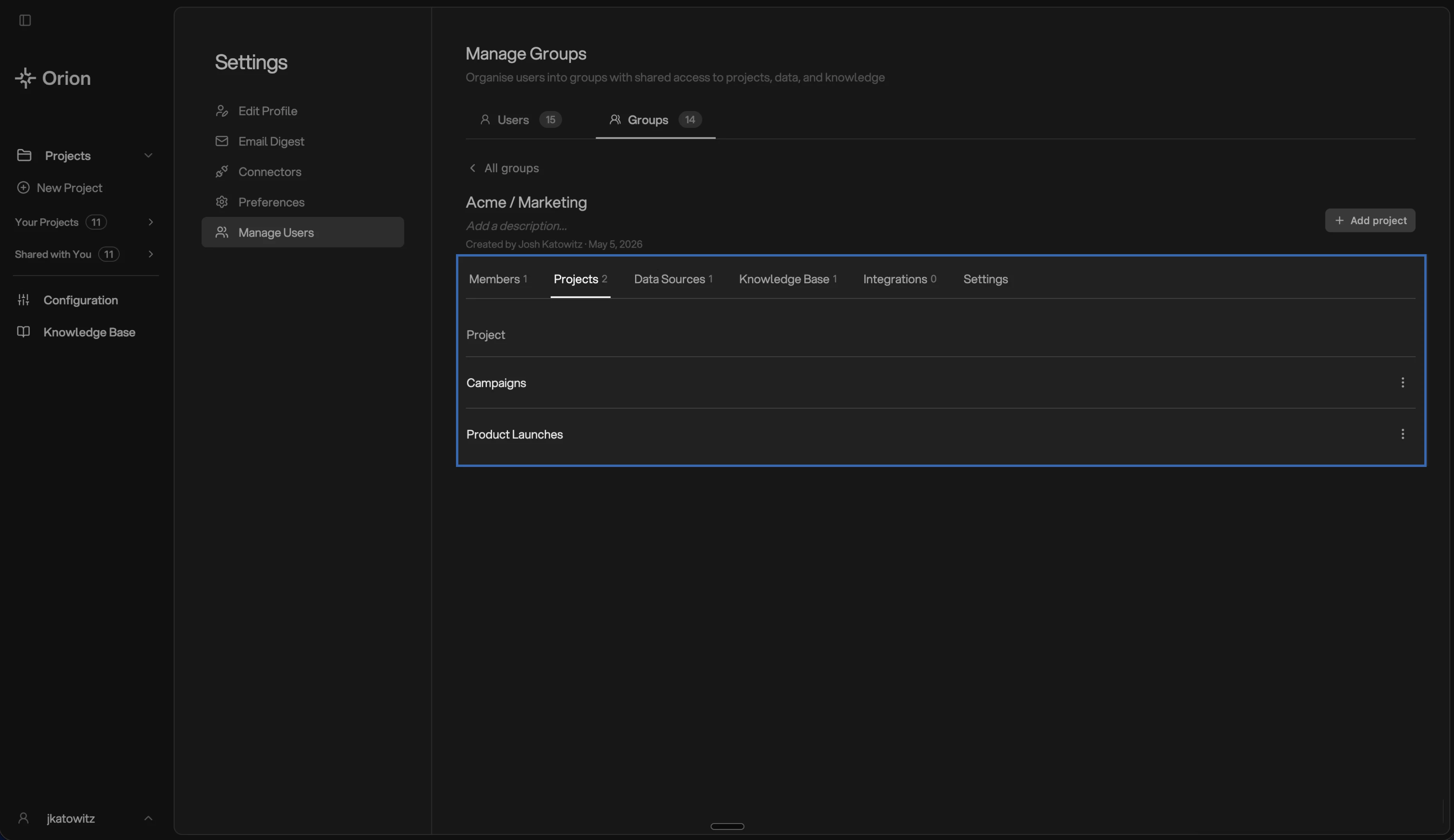
Projects available to a group
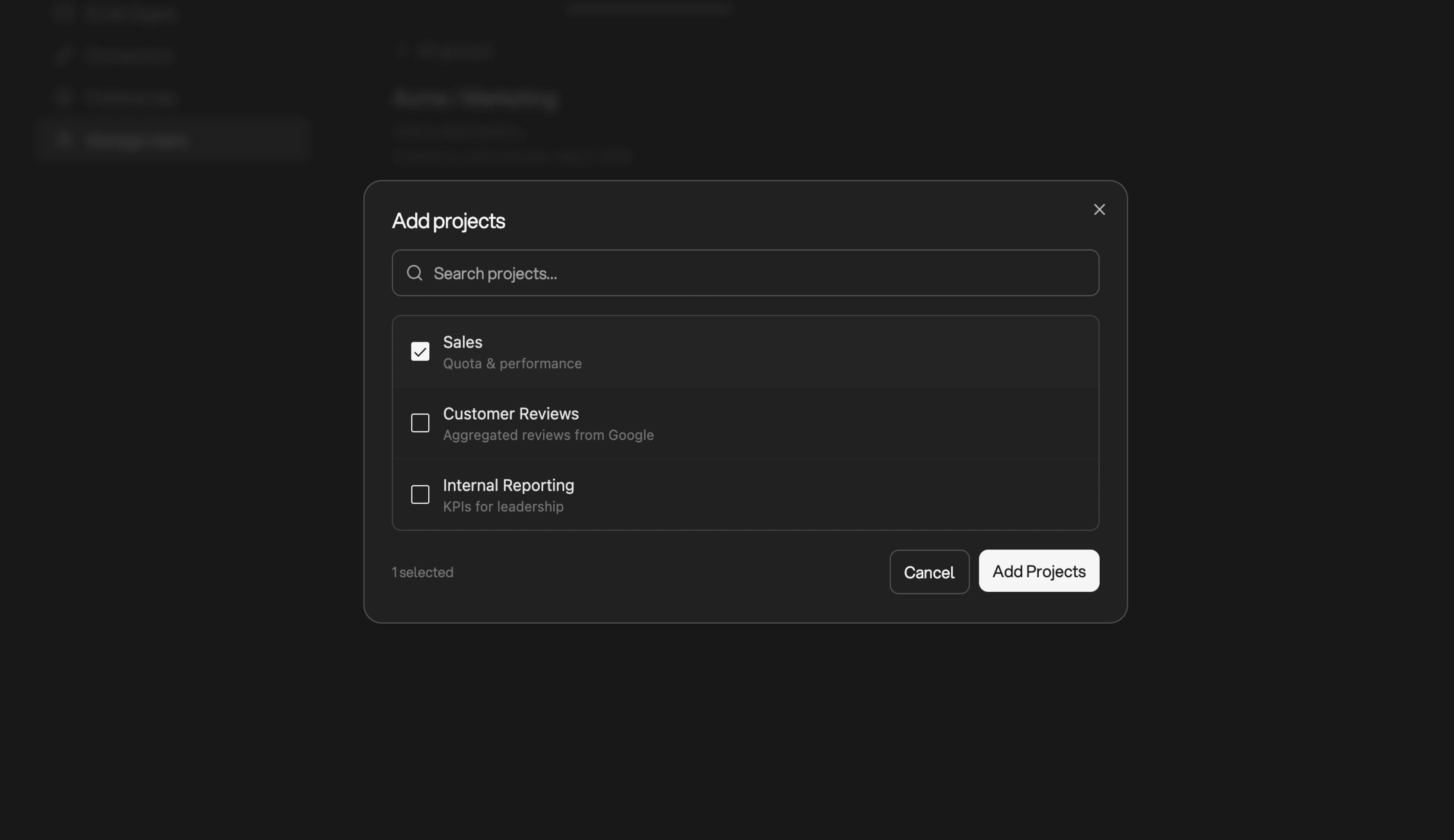
Add projects to a group
Creating a new project does not automatically add it to a group. A project
belongs only to the user who created it until a Group Admin or Group Analyst
explicitly adds it to the group from this tab.
Data Sources
When a project is added to a group, the data sources attached to that project automatically become available to everyone in the group, so you don’t need to enable them separately. The Data Sources tab is additive: use it to expose data sources to the group beyond what its projects already provide.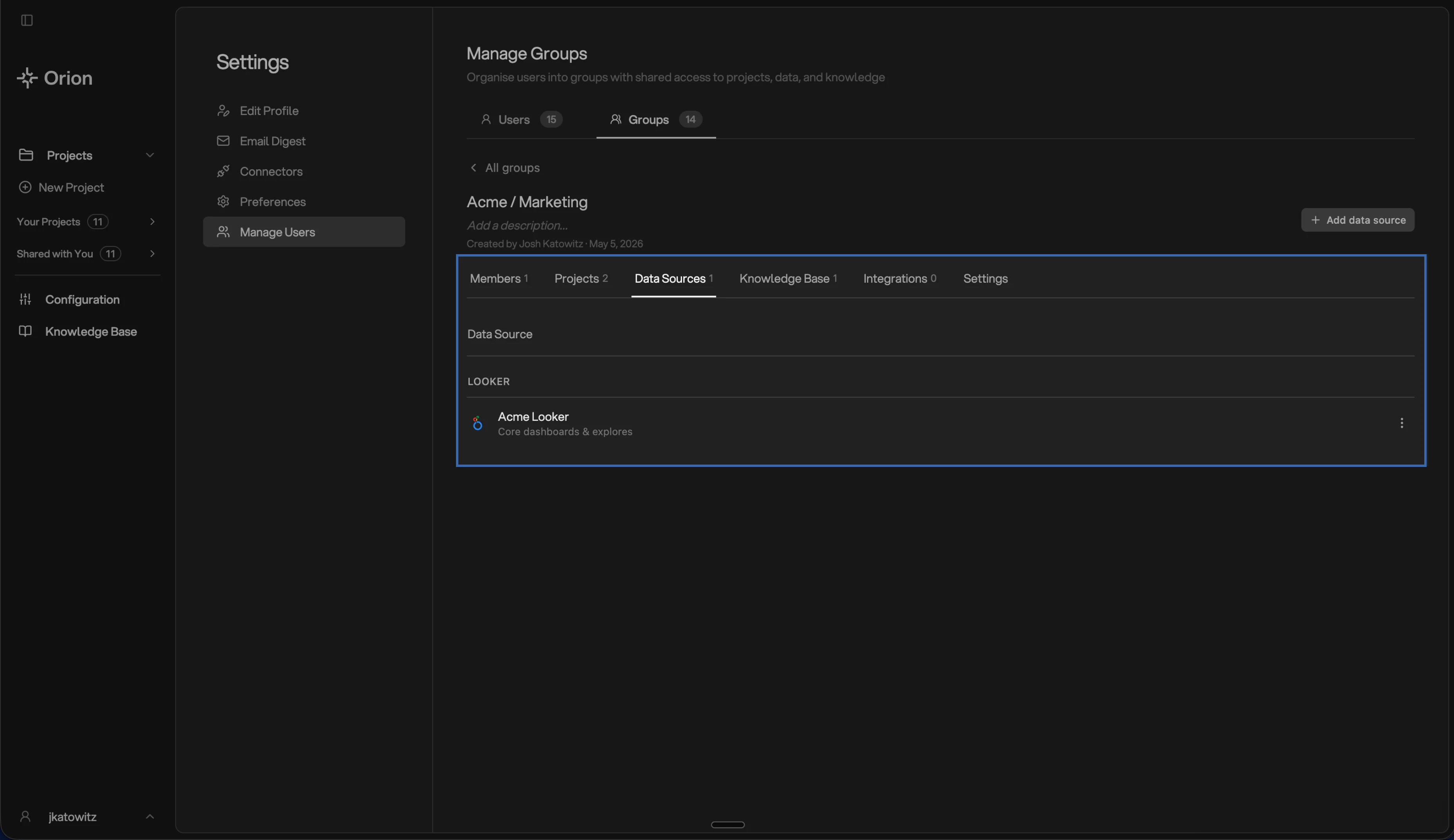
Data sources available to a group
Knowledge Base
The Knowledge Base tab controls which Knowledge Base pages and folders the group can use. You can select individual pages or whole folders. Each linked page also has an Auto-inject switch: when on, the page is automatically included in chat context for everyone in the group, with no per-project enablement needed. See Default Pages (Auto-Inject).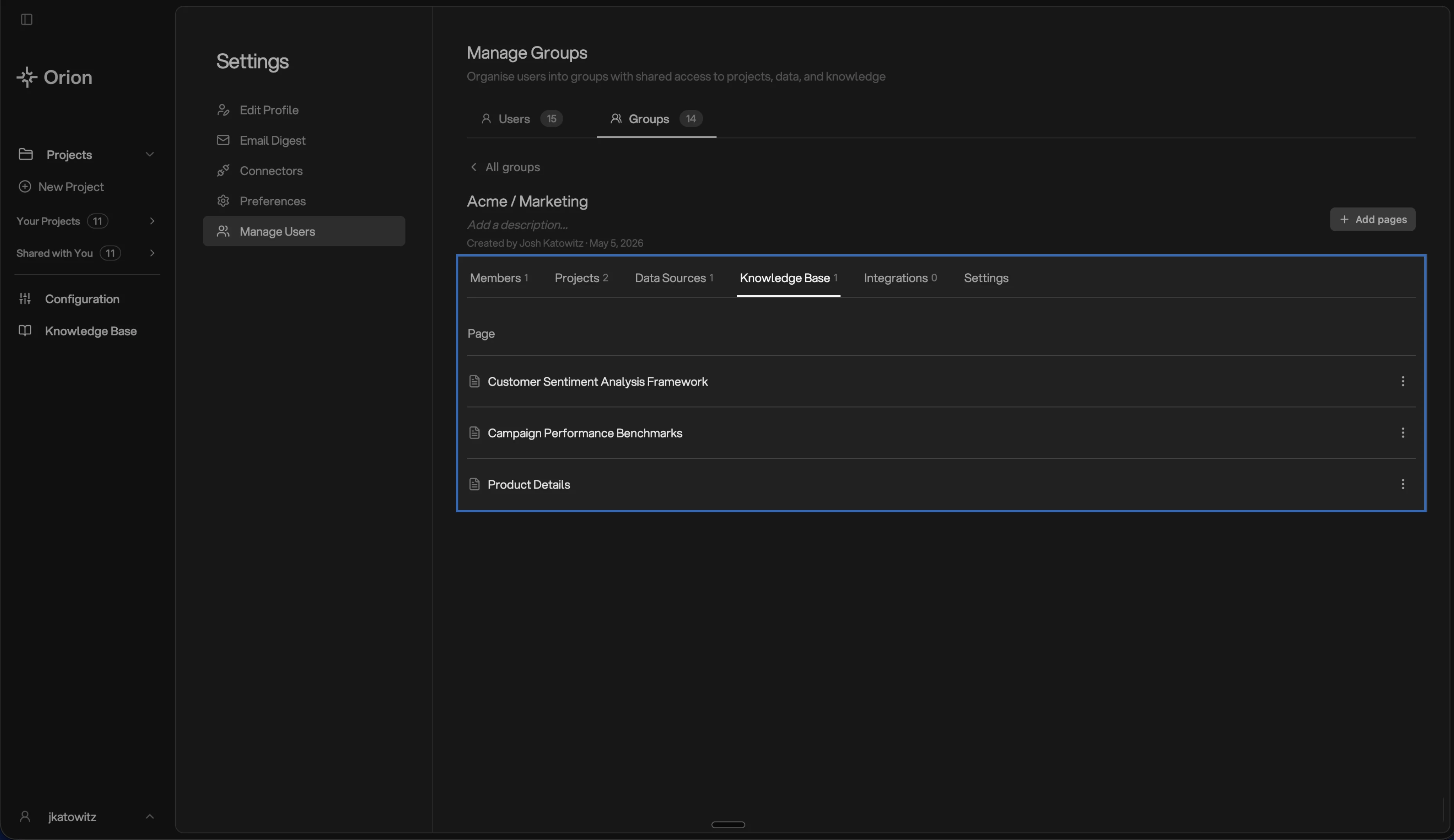
Knowledge Base pages available to a group
Integrations
The Integrations tab controls which integrations the group has access to.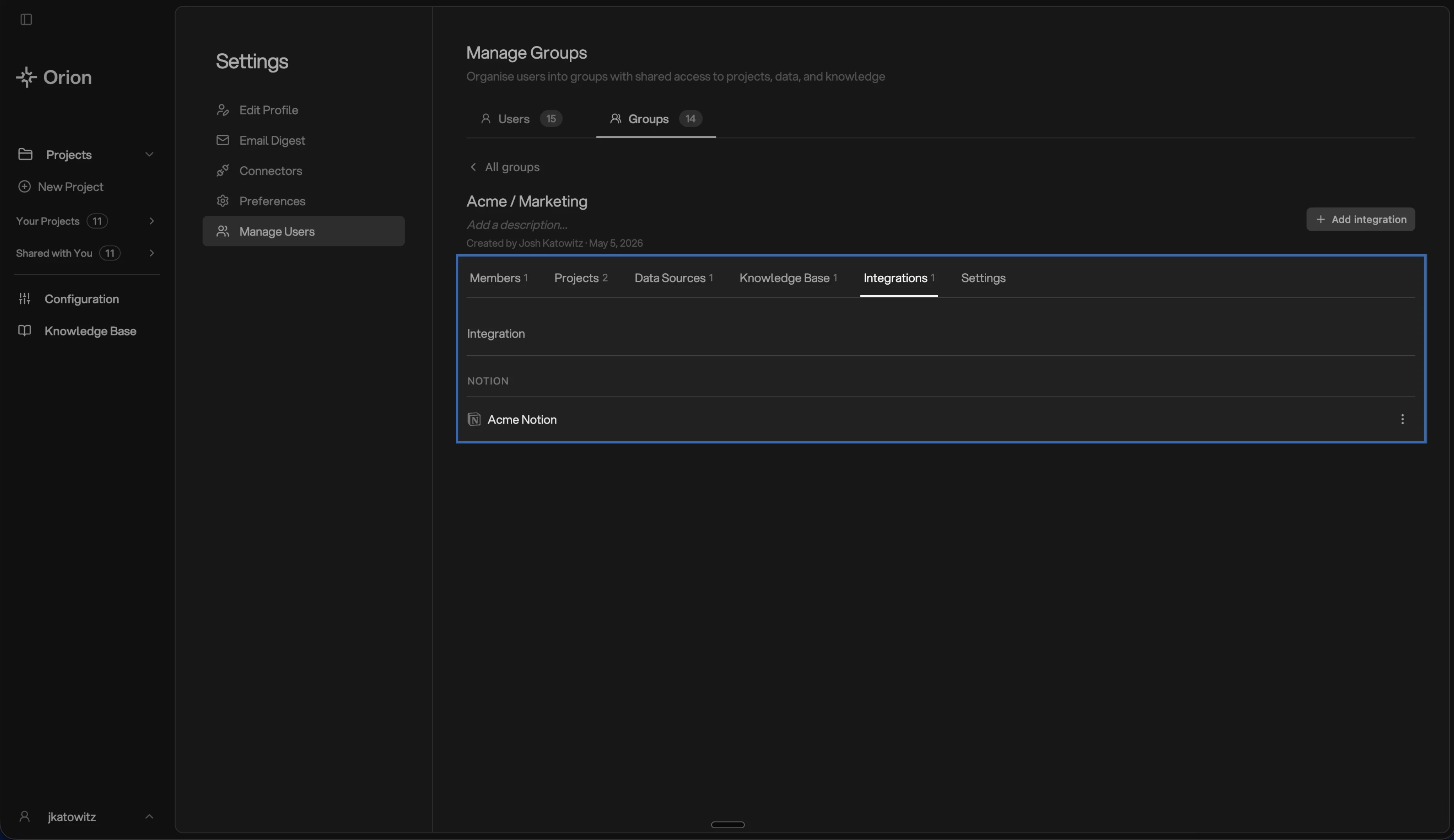
Integrations available to a group
How users get access to a project
A user can be given access to a project in two ways:- Through a group: they’re a member of a group that the project belongs to. Their permissions match their role in the group.
- Directly: they were invited to the project individually from the project’s Share menu, independent of any group.
Deleting a Group
To delete a group, open it and click Delete group in the upper-right corner. The confirmation dialog summarizes what will happen: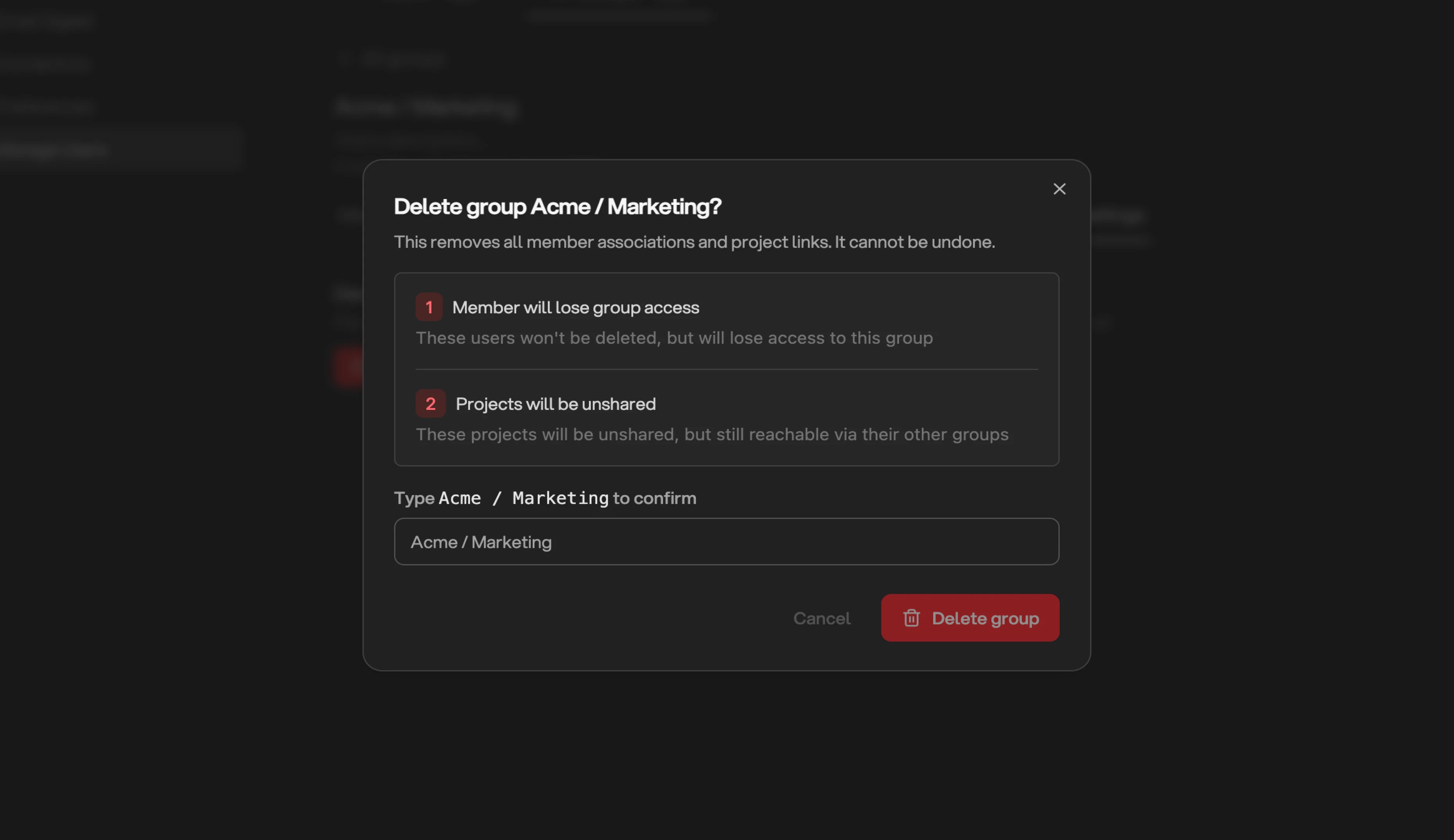
Delete a group
- Members lose access to anything they only had through this group. They keep any direct project access they were granted individually.
- Projects that are only used by this group can either be transferred to the group’s Admins (who keep access individually) or deleted along with the group.
- Data Sources, Knowledge Base pages, and Integrations are not deleted, they simply leave the group.