

Creating a New Page or Folder
Go to Context in the left-hand navigation menu, then open Pages Overview. Use the page tree on the left to create folders and pages. To create content:- Right-click on the root or any folder to see options
- Select Create Page or Create Folder
- Enter a name for your content
- Start editing (if creating a page)
Folder Structure
You can create a hierarchical folder structure with a maximum of 3 folder levels deep. Within folders you can create as many pages as you want. Important naming rules:- ❌ You cannot have multiple folders with the same name in the root directory
- ❌ You cannot have multiple pages with the same name within a folder
Creating Pages
When you create a new page, you have two options:- Write manually - Use the markdown editor to type and format your content
- Upload a file - Import existing documentation (see supported formats below)
Supported File Formats for Upload
Context supports uploading:- Text files (.txt)
- Markdown files (.md)
- Excel spreadsheets (.xlsx)
- CSV spreadsheets (.csv)
PDFs and images are not currently supported file types. For PDFs and complex
documents with images, use project file uploads instead.
Markdown Editor
The page editor provides a markdown editor with live preview. You can:- Write your content in markdown
- See a live preview of your changes
- Format text, create lists, add headers, and more
- Save your changes when ready
Key Information About Pages
The first 250 characters of your page are especially important. Orion uses this text to quickly understand what the page contains, so it’s recommended to:- Place a summary or description at the very top of the page
- Provide the most important context in those first 250 characters
- Think of it like an executive summary
Editing & Managing Pages
To edit a page:
- Click on the page in the left navigation to open it
- Click the Edit button in the top right corner
- Make your changes and save
To rename or delete:
- Right-click on a page or folder
- Select Rename or Delete
If you try to delete a folder that contains pages, you’ll get a warning. You
must first move the files out of that folder before it can be deleted. This is
a safety precaution to prevent accidentally deleting entire folders of
content.
Organizing Your Context Pages
You can reorganize your Context pages by dragging and dropping pages or folders into one another. This makes it easy to reorganize your wiki pages without having to recreate them.Revision History
We store the revision history of all your pages. In the top left corner above the editor, you can see who updated the page last and when. This helps track changes to your Context pages over time.Locking Pages and the Change Request Flow
Pages can be locked to control who can make direct edits. Locking a page enables the change request workflow for that page.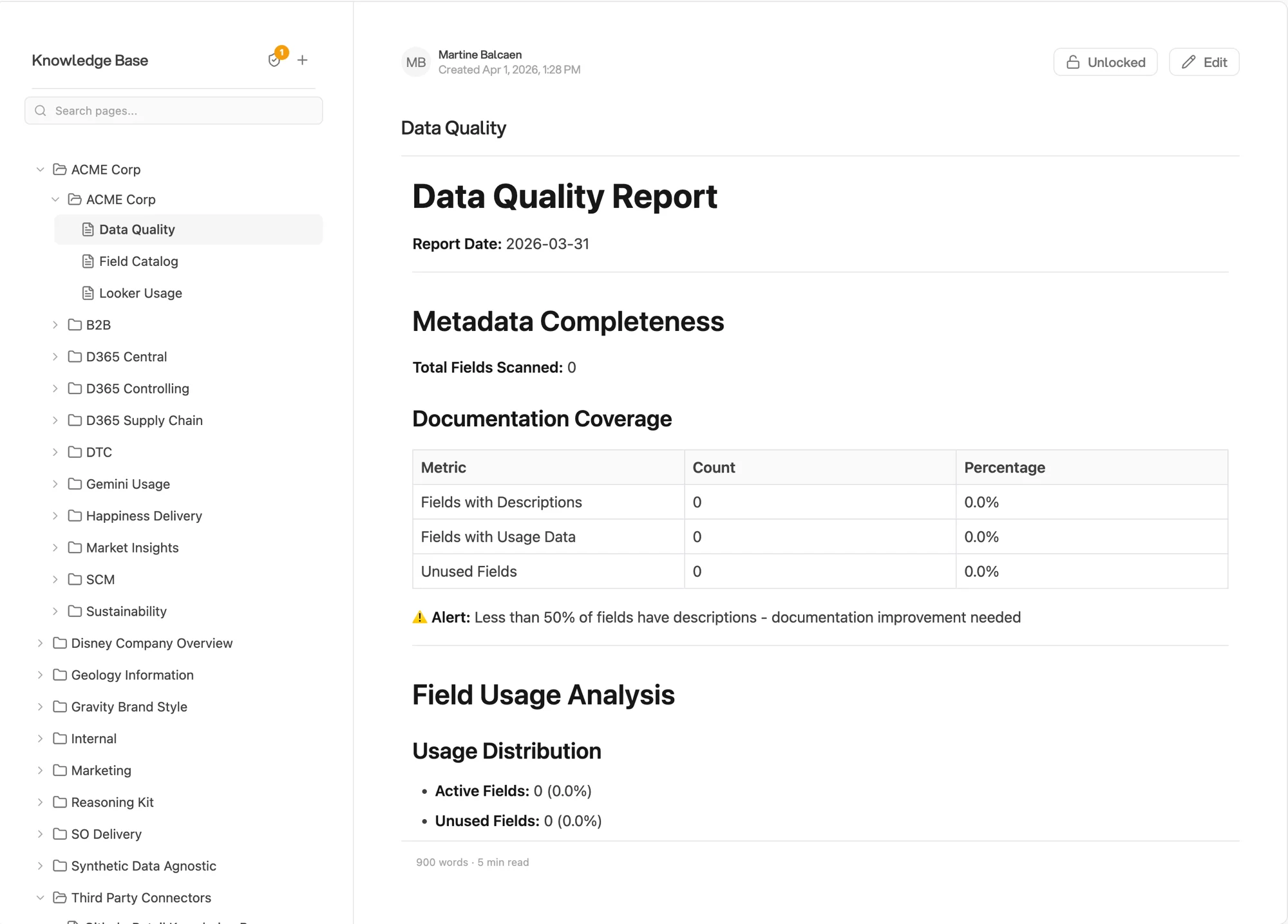
Lock a Context page
Who Can Lock a Page
Only the page creator or an admin can lock or unlock a page. Use the lock toggle in the top right of the page view (next to the Edit button).What Happens When a Page Is Locked
- Admins can always edit and delete directly
- Non-admins (analysts, viewers) who edit a locked page submit a change request instead of saving directly
- The page creator and admins are notified of pending change requests
- The page’s content is unchanged until the change request is approved
Reviewing Change Requests
Admins and page creators can review pending change requests:- Open the page. A banner appears when there are pending requests
- Click Review to see the proposed changes
- Approve to apply the changes, or Reject to decline them
- Optionally add a review note explaining the decision
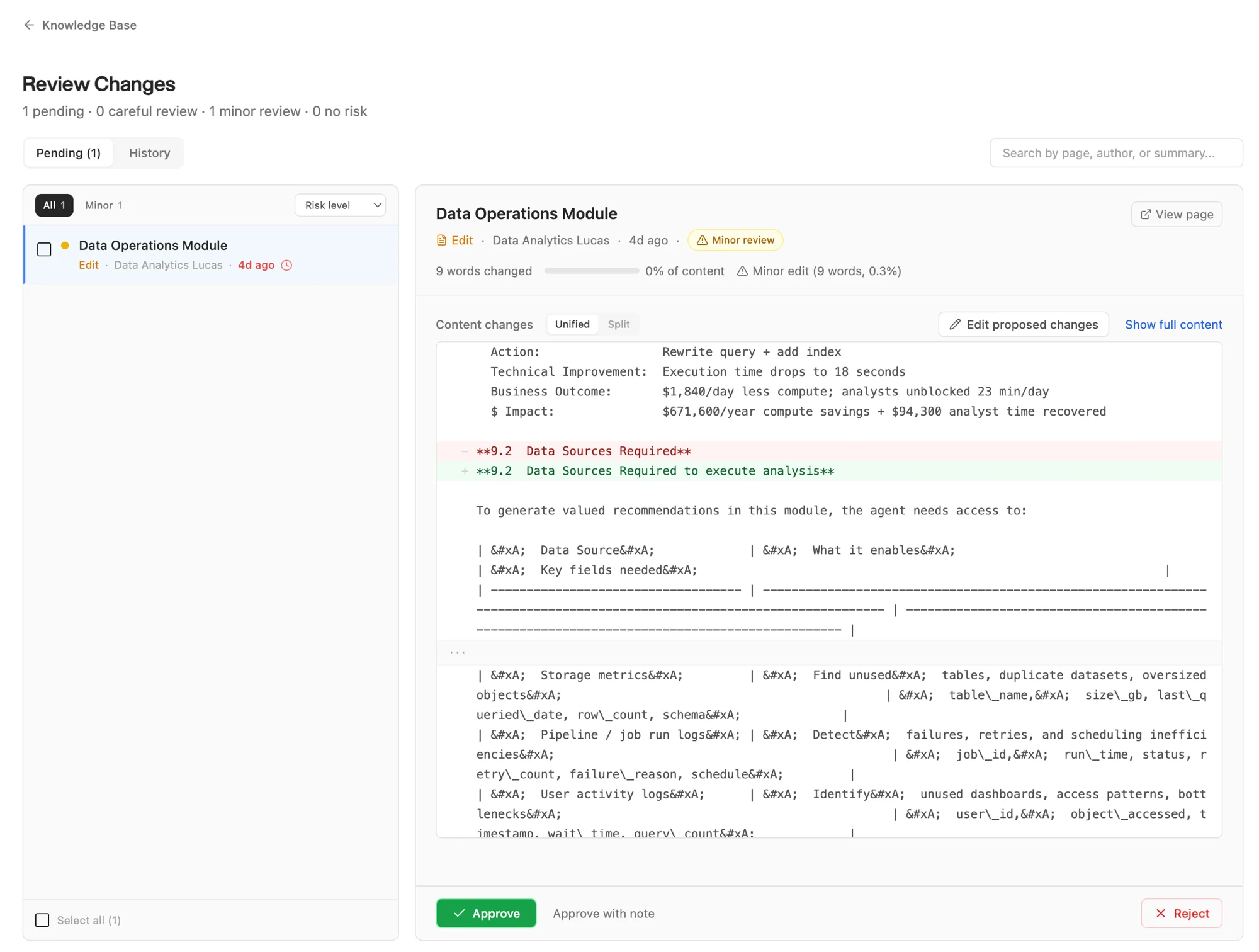
Review a change request
- Pending / History tabs: active requests and past decisions
- Risk level: Minor, Careful review, or No risk, based on how much content changed
- Unified / Split diff: toggle between views of what changed
- Edit proposed changes: modify the submission before approving
- Show full content: see the entire page in context
Change Request Statuses
If you are the creator of a page, your own edits bypass the change request
flow even when the page is locked.
Enabling Pages for Projects
To use Context pages in a project:- Go to your project settings
- Navigate to the Context tab
- Search for and select the pages you want to enable
- Orion will have access to these pages when working on the project
By default, Orion has no access to Context folders and files until you
explicitly provide access by enabling them within the project. This keeps
Orion focused on only the context needed for that specific project.
Default Pages (Auto-Inject)
Administrators can mark a small set of pages as defaults that Orion includes automatically, without anyone enabling them per project. This is an opt-in setting made page by page; nothing is auto-injected until an admin selects it. There are two scopes:- Tenant-wide: on the page itself, open the … actions menu and switch on Project Default (admins only). The page is included in every project in the tenant, and the sidebar marks it with a globe icon.
- Per group: in a group’s Context tab, each linked page has an Auto-inject switch. When on, the page is included in chat context for everyone in that group. Group admins and group analysts can manage this alongside tenant admins.