


Email digests
Create a Digest
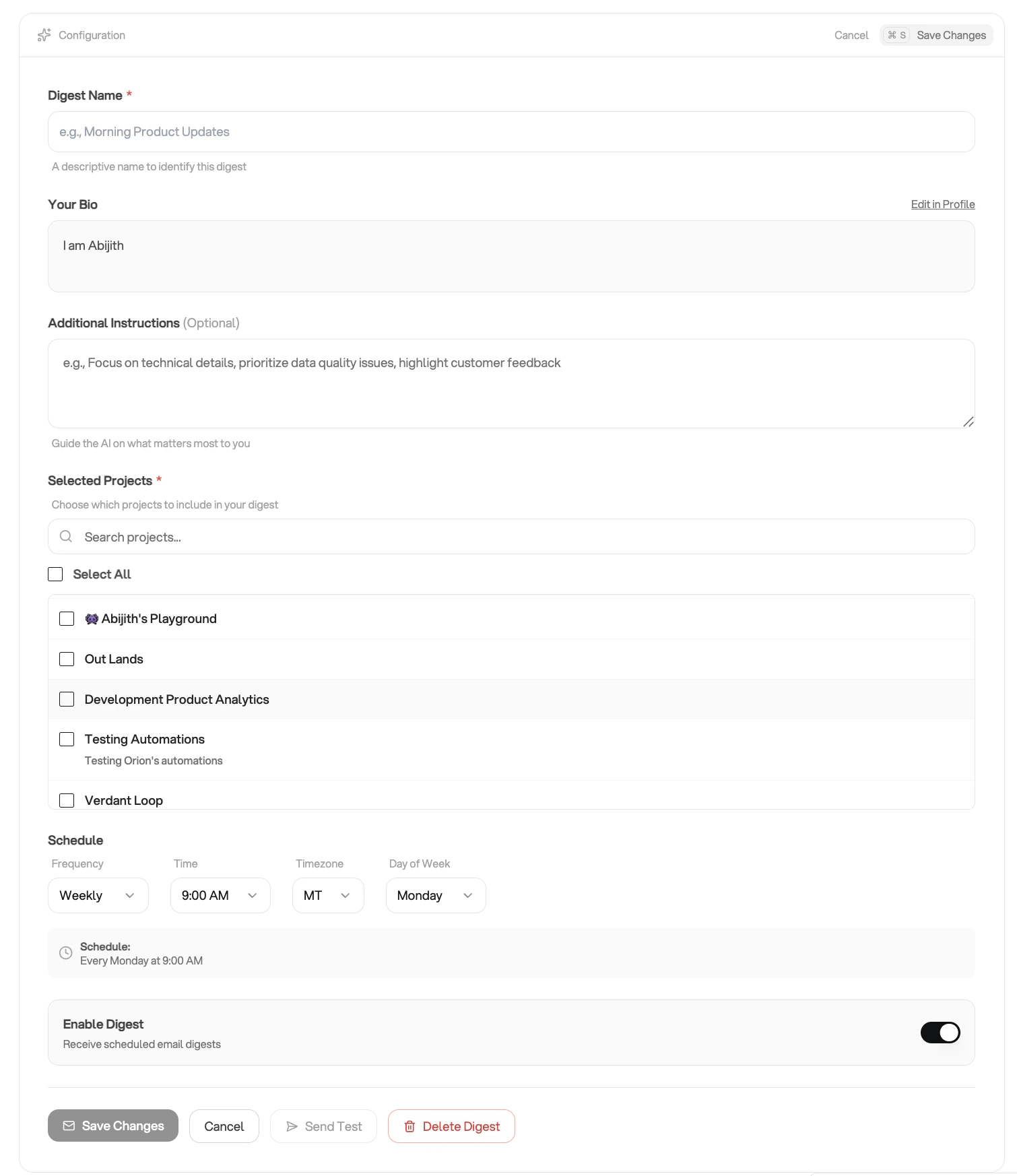
Create an email digest
- Go to Settings → Email Digest.
- Click Add New Digest.
- Fill in the form:
- Digest Name: a label for this digest (e.g. “Weekly Marketing Summary”).
- Your Bio: Orion uses your profile bio to personalize the digest content to your role and preferences. You can edit it inline from this page, or update it in Profile Management.
- Additional Instructions (optional): free-text guidance Orion follows when writing the digest. Use this to focus on specific metrics, highlight anomalies, or set a preferred tone (e.g. “Prioritize conversion metrics and flag any week-over-week drops greater than 10%”).
- Selected Projects: choose one or more projects. Orion draws insights from all selected projects when composing the digest.
- Schedule: pick a day of the week, delivery time, and timezone. Digests are sent weekly.
- Click Save Changes.
Enable or Disable a Digest
Each digest has an Enabled toggle visible in the list view. Disable a digest to pause delivery without deleting your configuration. Re-enable it at any time to resume on the existing schedule.Edit a Digest
- Go to Settings → Email Digest.
- Click the icon next to the digest.
- Update any fields, including the enabled state, schedule, projects, or instructions.
- Click Save Changes.
Send a Test Digest
Send yourself a one-off digest email at any time to preview the content before the next scheduled delivery.- Go to Settings → Email Digest.
- Click the icon next to the digest.
- Check your inbox. The test email arrives within a few minutes.
You must save your preferences before sending a test digest.
View Digest History
- Go to Settings → Email Digest.
- Click the icon next to a digest to open the history drawer.
- The drawer lists all previously sent digests with their sent timestamps.
Delete a Digest
- Go to Settings → Email Digest.
- Click the icon next to the digest.
- Confirm the deletion in the dialog.
How the Digest Content is Generated
When a digest is due, Orion:- Fetches recent insights and activity from your selected projects.
- Uses your profile bio to understand your role, focus areas, and communication preferences.
- Applies any additional instructions you’ve set to shape the content.
- Generates a curated email summary and delivers it to the email address on your account.