

How Orion connects
A few principles apply to every connection:Read-only
SELECT and metadata introspection).
It never runs DDL, DML, or stored procedures against your systems.Least privilege
Encrypted at rest
Choose your data source

BigQuery

Snowflake

Databricks

Looker

PostgreSQL

MySQL

Redshift

Amazon Athena

Microsoft Fabric

Delta Lake

MotherDuck

dbt
News API
Weather
BigQuery
Orion connects to BigQuery using service account impersonation. You create a service account in your project and grant Orion’s service account permission to impersonate it. No credentials or keys are ever shared.Create a service account
- Go to Google Cloud Console → IAM & Admin → Service Accounts
- Click Create Service Account
- Name:
external-orion-data-access(or your preferred naming) - Description: “Service account for Orion data access”
- Click Create and Continue
- Skip role assignment for now → click Done
Enable service account impersonation
- Navigate to IAM & Admin → Service Accounts
- Find the BigQuery Service Account you just created
- Select the Principals With Access tab and click Grant Access
- Add principal: the Orion Service Account address you copied
- Assign role: Service Account Token Creator
- Click Save
Create a scratch dataset and grant edit access
- Navigate to BigQuery
- Create a new dataset, a dedicated dataset reserved for Orion’s use (we recommend a descriptive name like
orion_scratch) - Grant the BigQuery Service Account Data Editor access to this dataset
Grant table-level access
- Select the dataset → click Share Dataset
- Add the BigQuery Service Account email
- Assign role: BigQuery Data Viewer
- Click Add, then Done
Grant project-level access
- Navigate to IAM
- Locate your BigQuery Service Account and click Edit
- Assign these roles:
- BigQuery Job User
- BigQuery Read Session User
- BigQuery Resource Viewer (optional, recommended)
- BigQuery Connection User (optional, only for external tables and federated queries)
- Click Save
bigquery.jobs.listAll, while BigQuery Job User provides
bigquery.jobs.create.roles/bigquery.connectionUser) is only
needed if Orion should query data through a BigQuery connection. That includes
external tables over object storage, such as Cloud Storage BigLake tables,
or federated queries against other databases with EXTERNAL_QUERY, such as
Cloud SQL, Spanner, or AlloyDB. If you only query native BigQuery tables,
skip it. Where you do need it, you can grant it on the specific connection
instead of the whole project. See Google’s guides to
working with connections
and default connections.Enter the connection in Orion
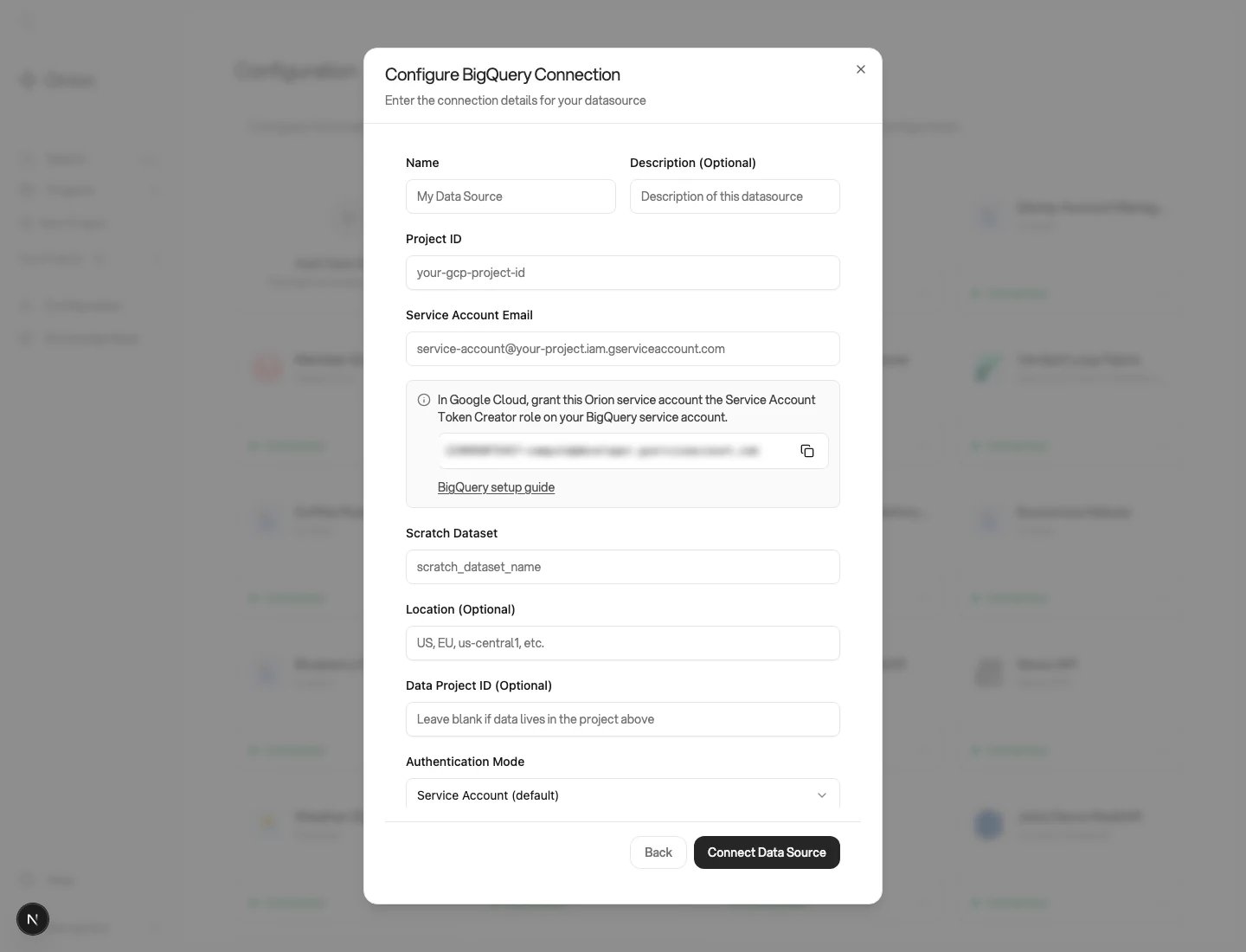
Configure a BigQuery connection
Querying datasets in another project
Orion separates the project that runs your queries from the project that stores your data. The two roles map to the two form fields:- Project ID is the compute and billing project. The service account, the scratch dataset, and every query job live here. Grant BigQuery Job User and BigQuery Read Session User on this project (step 5), and BigQuery Connection User only if you use external tables or federated queries, plus Data Editor on the scratch dataset (step 3). Add BigQuery Resource Viewer here if you want usage intelligence.
- Data Project ID is where your source datasets live. Grant the service account BigQuery Data Viewer on those datasets (step 4).
Usage intelligence permissions
Usage intelligence is optional but recommended. With it, Orion reads BigQuery job metadata to learn which tables, columns, and joins are commonly used, and applies that knowledge when it writes SQL and investigates your data. Without it, Orion still connects, queries, and builds dashboards as normal. The collection reads job metadata only, never query results. To enable it, grant the BigQuery Service Account BigQuery Job User and BigQuery Resource Viewer on every project where the query jobs run. Granting Resource Viewer only on the project that stores the tables does not expose jobs billed through a different execution project. If you use per-user OAuth, these grants still go on the shared service account because scheduled collection is unattended. If Orion reports that usage intelligence needs additional access:- Grant the missing roles to the BigQuery Service Account shown in Orion.
- In Orion, open the data source’s Refresh Data tab.
- Select Full Resync to retry immediately. Orion will also retry during the next nightly refresh.
bigquery.jobs.create and
bigquery.jobs.listAll.
Per-user OAuth (optional)
By default, Orion queries BigQuery through the shared service account above. With per-user OAuth, Orion instead runs each person’s BigQuery queries under their own Google identity, so what each user can see in Orion follows the BigQuery permissions they already have, rather than a single shared service account.Create an OAuth client in Google Cloud
- In APIs & Services → OAuth consent screen, set the User type to Internal so only your Google Workspace users can sign in
- In APIs & Services → Credentials, click Create Credentials → OAuth client ID
- Application type: Web application
- Add the Authorized redirect URI provided by your Gravity contact. It points at Orion’s OAuth callback, for example
https://g.runorion.com/datasource/bq-oauth/callback - Click Create, then copy the Client ID and Client Secret
Enter the OAuth client in Orion
Each user connects their Google account
- Scheduled work runs as its creator. A metric or workflow that someone schedules runs under that person’s connected account. Work with no individual owner uses the service account.
- If a user disconnects or loses BigQuery access, their scheduled work pauses until they reconnect. This is deliberate: Orion never falls back to broader access than the user has.
Snowflake
Orion connects to Snowflake using key pair authentication. You create a dedicated service user, grant it read-only access to the data you want analyzed, and associate a public key with it. Orion holds the matching private key to authenticate. Connection informationGenerate an encrypted key pair
rsa_key.pub) is added to the Snowflake user.Create (or reuse) a service user
Associate the public key with the service user
Enter the connection in Orion
Snowflake usage intelligence permissions
Usage intelligence is optional but recommended. With it, Orion reads Snowflake query metadata to learn which tables, columns, and joins your team uses most, and applies that knowledge when it writes SQL and investigates your data. Without it, Orion still connects, queries, and builds dashboards as normal. The collection reads query metadata only, never query results. The grant is the last line of the block above. Run it as a role that can grant Snowflake database roles, such asACCOUNTADMIN. That database role gives Orion SNOWFLAKE.ACCOUNT_USAGE.QUERY_HISTORY and SNOWFLAKE.ACCOUNT_USAGE.ACCESS_HISTORY. Query history records which statements ran. Access history records which objects and columns each statement touched.
ACCESS_HISTORY requires Enterprise Edition or higher. On a lower edition the grant succeeds and the view stays unavailable, so Orion reads the query text instead and reports the reduced evidence in the data source’s usage status.
SNOWFLAKE.GOVERNANCE_VIEWER to the role shown in Orion, open the data source’s Refresh Data tab, and select Full Resync.
Usage intelligence found no tables to analyze. The role cannot read the configured database’s metadata, so Orion has nothing to attribute usage to. Grant usage on the database and schema, and select on its tables, then use Refresh Now on the same tab. Orion skips the collection in this state rather than failing the refresh.
A large account can need more than one Full Resync to finish its first 90 days. Each run continues from the progress the last one saved, so partial coverage after one run is expected rather than a failure.
Snowflake fills the Account Usage views on a delay, so Orion collects complete days that are at least four hours old. Activity from the last few hours appears in the next collection.
What we store: Orion uses the private key to authenticate connections. We store the encrypted key and passphrases in our database, and we encrypt your encrypted key. See the Snowflake key pair documentation.
↑ Back to all data sources
Databricks
Orion connects to Databricks using a dedicated Service Principal and a SQL Warehouse for compute. We strongly recommend OAuth M2M authentication.Create a Service Principal
Create credentials
OAuth M2M (recommended)
Personal Access Token (legacy)
Create or identify a SQL Warehouse
Grant access
USE CATALOG, USE SCHEMA, and SELECT
only on the catalogs, schemas, and tables Orion should query. Warehouse usage
intelligence is optional but recommended, and needs the
additional system-table grants
below. Orion does not need admin, ownership, or write permissions.Configure the connection in Orion
Databricks usage intelligence permissions
Usage intelligence is optional but recommended. With it, Orion’s nightly job reads query history and lineage to learn which tables and columns your team uses, and applies that knowledge when it writes SQL and investigates your data. Without it, Orion still connects, queries, and builds dashboards as normal. Optional SQL-text access adds query patterns, filters, and explicit joins. This collection does not read business table rows or historical query results. Your workspace must support Unity Catalog, with thesystem.query and system.access tables available. The existing read grants provide metadata visibility for your selected business catalog and schemas. Usage collection does not need additional SELECT grants on business tables.
Ask an administrator authorized to grant access to these objects to run the following SQL. Replace ORION_SERVICE_PRINCIPAL_APPLICATION_ID with your Service Principal’s application ID, keeping the backticks.
USE CATALOG and USE SCHEMA allow access to the containing namespaces. SELECT allows reads of only the three named system tables. These grants do not include billing tables, audit logs, or write access. See Databricks system-table access.
Optional access to SQL text
For SQL-derived query patterns and joins, ask an account administrator to add Orion’s Service Principal to the account-leveldatabricks_pii_access group. The name is case-sensitive. If the group does not exist, the account administrator must create it through the account console or identity provider.
This membership allows unmasked query text on supported Databricks surfaces where the principal also has access. SQL text can contain sensitive literals, such as names or email addresses. Membership does not replace the system-table grants above, and Orion does not need an account admin role. See Databricks group setup.
Orion processes readable SQL during collection and stores derived usage evidence with literal values removed. The warehouse-usage workflow does not persist raw SQL or query parameter values in Redis or cloud storage.
If you decline this access and Databricks redacts SQL text, Orion still publishes a usage summary when readable lineage provides table evidence:
Verify usage access
Verify access with the same Service Principal Orion uses. A successful connection test does not prove access to query history, lineage, or unmasked SQL text. After the grants take effect, open the data source’s Refresh Data tab and select Full Resync. Review the usage status for missing permissions and coverage limits. Existing connections without a scope must first set Catalog and Included schemas. Open the Connection tab, click Edit, fill both fields, then save. The first collection builds up to 90 complete UTC days of history. Later runs reuse saved history and refresh the newest two days, with at least two hours for system tables to settle. Large workspaces may need multiple runs to complete the initial history. If SQL text stays unavailable after group membership changes, ask your administrator to check encryption settings. Workspaces with customer-managed keys may need additional system-catalog configuration. ↑ Back to all data sourcesLooker
Orion connects to Looker using a dedicated user account with analyst-level (read-only) permissions plus API credentials. You’ll also grant the account access to the Spaces (folders) that hold your dashboards and Looks. Standard deployment: We request a Looker account for the emailorion@gravity.foundation, with permissions matching those of a typical analyst at your organization. Orion only needs read access.
Required permissions (in addition to analyst-level access)
- Models (docs): can be scoped to necessary models via model sets; includes the
explorepermission see_system_activity,see_lookml,see_sqlsee_user_dashboards(or provide PDFs of sample dashboards instead)create_custom_fields: enables building custom fields via + Addlogin_special_email: only if using non-email (third-party) authentication
Open the folder
Manage access
Add the Orion user
orion@gravity.foundation (docs). Then, in Orion, go to Configuration → Data Sources, click Add Data Source, choose Looker, and enter your Looker base URL, the client_id, and the client_secret.
Third-party authentication: If you use Okta or another third-party provider, add the login_special_email permission. Navigate to the Roles section of the Admin panel (https://[organization].cloud.looker.com/admin/roles) and, if you don’t already have external users, create a new permission set. See the Looker documentation.
LookML augmentation (optional)
Beyond querying dashboards and Looks, Orion can read your LookML business logic directly from its GitHub repository, reusing the dimensions, measures, and joins you have already defined to write better SQL. Setup takes about 10 minutes and needs a GitHub repository admin for one step.Open the Looker datasource
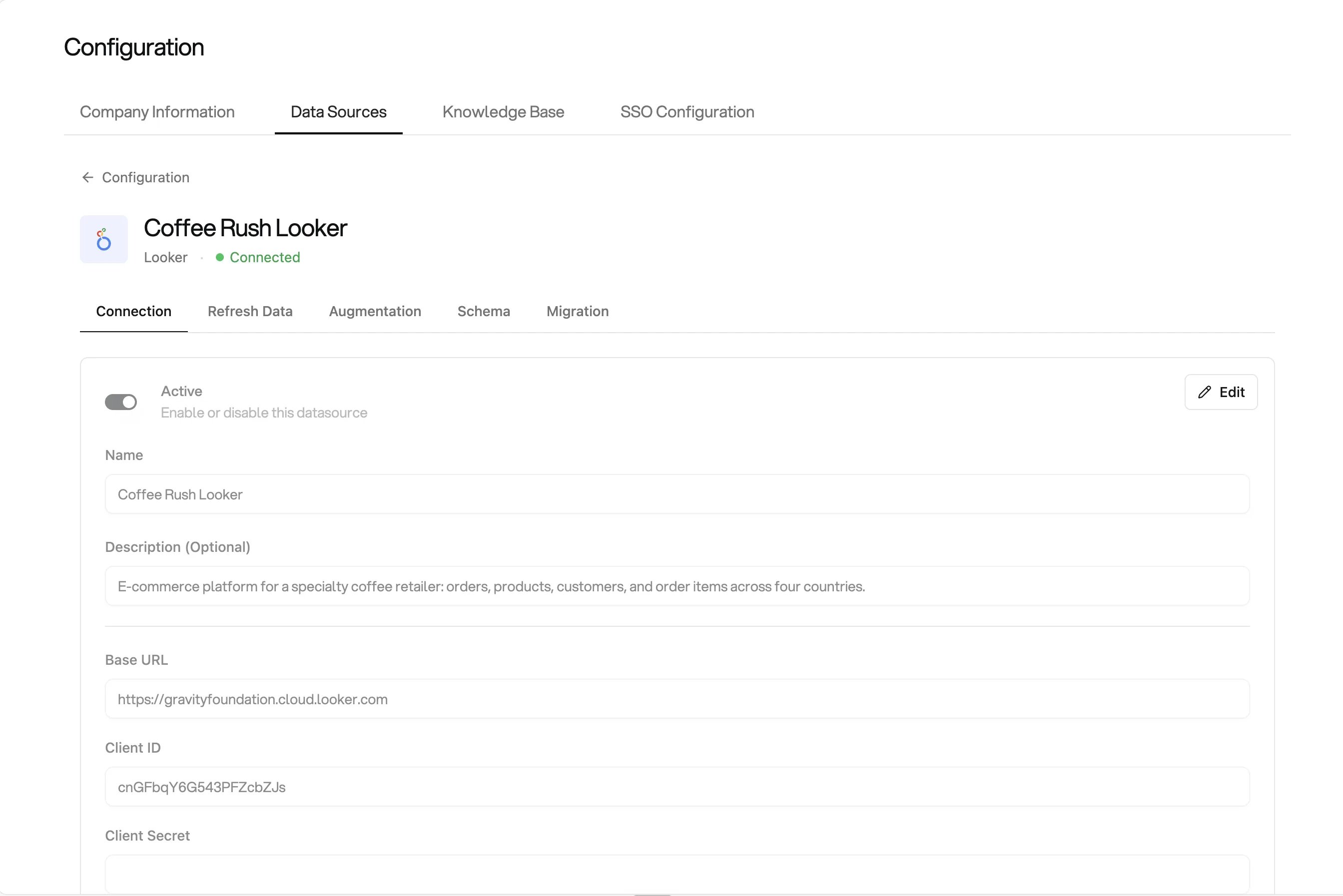
Open the Looker Augmentation tab
Start token creation
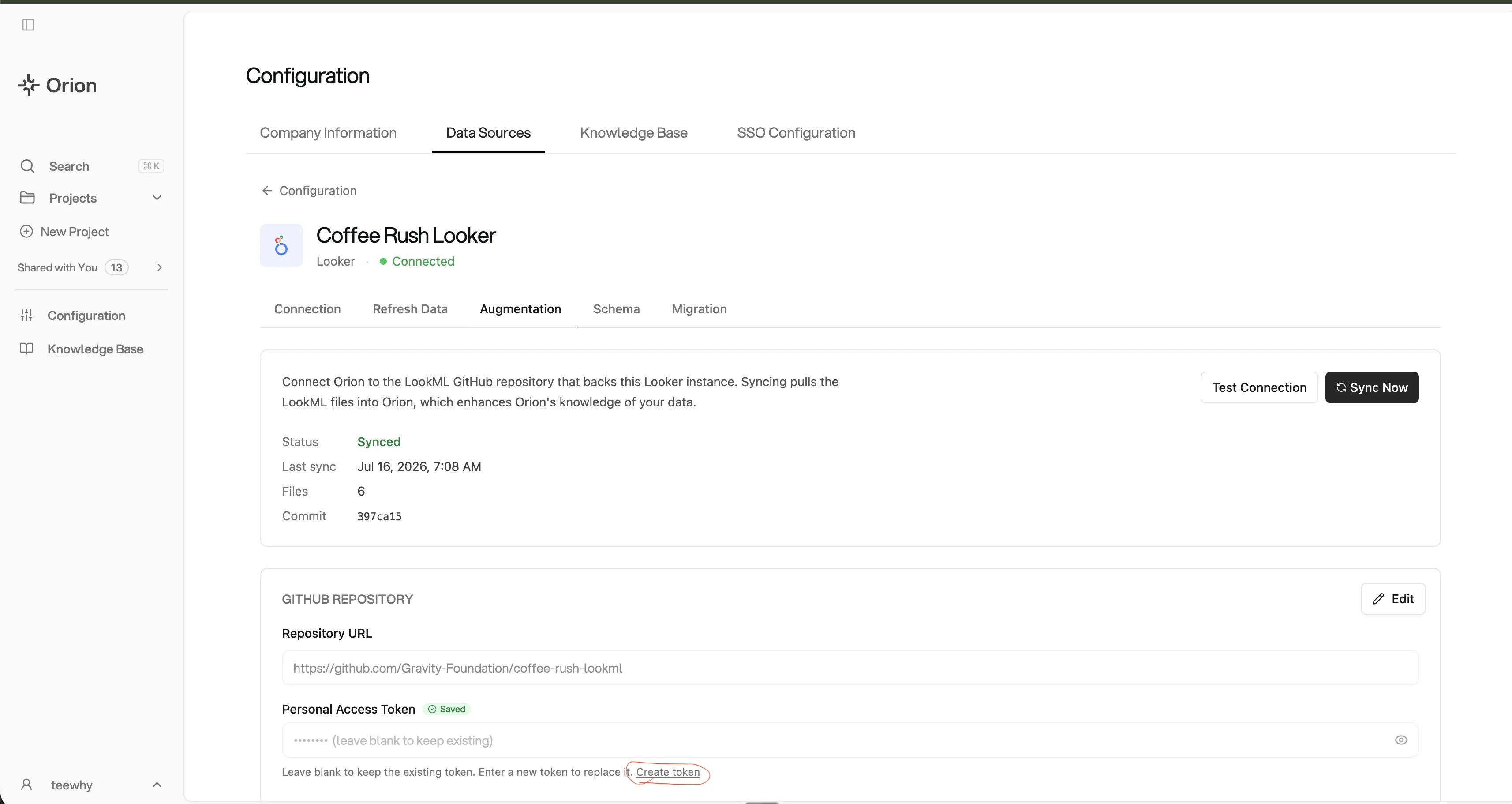
Start creating a GitHub token
Create a fine-grained PAT
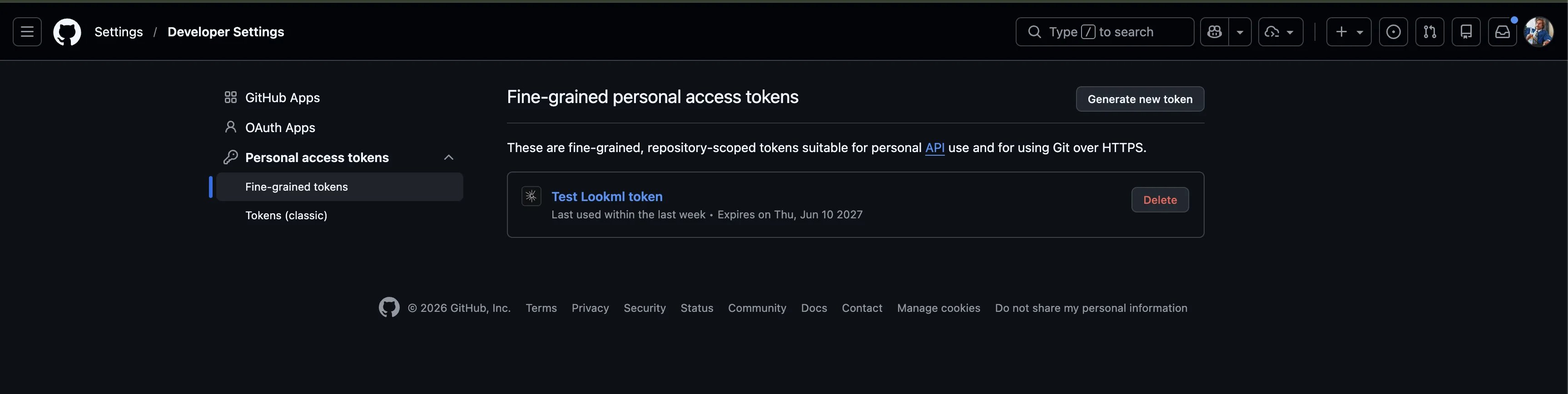
Create a fine-grained GitHub token
Set the resource owner and expiration
- Resource owner: select the organization or account where the Looker GitHub repository lives.
- Expiration (TTL): set the token expiration. We recommend the longest your security policy allows; GitHub’s maximum for fine-grained tokens is 1 year (366 days).
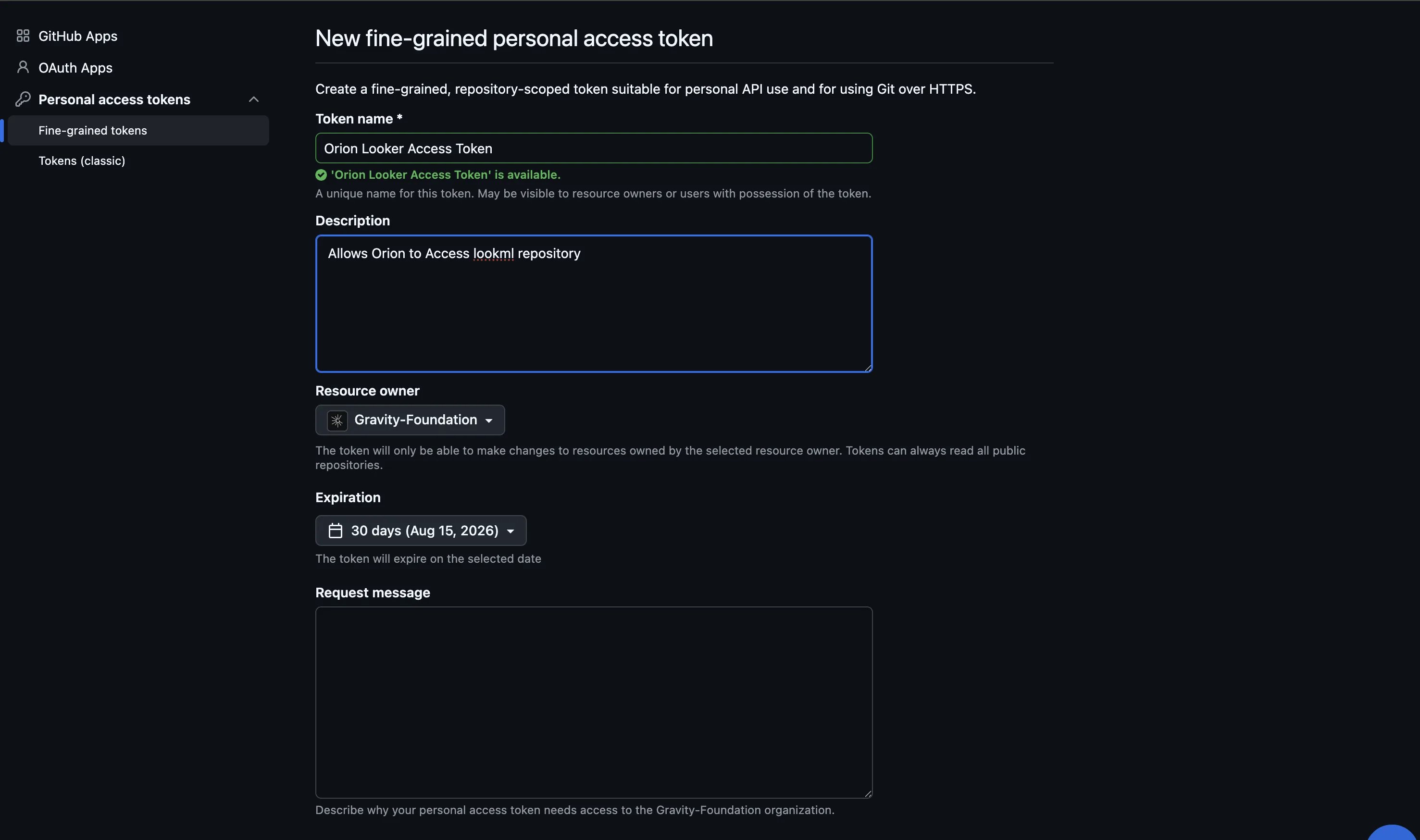
Set the token owner and expiration
Select the repository
Set permissions
- Contents: Read-only
- Metadata: Read-only
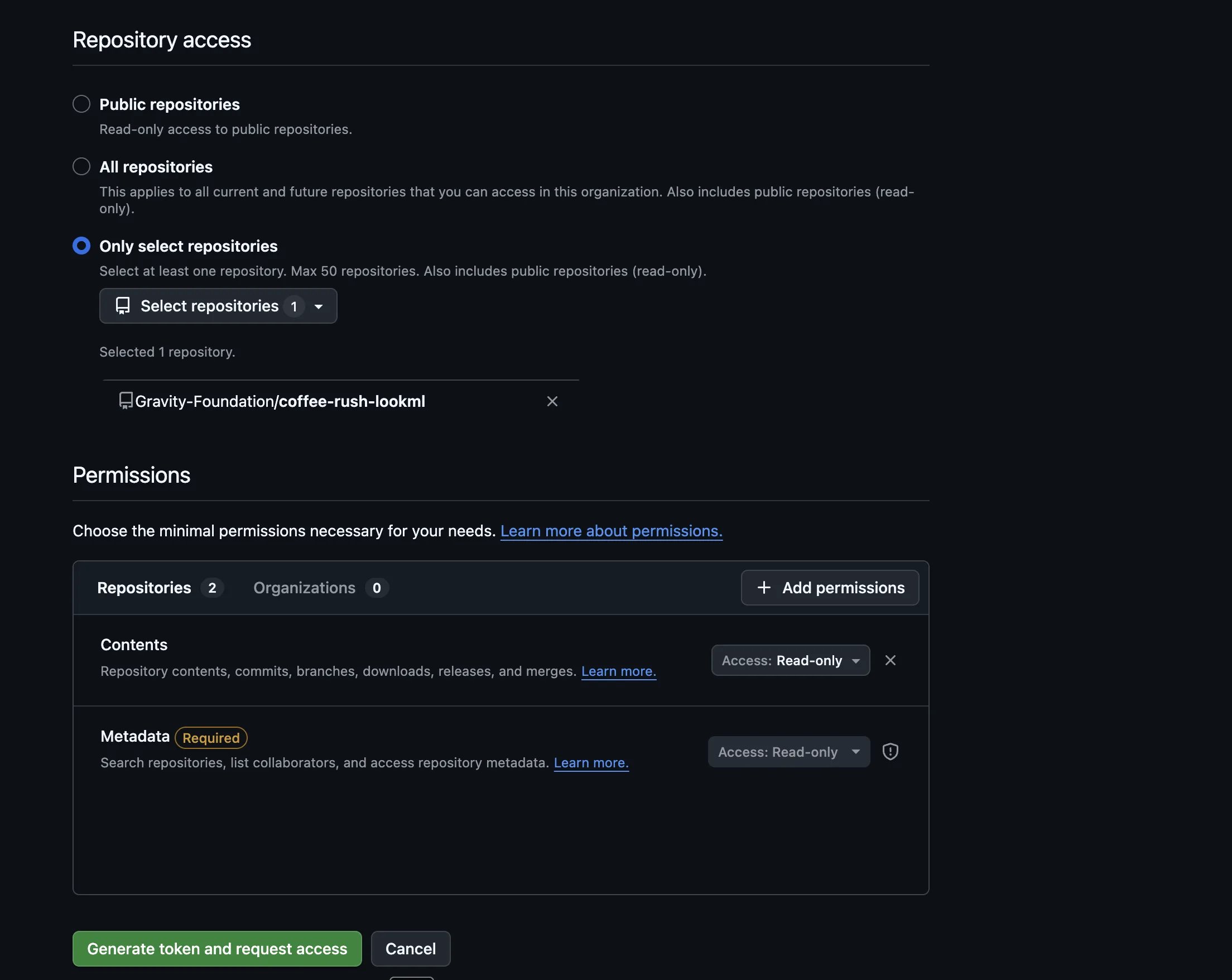
Grant the token read-only repository access
Create the token
Save the configuration
Grant the token's account access to the repository
- In GitHub, open the LookML repository → Settings → Collaborators and teams (under Access).
- Under Manage access, click Add people (or Add teams if you manage access by team).
- Enter the username of the account tied to the token, or the service account created for Orion.
- Set the role to Read. No write or admin access is required.
- Send the invitation.
- The account owner accepts the invite. Until they do, access does not take effect and the connection will still fail.
- Return to the Orion connection and reconnect.
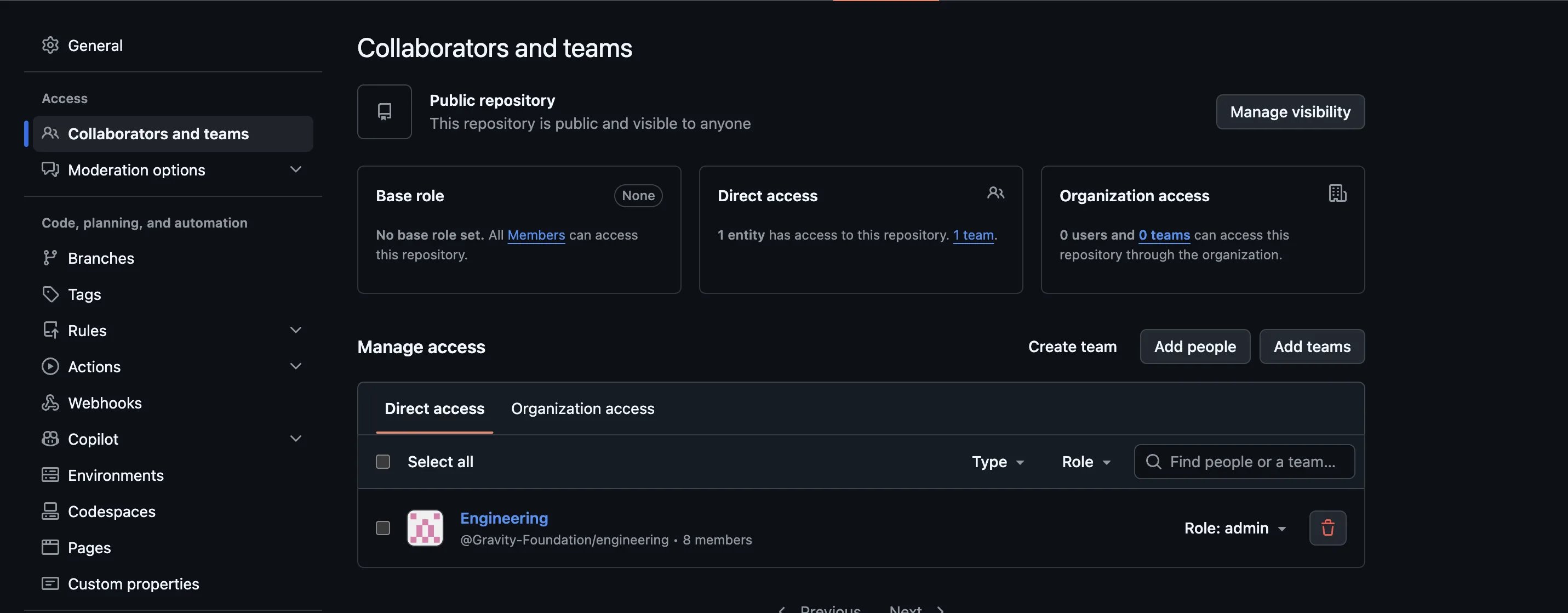
Give the token owner access to the LookML repository
Test the connection
- Success: the connection is valid. Orion can authenticate and see the repo. Click Sync Now to pull the LookML files. When it finishes, Status shows Synced, along with the file count and the latest commit.
- Failure: read the error message:
- “Repository or branch not found” usually means the token’s account lacks Read access to the repo (revisit Step 9), or the branch name is wrong. Leave Branch blank to use the repo default, or enter the correct branch.
- “Authentication failed” means the token is invalid or expired. Generate a new one (Steps 3-7) and re-enter it.
- “Access forbidden” means the token is missing a permission or, if your org enforces SSO, has not been SSO-authorized for the organization.
Migrating dashboards into Orion (optional)
LookML augmentation teaches Orion the business logic behind your models. Migration ports the dashboards themselves into Orion projects, each with its own metrics and workflows. The two are independent, and either one runs on its own.Open the Migration tab
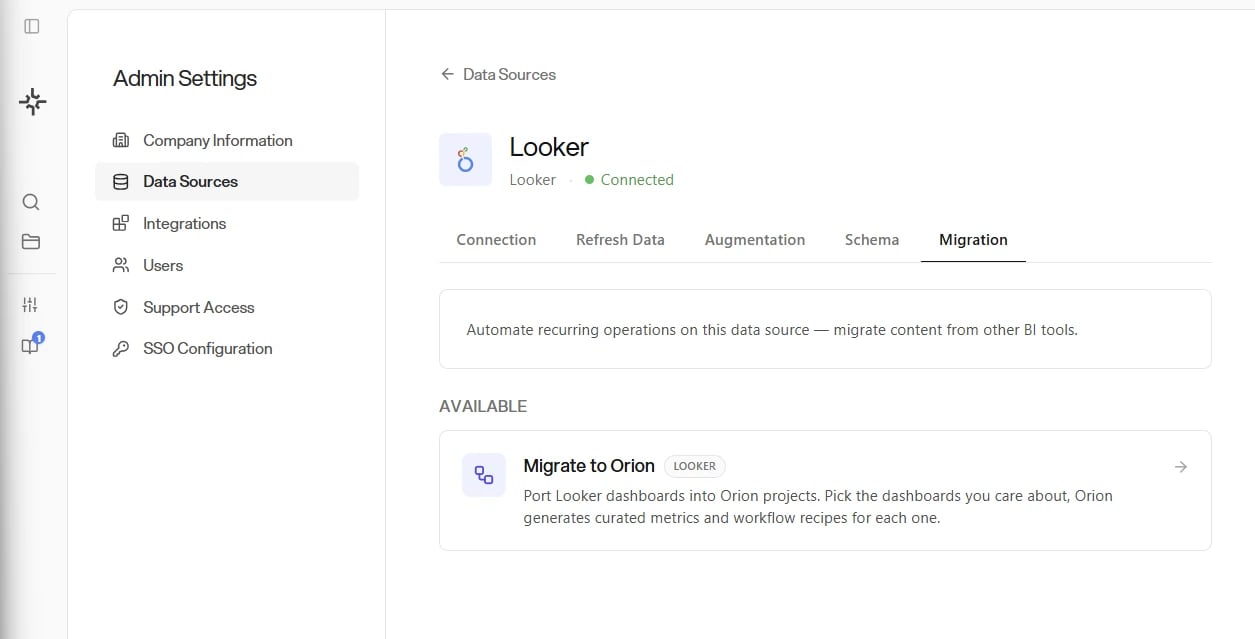
Start a Looker migration
Pick the Target Database
Select the dashboards
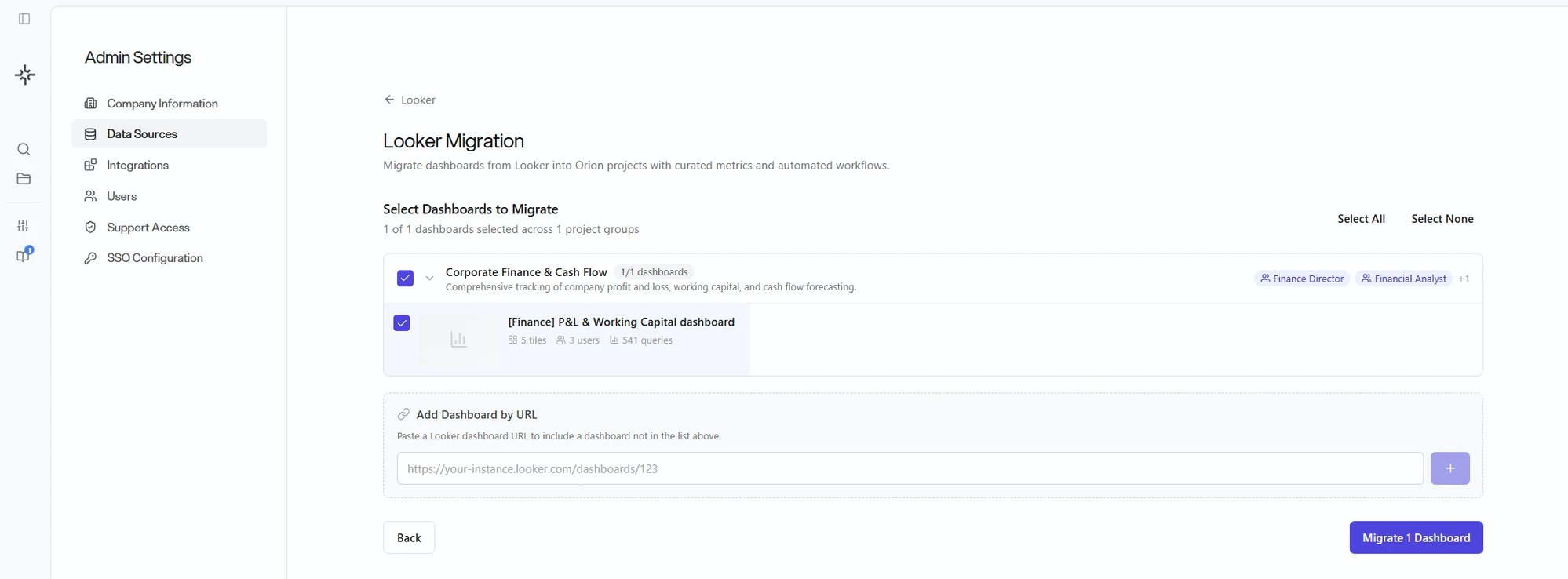
Select Looker dashboards to migrate
PostgreSQL
Orion connects to PostgreSQL with username/password authentication. Create a dedicated read-only user and grant itSELECT on the schemas and tables you want analyzed.
Connection information
Create the service user
Configure PostgreSQL for connections
postgresql.conf: set listen_addresses = '*' so PostgreSQL accepts connections, and ssl = on for SSL connections.Configure client authentication
pg_hba.conf:Restart and grant
Enter the connection in Orion
MySQL
Orion connects to MySQL with username/password authentication. Create a dedicated user and grant it read-only access to the target database. Connection informationCreate the service user
<host_or_%> with the IP/CIDR Orion will connect from (e.g. 'orion_svc'@'10.0.0.0/8'), or use '%' to allow any source.Configure MySQL for connections
my.cnf (or mysqld.cnf):ALTER USER 'orion_svc'@'<host_or_%>' REQUIRE SSL;Restart and grant
Enter the connection in Orion
Redshift
Orion connects to Amazon Redshift (cluster or Serverless workgroup) over the standard PostgreSQL wire protocol (port5439) using username/password authentication. Orion only ever issues read (SELECT) queries.
Connection details
information_schema if it has
been granted access, so these grants also determine what Orion can discover.5439 from Orion’s egress IP range in the cluster’s VPC security group. See the docs on managing Redshift security groups.
Enter the connection in Orion: go to Configuration → Data Sources, click Add Data Source, choose Amazon Redshift, and enter the connection details from the table above.
↑ Back to all data sources
Amazon Athena
Orion connects to Amazon Athena to run serverless SQL over data in S3. Table and column metadata comes from your AWS Glue Data Catalog; queries run through Athena and write their results to an S3 output location you control. Orion only ever issues read (SELECT) queries against your tables.
Authentication uses an IAM access key for a dedicated user. You create the user, attach a least-privilege policy, and enter the access key ID and secret in Orion.
Create a dedicated IAM user
orion-athena) with programmatic access, then create an access key for it. Copy the Access Key ID and Secret Access Key; the secret is only shown once.Attach a least-privilege policy
/. Ask your Gravity contact for Orion’s egress IPs if you use the final, optional deny statement.AthenaUsageHistory is optional. Remove that statement if you do not want Orion to read the workgroup’s query history. DenyOutsideOrionEgress is also optional; remove it if you do not want to restrict direct use of the access key to Orion’s egress IPs.Orion tenants share these egress IPs. The IP condition does not identify a tenant; the dedicated access key and its permissions control access to your resources.Confirm the workgroup and output location
Enter the connection in Orion
AwsDataCatalog.- IAM access key only. Cross-account IAM role assumption is a planned fast-follow; today the connection uses a long-lived access key, so rotate it on your normal cadence.
- Output location is mandatory. Athena cannot run a query without a place to write results, so the workgroup must enforce one or you must supply the S3 Output Location.
- dbt enrichment is supported on Athena connections (see dbt); semantic enrichment from a Looker connection can also be projected onto Athena schemas.
Microsoft Fabric
Orion connects to a Microsoft Fabric Warehouse using a Service Principal (App Registration) in your Microsoft Entra ID tenant. Orion connects over TDS (the SQL endpoint) using ODBC Driver 18 with Service Principal authentication, with no interactive login required. Azure App Registration- Create an App Registration in your Entra ID tenant (docs)
- Note the Application (client) ID and Directory (tenant) ID
- Create a Client Secret under Certificates & secrets (docs) and note the secret value (not the Secret ID). Recommended expiry: 12 months
- Navigate to Fabric Admin Portal → Tenant settings → Developer settings
- Enable Service principals can use Fabric APIs
- Scope to a security group containing the Orion Service Principal (recommended), or enable for the entire organization
xxxxxxxx.datawarehouse.fabric.microsoft.com. Note the Database name (the Warehouse name).
Credentials summary
SELECT only) to discover your schema via
INFORMATION_SCHEMA, run agent-generated queries, and stream results into its
analysis pipeline. It never executes DDL, DML, or stored procedures. If you
use dbt with Fabric, Orion can enrich metadata with dbt models and lineage;
see dbt.Delta Lake
Orion connects to Delta Lake tables on Azure Data Lake Storage Gen2 (abfss://) or Google Cloud Storage (gs://). Orion reads the Delta table directly via its transaction log. There is no warehouse, cluster, or notebook to provision.
You provide two things: the Delta table or table root URI, and credentials with read access to that location. The URI points at a Delta table folder, or at a parent folder holding many Delta tables. Set Object storage to the provider that holds them: Orion refuses a URI whose scheme does not match that selection.
- Azure Data Lake Storage Gen2
- Google Cloud Storage
- The Table URI looks like
abfss://<container>@<storage-account>.dfs.core.windows.net/<path> <path>can point to a single Delta table folder (containing a_delta_log/subdirectory) or a parent folder; in the parent case, Orion exposes every Delta table found underneath- Confirm hierarchical namespace is enabled on the storage account (required for
abfss://)
SAS token (preferred)
sp=rl), expiry 90 days
or longer. Send the token query string (with or without a leading ?).Account key
abfss://... URI, the Azure storage account name, and your credential. Storage authentication is where you pick SAS token or Account key. The account name is required with either one.MotherDuck
Orion connects to MotherDuck using access token authentication. You create an access token in your MotherDuck account, and Orion uses it to run read-only (SELECT) queries against a single database. There is no service user, warehouse, or cluster to configure.
Connection information
Create an access token
- In MotherDuck, go to Settings → Access Tokens
- Create a token. A Read Scaling token is recommended
- Copy the token
eyJhbGciOiJIUzI1NiIsInR5cCI6IkpXVCJ9.eyJ1c2VyIjoi....Enter the connection in Orion
analytics), not the md:analytics form a
MotherDuck connection string uses. Names accept letters, digits,
underscores, and hyphens, up to 128 characters, starting with a letter,
digit, or underscore.dbt
Orion connects to dbt to enrich a warehouse connection with your dbt model descriptions and lineage. dbt is not a data source of its own: you attach a dbt project to a warehouse connection you have already set up. Pick the dbt Source Type by where your project’s metadata lives. Choose dbt Cloud if your production jobs run in dbt Cloud. Choose GitHub Repository if you run dbt Core from a GitHub repository. Choose Upload manifest.json if Orion cannot reach either, because then you supply the file yourself.- In Orion, go to Configuration → Data Sources
- Click the data source tile you want to enrich, then select the Augmentation tab
- On the dbt project card, open Add a dbt project
- Set dbt Source Type, then follow the matching tab below
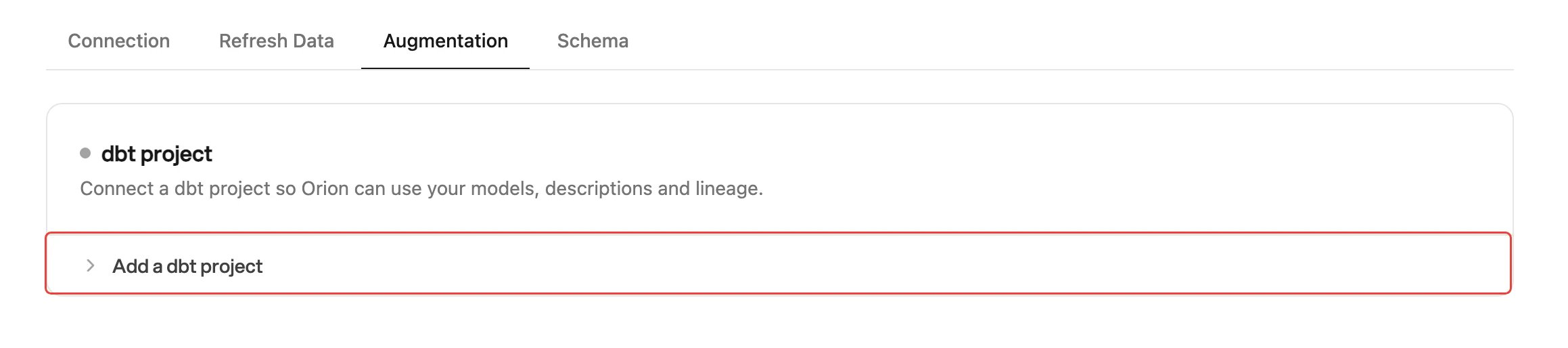
Connect a dbt project to a data source
- dbt Cloud
- GitHub Repository
- Upload manifest.json
manifest.json from the latest successful run in the dbt Cloud environment you name. It fetches the file through the dbt Administrative API, so the token needs read access to jobs and runs. The environment needs at least one successful run before Orion can sync.Create the tokenCreate a dbt Cloud service token with a permission set that can read jobs and runs, such as Job Viewer or Read-Only. Give it access to the project you are connecting. A personal access token also works, with the access of the user who owns it.Fill in the formhttps:// and a trailing slash. It must be a dbt host under getdbt.com or dbt.com. If you change the access URL later, enter the API token again: Orion does not send a saved token to a new host.News API
Orion can search news headlines and fold them into an analysis as a dataset, useful for explaining external context behind a change in your numbers (“did coverage spike the week signups jumped?”).Get a NewsAPI.org key
Add the connection
- In Orion, go to Configuration → Data Sources and click Add Data Source
- Select News API
- Enter the key in NewsAPI.org API Key and click Connect Data Source