

Portals requires tenant administrator access and must be enabled for your
workspace. You open it from Portals in the left-hand navigation menu.
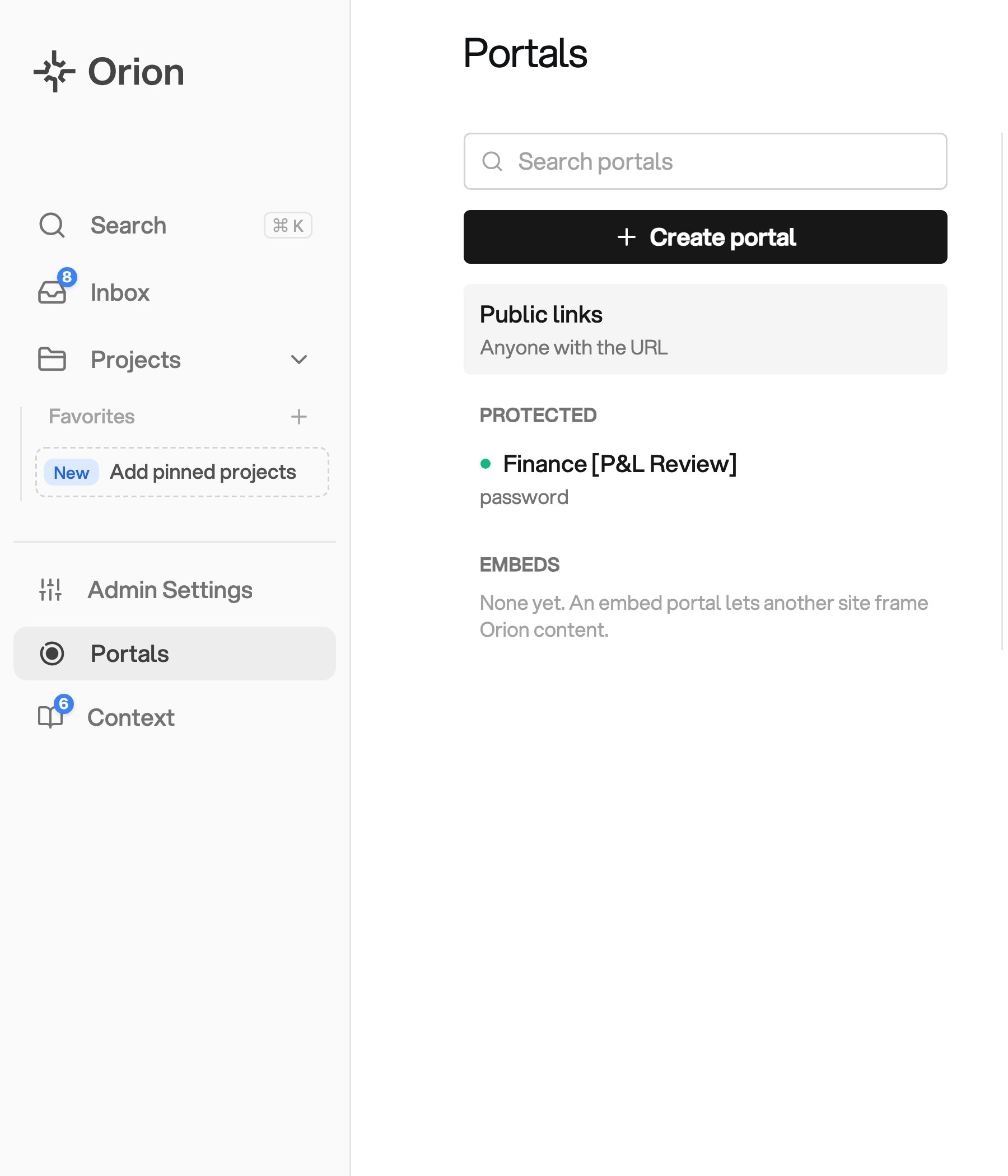
Open Portals, then create a portal
Choosing a Portal Type
Choose the sharing method according to who should be able to open the content.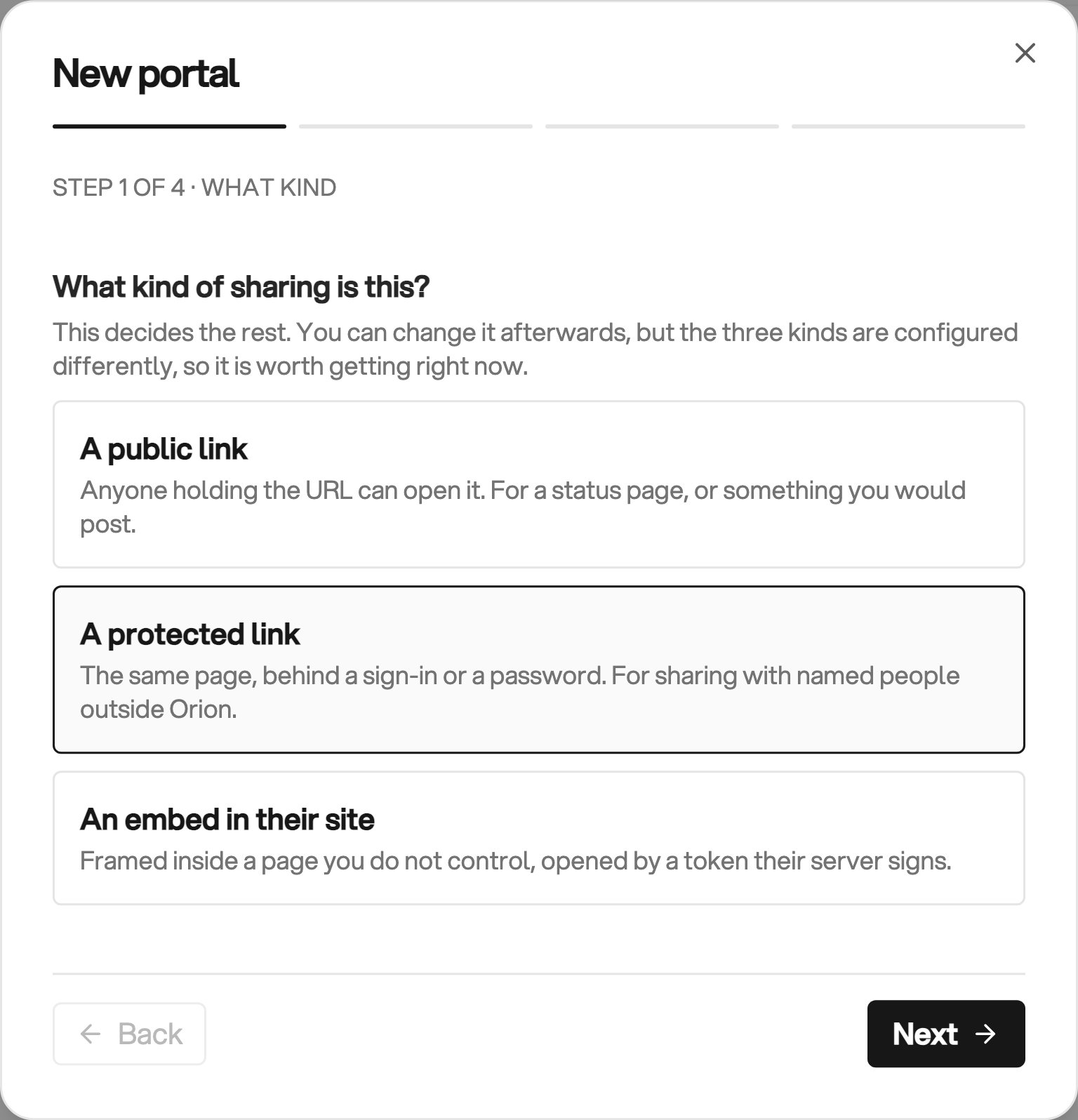
Choose how people will open the content
Publishing a Public Link
- Select Public links in Portals, then click Publish public link
- Click Choose an artifact, select the content, and set Expires after
- Click Publish, then copy the link
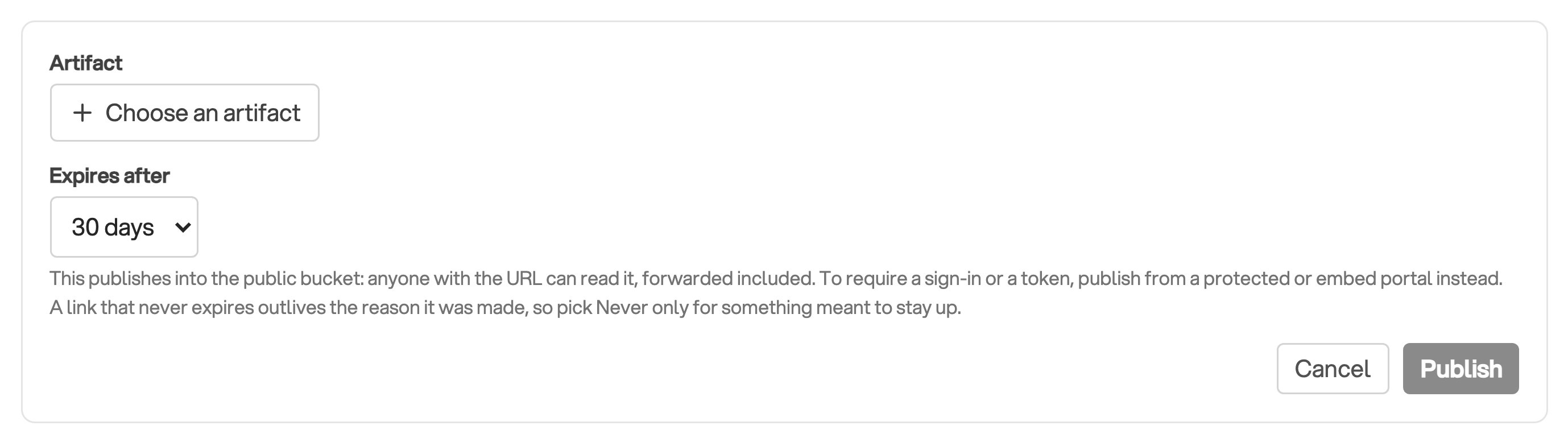
Choose the content and when its public link expires
Creating a Protected Portal or Embed
For protected links and embeds, click Create portal, then work through the dialog:- Choose A protected link or An embed in their site
- Name the portal after the audience it serves, such as a customer or a site
- For an embed, add the origins allowed to frame it
- Choose how a reader gets in, and for SSO add at least one rule saying who is allowed
- Confirm
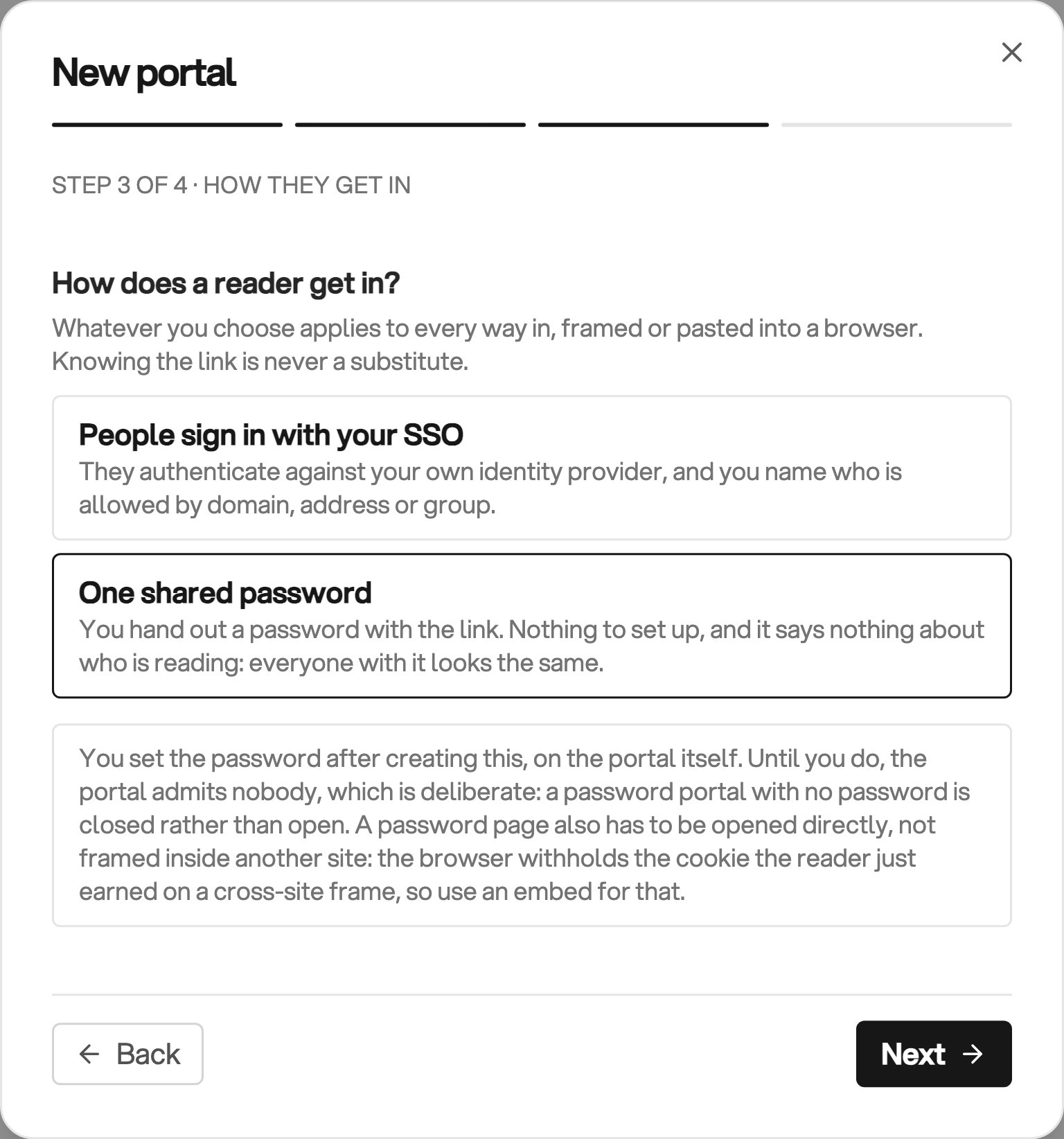
Choose SSO or a shared password for protected access
Adding an Artifact and Publishing a Link
A protected portal or embed can serve dashboards, reports, and slide decks. Add the content first, then publish a link to it.- Open the portal and its Artifacts tab
- Click Add artifact, then search by artifact or project name
- Set Link expiry, then click Publish link on the artifact’s row
Starting From the Artifact
On a project page, open the artifact’s … actions menu and choose Share externally. With the artifact open, choose More → Make Public to open the same dialog.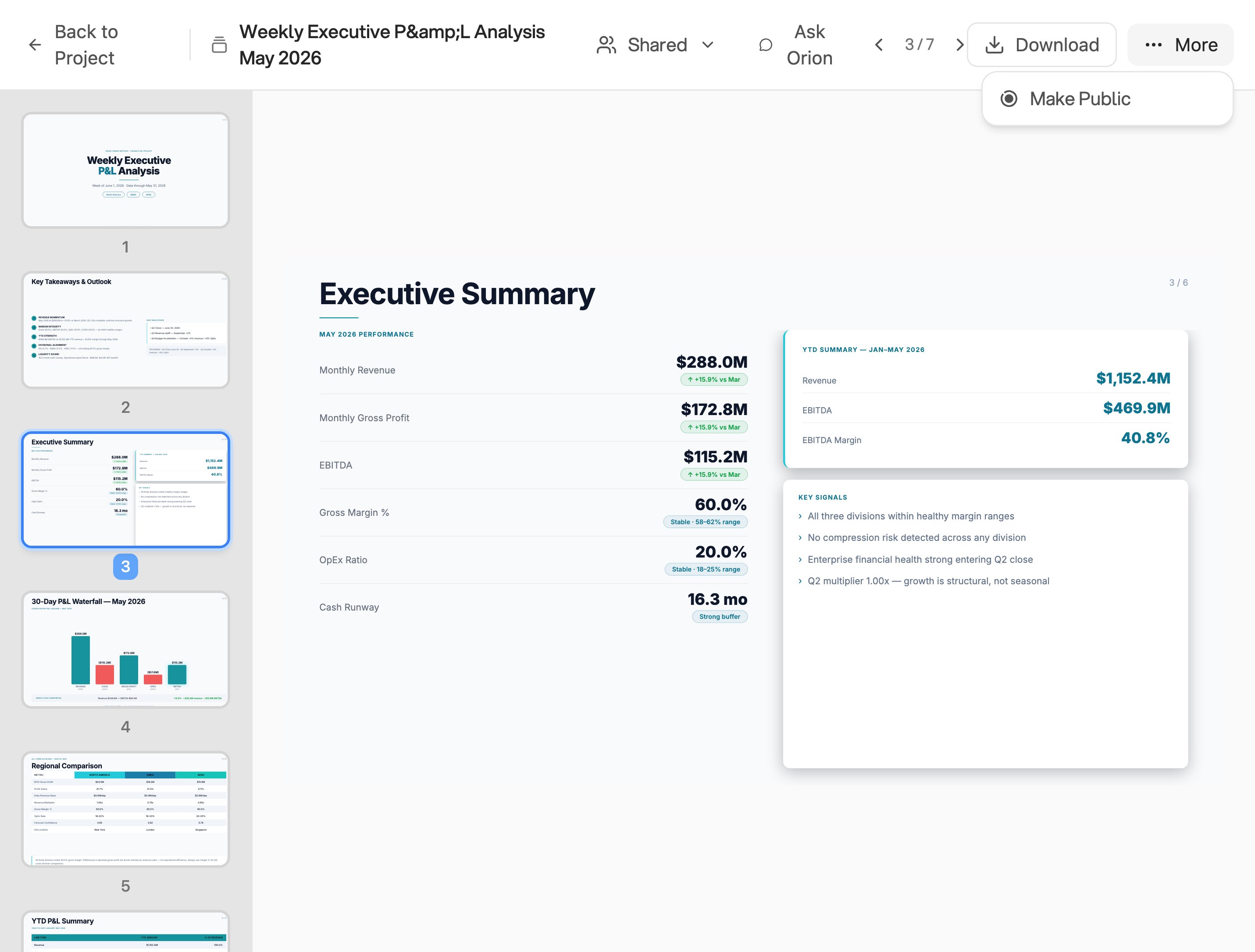
Open external sharing from the slide deck's More menu
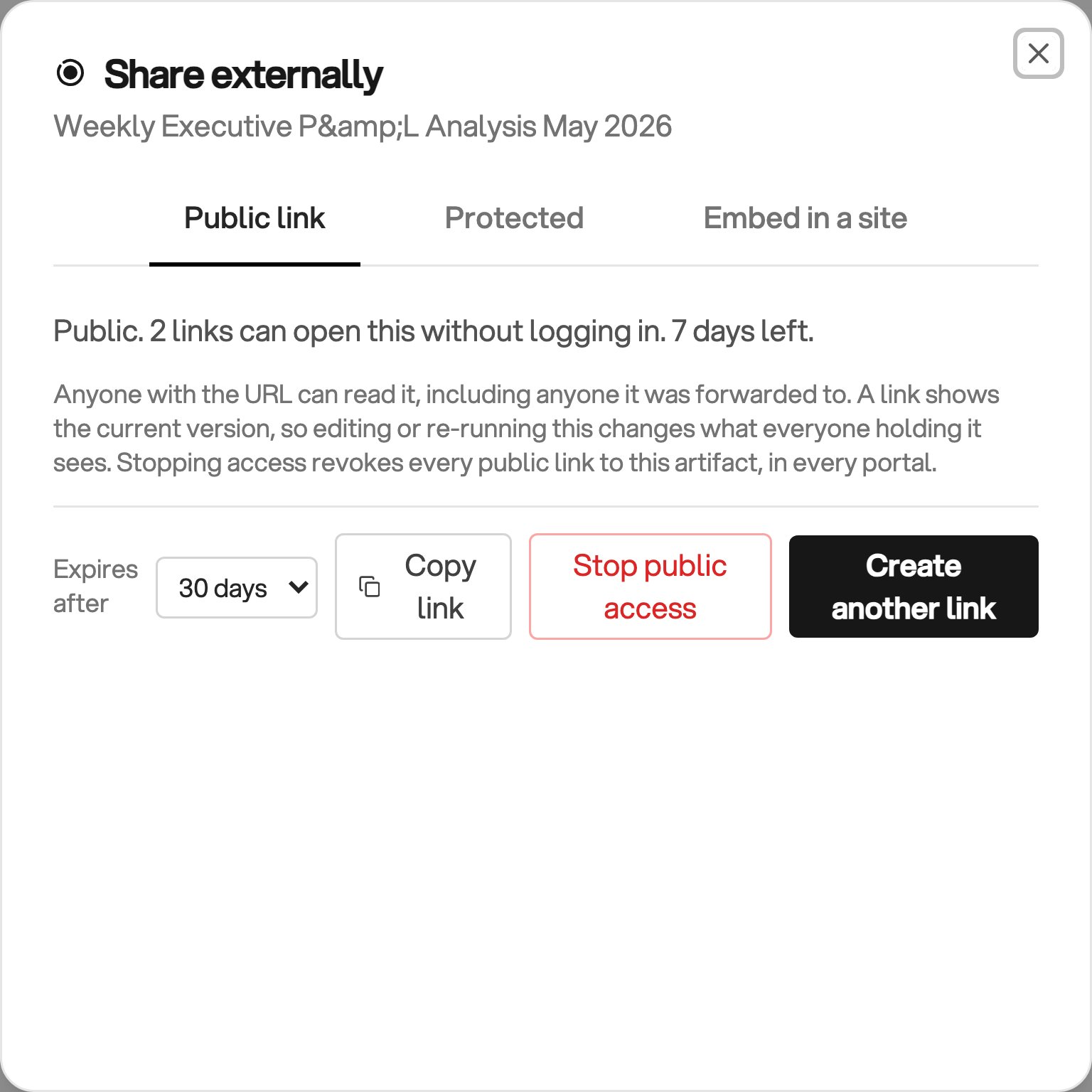
Share content publicly or through an existing portal
Embedding in Another Site
An embed portal is framed inside a page you do not control, so it needs two things the other kinds do not.- Origins: list the site origins allowed to frame the content, such as
https://acme.example. Include any port, but no path - Signing keys: Create key shows the key once. Keep it securely, because Orion cannot show it again
Expiry, Revoking and Disabling
Choose an expiry before publishing. Use Never only for content intended to stay available indefinitely. Revoke stops one URL immediately. Its row stays as history. Disable stops a whole portal, and Enable brings it back.What a Reader Sees
- Public link: the page opens, with no sign-in
- Password: a prompt headed “This page is password protected”. The unlock covers that one link, so opening one page does not unlock the next you send
- SSO: a prompt headed “Sign in to open this page”, with a button for each provider. A reader who signs in and matches no rule is told “You do not have access to this page”
- Embed: the artifact renders inside the other site’s page
- Revoked, expired, or under a disabled portal: a page not found
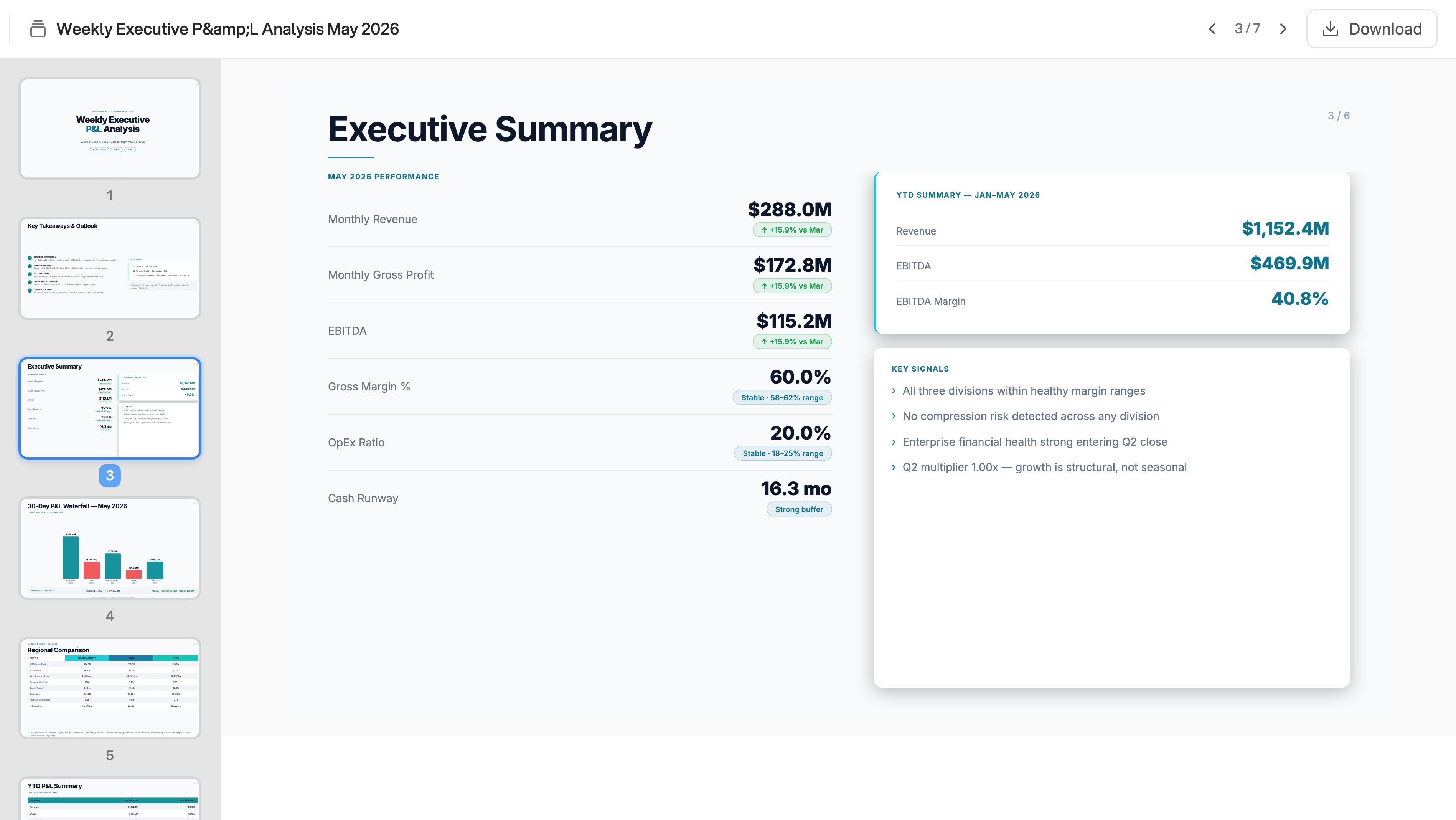
Read shared content without entering the project
Who Can Use Portals
Only tenant administrators manage portals. Analysts and viewers cannot use Portals or Share externally. See Groups for workspace roles.Next Steps
SSO
Set up the provider and the portal visitor domains a protected link checks
Publish and Share
Share a dashboard with teammates who do sign in to Orion