

Editing from chat
With the dashboard open in its panel beside the chat, click Edit. The cursor becomes a crosshair, and clicking any card, heading, or text element selects it and offers a Comment button. Your comments collect in a panel, so you can send them together. Click more elements and write what to change about each one. For example, “make this a bar chart”, or “this title should say Q3”. Then click Send. Orion applies the whole batch, the canvas refreshes itself, and edit mode exits. If the result is not correct, send a follow-up reply in the same thread. Edit mode is off by default, so filters and charts stay interactive until you ask for it. You can also skip the pointing entirely and just ask in chat: “change the dashboard title to Q1 2026 Report”. An edit that stops early says so and saves nothing from that attempt. Ask again in the same conversation and Orion continues from its draft. When a request needs data the dashboard does not hold, Orion names the gap rather than guessing a number.The dashboard editor
A dashboard also has its own editor. From the project’s Content page, open the dashboard card’s menu and choose Edit Dashboard. On an open dashboard, select More, then Edit, to open the same editor. A Currently editing banner spans the top of the editor. Exit edit mode in the banner leaves the editor, and asks for confirmation first when there are unsaved changes. Click a card to open its settings panel. Depending on the card, the panel changes its Chart type, the columns it plots, its sort order, or how many top categories it shows. A chart’s number format is Value format, and a KPI tile’s is Number format. Remove card deletes it. Some charts open a chart editor instead. A card that reads a saved view opens the dialog under Editing a chart card. These changes stay in the draft until Save.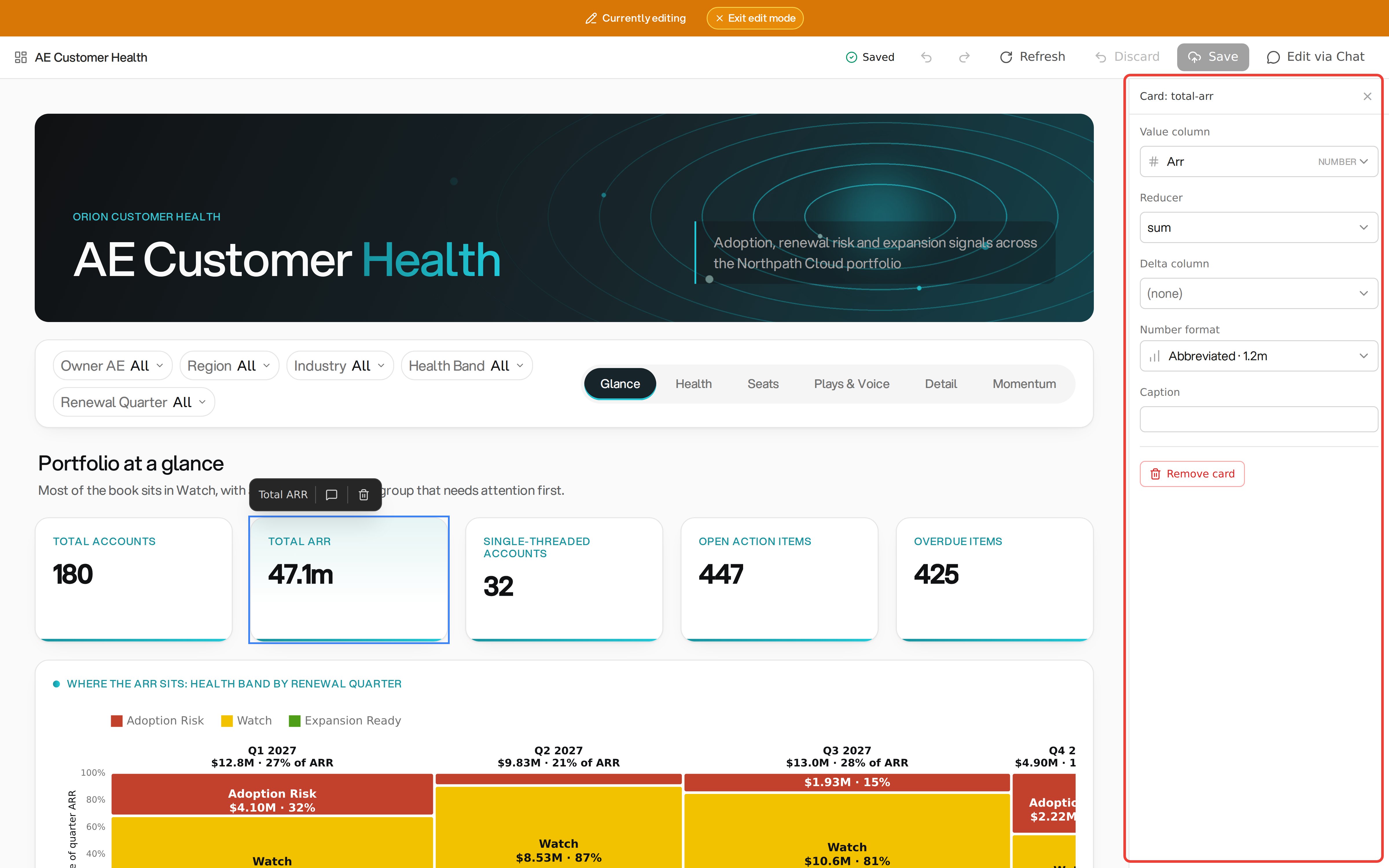
A card selected in the dashboard editor
Editing a chart card
Clicking a slice card, the kind that reads a saved view, opens a full-screen dialog rather than the settings panel. It carries the same controls as the Workbench, including Advanced mode. The chart redraws beside them, so you read the result before you keep it. Three buttons sit below the chart, and each one closes the dialog:- Apply: put the chart you built into the draft. The dashboard still needs Save
- Cancel: leave the card as it was
- Ask Orion: hand the chart as you built it to chat, unsaved